Convert an EA9 Project to CM5 V9 Series Project
You can convert EA9 Version 6.80 or later projects to Version 9. Version 9 includes improved features, objects, and tools.
-
Open the CM5 V9 software.
-
Select Open Project from the File Menu.
-
Select an EA9 version 6.80 project file with the extension .eap9.
-
Version 9.x project files use the extension .cmpv.
-
The conversion creates a new file and does not overwrite the original project.
| Attention: | Before you import a project into V9.x, update the project to the minimum required version: V8.26 or later. Older versions may import correctly, but only projects at the minimum version or later are fully guaranteed to import without errors. |
Resolution
When you open a C-more EA9 series project in C-more CM5 series software (v9.0), the software converts the project to the C-more CM5 series panel type and resolution that most closely matches the original panel type and resolution. Conversion does not affect your C-more EA9 project. Save the new C-more CM5 series project. The new file extension for v9.0 and higher is .cmpv.
| Comparable Panel Models and Resolutions | |||
|---|---|---|---|
|
C-more EA9 |
Resolution |
C-more CM5 |
Resolution |
|
EA9-T6CL-R |
320x240 |
CM5-T7W |
800x480 |
|
EA9-T6CL |
|||
|
EA9-T7CL-R |
400x240 or |
||
|
EA9-T7CL |
|||
|
EA9-T8CL |
640x480 or |
CM5-T10W |
1024x600 |
|
EA9-T10CL |
|||
|
EA9-T10WCL |
1240x1024 |
||
|
EA9-T12CL |
800x600 |
CM5-T12W |
1280x800 |
|
EA9-T15CL-R |
640x480 or 1024x768 |
CM5-T15W |
1366x768 |
|
EA9-T15CL |
|||
|
EA9-RHMI |
1280x720 |
CM5-T22W |
1920x1080 |
What if I Do Not Have the EA9 Software?
The CM5 series software cannot read a project from an EA9 series panel.
If you have an EA9 series panel, but you do not have the EA9-PGMSW software, you can download it for free from the AutomationDirect website, www.automationdirect.com. If you cannot get the software, you can still retrieve the project from the panel and open it in the CM5 series software.
-
Insert a USB pen drive or SD card into the EA9 series panel.
-
Hold the upper left corner of the panel screen for three seconds to go to the System Screen.
-
Select the device to back up to, USB, SD1, or SD2.
-
Select Project, Next, and OK.
-
The project copies to the device.
-
Remove the memory device from the panel.
-
Insert into your PC.
-
In the CM5 software navigate to the EA_MemoryCopy folder and select the .eas9 file type.
-
Open the StartupStorage.eas9 file.
V9.x Conversion Results
After conversion, a window shows conversion issues. Most objects import into V9.x without changes. Some objects use new components and may appear or behave differently than expected. Do a thorough review of your project. Check the following areas:
Line Chart Settings
Line Trend Graph converts to the new Line Chart object. The new object uses default settings for new properties. Review all settings to confirm they meet your requirements.
Bitmap Images
Version 9.x does not support Symbol Factory®, which versions 6.x and 8.x used. CM5 now includes Graphic Studio®. Symbol Factory® images from older projects will import into version 9.x. Review the import results.
Expected Conversion Codes
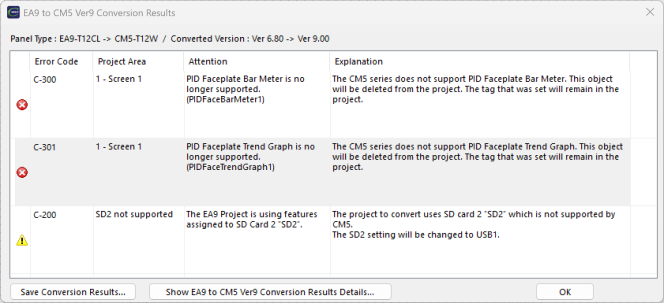
PID Faceplate
PID Faceplate objects are not supported in version 9.x and are removed during conversion. Tags assigned to the PID Faceplate objects remain in the project.
To replace PID Faceplate objects, use standard objects from the Object List.
Memory Card Slots
All C-more CM5 series panels have one SD card slot SD1. The 12in and 15in panels have one SD card slot. You must change SD2 in EA9 projects to SD1 or USB.
Fonts and Adjust Screen Fonts
EA9 runs on Windows CE. CM5 runs on Linux OS. Although both operating systems use the same fonts, there are differences in how each operating system renders fonts. These differences can affect word wrap and padding in some objects.
In V9, the software standardizes fonts so the HMI display and the programming software show an exact match. Review your projects to make sure all text is visible. If you need to change text size, use the Adjust Screen Fonts tool on the Edit ribbon to adjust all text on a screen or in an entire project, one pixel at a time.
Objects
A key feature of V9 is that it combines several object types into single objects. Each new object has more features, while the reduced number decreases project size and complexity.
Example: V9 combines the seven objects listed below into a single Button/Indicator control:
-
Button
-
Bitmap Button
-
Indicator Button
-
Indicator
-
Switch
-
Dynamic Bitmap
-
Triggered Text
In EA9, the only difference between the Triggered Text object and the Button object is text display text amount. In V9, buttons support more text and include the Triggered Text control and functionality. In V9, you can also assign an image to any button.
Find Objects by EA9 Name
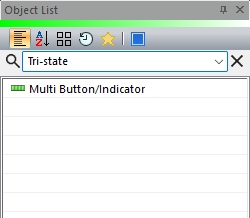
A keyword search field is available at the top of the Object List.
Example: To find the old Tri-state switch, type Tri-state in the search field. The Object List shows the new Multibutton/Indicator control, which includes all the functionality of the old Tri-state control and new features.
Object Settings
Version 9 objects include new features. The default settings for these new features may change the appearance of each object. Review all object settings to make sure your project looks and behaves as intended.
Object Conversion Reference
|
V6 and V8 Object |
V9 Object |
Change Notes |
|---|---|---|
|
Activate Screen Saver |
System objects combined into one control |
|
|
Adjust Display |
System objects combined into one control |
|
|
Alarm List |
No change |
|
|
Analog Clock |
Analog and digital clock objects combined into one object |
|
|
Analog Meter |
Enhanced control |
|
|
Animation Bitmap |
Image control supports animation |
|
|
Bar/Circle Meter |
Enhanced control |
|
|
Bitmap Button |
All buttons now support images |
|
|
Bitmap Text |
Static Text object now supports all fonts; Bitmap Text is unnecessary |
|
|
Call Alarm Screen |
Use a standard screen with an Alarm List Control object for Call Alarm Screen features |
|
|
Call Recipe |
Merged with the Recipe button |
|
|
Circle |
Minor changes |
|
|
Digital Clock |
Analog and digital clock objects combined into one object |
|
|
Dynamic Bitmap |
Button/Indicator now includes Dynamic Bitmap and other objects |
|
|
Dynamic Text |
Text entry and dynamic text functions combined into one object |
|
|
Frame |
Replaces the Frame object with expanded capabilities |
|
|
Increment/Decrement Hour |
System objects combined into one control |
|
|
Increment/Decrement Value |
Enhanced control |
|
|
Indicator Button |
Merged with similar controls |
|
|
Indicator Light |
Merged with similar controls |
|
|
Key Button |
System Key is merged into System Control |
|
|
Line |
Minor changes |
|
|
Line Trend Graph |
New capabilities added |
|
|
Lookup Text |
Message Display uses a global database and a shared message list |
|
|
Multistate Bitmap |
Image control supports single or multiple images |
|
|
Multistate Text Indicator |
Message display uses a local database |
|
|
Numeric Display |
Entry and display functions combined into one object |
|
|
Numeric Entry |
Entry and display functions combined |
|
|
Popup Window Frame |
No change |
|
|
Pushbutton |
Merged with similar controls |
|
|
QR |
No change |
|
|
Radio Button |
Interdependent button types merged into one control |
|
|
Recipe |
No change |
|
|
Rectangle |
Includes rectangles, triangles, and other polygon shapes |
|
|
Screen Change Pushbutton |
Screen change objects combined into one object |
|
|
Screen Selector |
Screen change objects combined into one object |
|
|
Set Language |
System objects combined into one control |
|
|
Slider |
Minor enhancements |
|
|
Static Bitmap |
Image Object now includes Static Bitmap and other objects |
|
|
Static Text |
Minor enhancements |
|
|
Step Switch |
Interdependent button types merged into one control |
|
|
Switch |
Merged with similar controls |
|
|
Text Entry |
Text Entry and dynamic text functions combined into one object |
|
|
Thumbwheel |
Enhanced control |
|
|
Tri-State Switch |
Interdependent button types merged into one control |
|
|
Triangle |
Includes rectangles, triangles, and other polygon shapes |
|
|
Triggered Text |
Button/Indicator now includes Triggered Text and other objects |
|
|
Valve Indicator |
Enhanced for use beyond valve control |
|
|
Volume Control |
System objects combined into one control |
These objects are new in V9.
These objects are removed with no available conversion.
-
PID Faceplate Bar Meter
-
PID Faceplate Trend Graph
EA9 to CM5
CM004