Recipe
Data Types: All
One or more data values load with a single action. There are three mechanisms to select a data set.
In a typical Recipe, select a part number from a list of parts and send all necessary parameters to build the part. Use Recipes to send a list of machine start up parameters, preset speeds for a drive, or set the min/max range on a line chart.
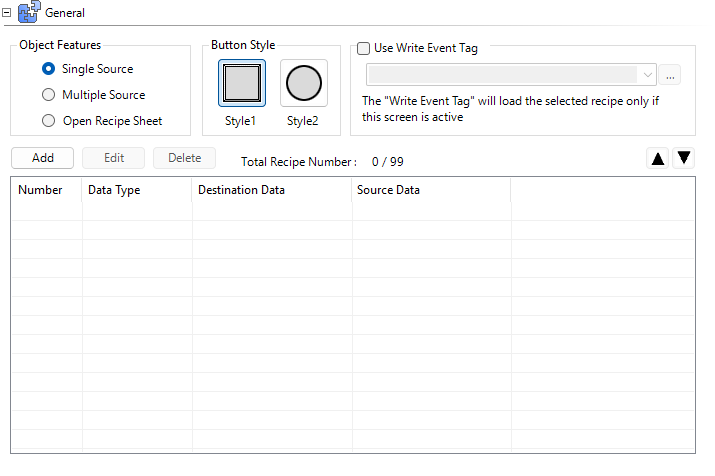
Single Source Recipe: load one or more values from the object table into Tags.
Multiple Source Recipe: load a row from a specified recipe sheet into tags. Select a fixed row or use a tag to select the row at run time.
Open Recipe Sheet: open a configured Recipe Sheet and browse records to select a recipe.
Button Style
There are two styles:
Style 1: basic rectangular button or images
Style 2: basic round button or images
Use Write Event Tag
| Note: | This feature is only available with Single Source and Multiple Source since they load only one recipe. |
When the discrete tag is true, the Recipe loads as if the button was pressed.
| Note: | The screen that contains the object must be the active screen when the tag becomes true for the action to occur. |
Object Features
Single Source Recipe
The Data type for the Destination Tag must match the Data type for the Source Tag, but the size does not have to match.
 Example:
You can write an Unsigned Int 16 to an Unsigned Int32, because they are both Integers.
A Single Source Recipe can contain up to 99 recipe values.
You can only edit this data in the C-more software.
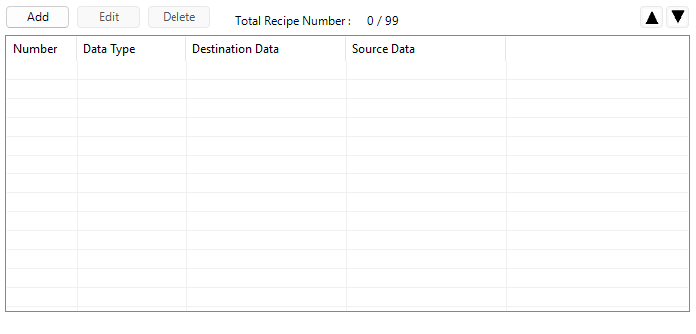
Number
When you add a Recipe, C-more automatically assigns the next number available on the list. Change the order with the Up/Down Arrow buttons at the top right.
Data Type
This column displays the Recipe row Data Type.
-
Discrete
-
Unsigned Decimal
-
Signed Decimal
-
Floating Point
-
ASCII
-
BCD
Destination Data
When the recipe loads, this column shows the destination tags that receive the source data.
Source Data
This column shows the data source for each recipe row: a tag or static data. Use a tag as the source to change values without downloading a new project. You must modify and download your project to use static data.
Add/Edit a Recipe
-
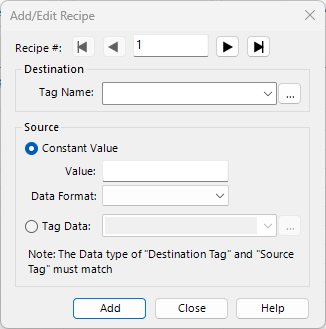
Click the Add or Edit button to open Add/Edit Recipe window.
-
Choose the Destination Tag and Source.
-
Use a Constant Value or another Tag.
Multiple Source
Load a row from a designated Recipe Sheet into the Recipe Sheet Destination Tags. An operator screen can have dedicated controls to load specific recipes, while an engineer may have the same access from a different button.
To add and edit Recipe Sheets, see Recipe Sheets.
Recipe Sheet
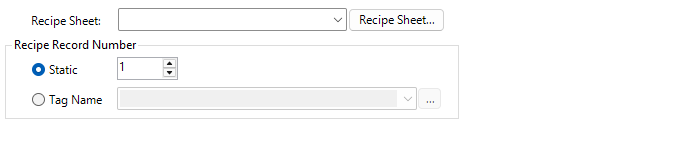
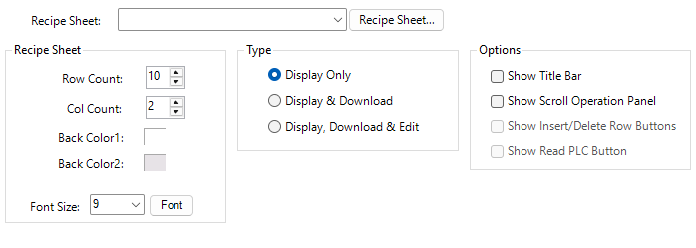
Select from a list of available Recipe Sheets in the Recipe Database. If there are no Recipe Sheets yet, click the Recipe Sheet… button to the right of the field to create one.
A Recipe Sheet may contain as many as 1000 Recipes (or Recipe Records).
Recipe Record Number
A Static or Tag Value, found in the Recipe sheet you are call.
Click the Recipe Sheet… button to find the Recipe Number. The assigned Recipe Sheet opens, where you can see the Recipe Number on the left column of each row.
Static
To assign a specific recipe to the Recipe object, select the Static radio button. Specify a Static Recipe Number from the selected Recipe Sheet.
The same Recipe loads each time the object activates. You must download a new project to change a Static Recipe Sheet.
Tag Name
Use a tag to select the recipe row at runtime. Change the tag value to load a different row while the panel is running.
Open Recipe Sheet
Open the designated Recipe Sheet on the panel screen, where you can select, edit, and load Recipe Sheets.
Recipe Sheet
Select a recipe sheet from the Recipe Database. If no Recipe Sheet exists, the list is empty. If there are no Recipe Sheets yet, click the Recipe Sheet… button to the right of the field to create one.
Row and Column Count
Sets the default number of rows and columns the panel displays when you select the Call Recipe button. Each row is a recipe record and each column is a value in that record. The tag at the top of each column receives the corresponding value when the recipe loads.
Back Color1 and Back Color2
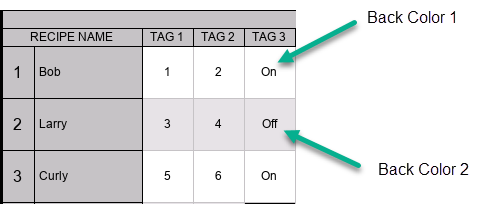
To make rows easier to read, set background colors for columns on the Recipe Sheet.
Font Size
The default font size for an open Recipe Sheet. Change the font size with the Font Up and Down controls on the panel.
Type
Display Only:

You can only view the Data on the Recipe Sheet when it is open on the panel. You cannot Write recipes or edit their values.
Display & Download:
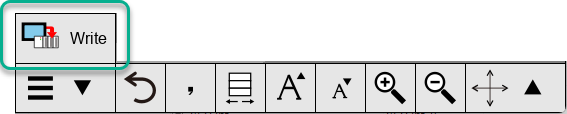
With the Recipe Sheet on the panel, view data and select any row to write to the destination tags. To write a recipe to the PLC, select a row and click Write.
Display, Download & Edit:
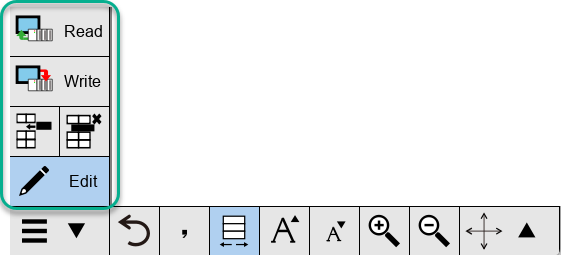
View Recipe Sheet data and select any row to write to the destination tags.
Click Edit to modify data in any cell.
After you edit data on the panel, it no longer matches the Recipe Sheet in the programming software.
| Attention: | Downloading the program overwrites any Recipe Sheet you edit on the panel. To back up the recipe sheet from the panel, use the Data Maintenance option on the Panel tab in the software. You can upload Recipe Sheets from the panel and import them into the software to sync the live panel data with the project recipe sheet. |
Insert or delete any row you select.
To read the current destination tag values back to the recipe sheet, select a row and click Read. Save the recipe sheet before closing it.
Show Title Bar
Displays the Recipe Sheet name at the top of the window on the panel.
Show Scroll Bars on Panel
Display scroll bars if a Recipe Sheet is larger than the panel screen. Drag with your finger to scroll.
Show Insert/Delete Row Button
Add Insert and Delete buttons to the control panel to add and remove rows in the Recipe Sheet while the panel is running.
| Attention: | If another recipe object references a specific row in this recipe sheet, if you insert or delete rows, the record can change the record the other object uses. Insert rows at the bottom of the sheet to prevent unexpected behavior. |
Show Read PLC Button
Add the Read button to the control panel. When you click Read, the panel reads the current destination tag values into the selected recipe record.
Save machine settings while the machine is running at the desired state.
Appearance
Text and Image
Use text and images to make Recipe button stand out.
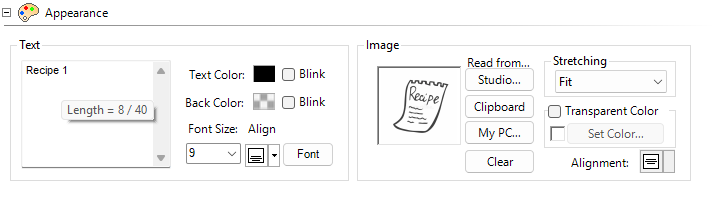

For more information, see Common Object Settings.
Behavior
For information, see Behavior.
Password
For more information, see Password.
CM369