Text Entry/Display
String
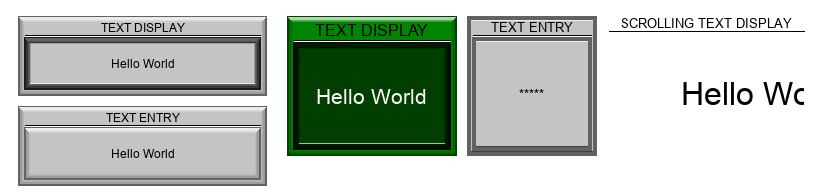
Combines string tag text or string tag display text objects.
General Settings
Object Styles
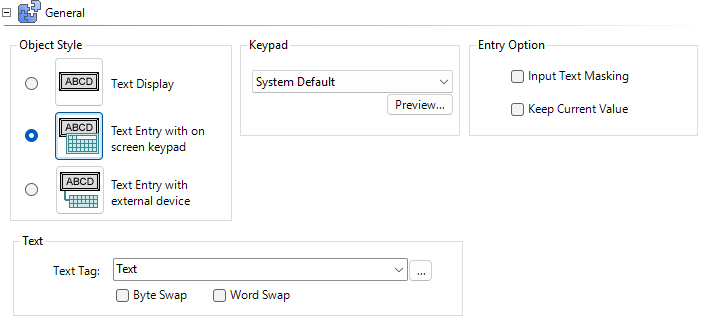
Text Display: display the string tag value.
Text Entry with on screen keypad: enter a string tag value.
Text Entry with external device: enter a string tag value with a compatible external entry device connected to the panel USB port, such as a keyboard, bar code reader, or card scanner.
Entry Options
Input Text Masking
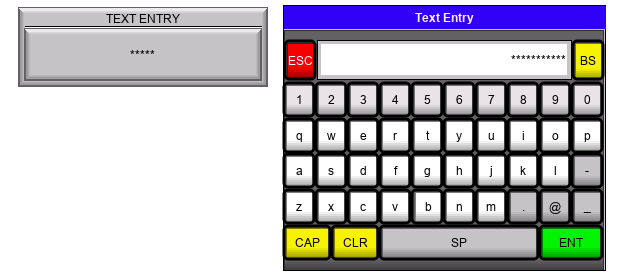
By default, when you enter values on the keypad, the values are visible in the object. Use Input Text Masking when you enter sensitive information. Values in this field appear as asterisks.
Keep Current Value
By default, the keypad entry field clears when the operator selects the object. Use Keep Current Value to display the current value in the entry field instead.
Keypad
The Keypad setting is available when you select Text Entry. The default options are System Default and Classic; the panel chooses a keypad from the Keypad Library based on the tag data type.
User-Defined Keypads appear in the list regardless of data type.
Text Tag
Byte Swap
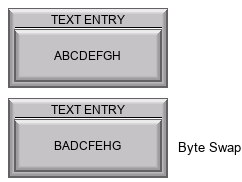
Different (PLC) Controllers handle text in different ways. Every two letters may appear swapped in the text. Tick each box until the characters display in the proper order.
Appearance
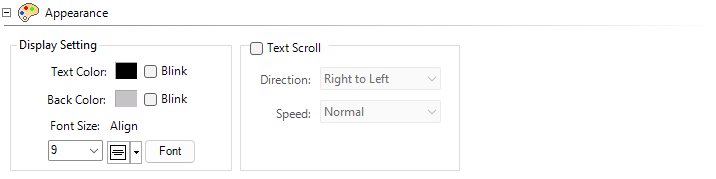
Text Scroll
Scroll text through the object. This option disables automatic line wrapping.
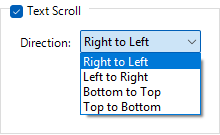
Direction
Choose one of four directions to scroll.
Speed
Choose to scroll Slow, Medium, or Fast.
Font & Color
Font Behavior
For more information, see Behavior.
Password
For more information, see Password.
 Related Topics
CM423