Alarm List
Lists alarms in various formats on a user-defined screen.
-
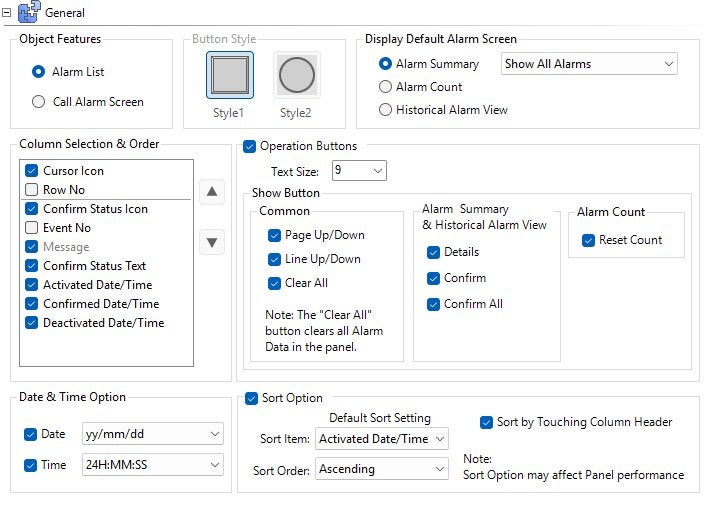
Select the box beside Call Alarm Screen to open a screen with an alarm list.
-
Configure these in Event Manager.
Object Features
-
Alarm List: create an Alarm List object on the screen
-
Call Alarm Screen: create a button to open a dedicated Alarm Screen
Display Default Alarm Screen
The default is Alarm List or Alarm Screen format. You can change it on the panel.
Alarm Summary
Alarm Summary view shows each alarm, but does not list each occurrence of the alarm as Alarm History does. If you configure dates and times, the alarm displays once with the last activated, deactivated, and confirmed dates and times.
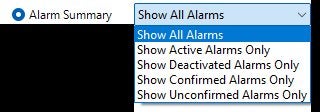
There are options for which alarms to show in the drop-down list.
Alarm Count
The Alarm Count lists each possible alarm and the number of times it has been activated.
Alarm History
Alarm History shows the state of each alarm individually in order by date and time. It is a more complete view of the alarms as they occur.
Column Selection and Order
Select which columns to display in the object.
The message text always displays.

| Note: | Alarm Count view does not show embedded time and date in the alarm message. |
You can adjust the column order with the up and down arrows.
Operation Buttons
Select the buttons you want to see in each view.

You can also add buttons to the screen with Alarm List Control.
Date and Time Option
Sort Option
Select the column and order to sort alarms. To set your selection as the default when the project is downloaded, select the box beside Sort by Touching Column Header in the General tab.
Sort by Touching Column Header
Touch the object column header on the panel to sort according to the default you set.
Appearance
List Format
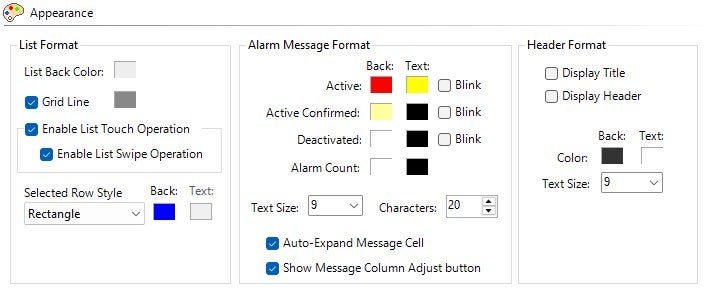
Enable List Touch Operation
Select this box to allow different sort, scroll, and selection functions without disabling the control buttons.
Enable List Swipe Operation
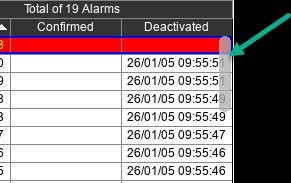
Select this box to display scroll bars at the right and bottom of the list. Swipe to scroll the list.
Alarm Message Format
Auto-Expand Message Cell
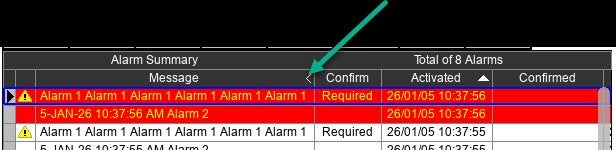
Select this box and the Alarm Message Text column expands and overlaps other columns for any alarm message with a length longer than the number of configured characters.

Show Message Column Adjust Button

Behavior
For Press Delay and Release Delay, see Behavior.
For more information about object passwords, see the Password.
Alarm List
Alarm List
CM046