Screen Change
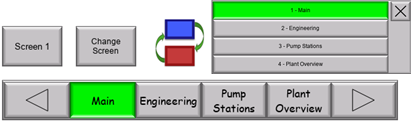
Move to a specific screen or navigate to a menu of controls. You can use this object to navigate an entire project.
General Settings
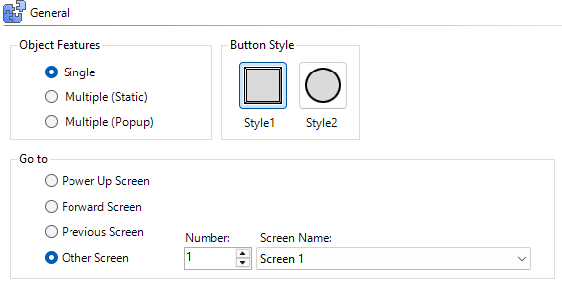
Object Features
Single
The simplest Screen Change object is a single button to open a specific screen. Style the button with text and custom images from Graphic Studio®®.
Multiple (Static)
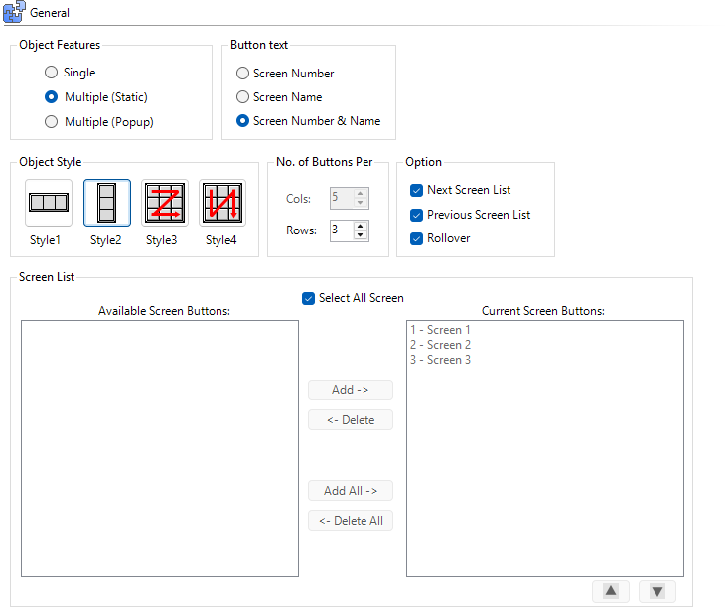
This option allows you to build a panel of screen change buttons as a list or a grid. If there are more screens than buttons, select the option to scroll to next screen and previous screen. Rollover allows you to scroll automatically.
Multiple (Pop-up)
Place a single button on the screen to open a list of available screens in a simple list with a set format (one column n-rows). When you press this button on the panel, the list appears. You can base screen position on this object or use a fixed alignment.
Go To
-
Power Up Screen: set as the default start-up screen in Panel Manager
-
Forward Screen: go to the next consecutive screen number
-
Previous Screen: go to the previous consecutive number screen
-
Other Screen: navigate to a specific screen number or name
| Note: | To set screen names and screen numbers, go to the screen tab in the left panel, right-click on a screen, and select Rename Screen . |
Object Style
Choose one of four styles.
No. of Buttons Per
Set the rows and columns with enough buttons to show all the screens in the screen list.
Option
Next Screen List and Previous Screen List
Use these buttons to scroll to the next and previous screen list when there are more screens than buttons.
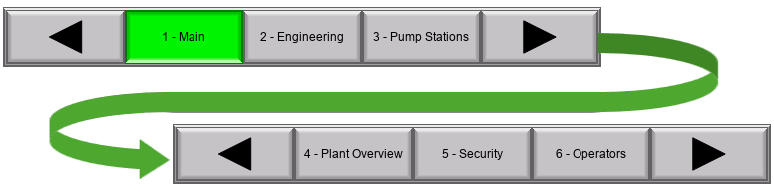
Rollover
Rolls the list to the beginning or end when you reach the end of the next or previous screen list.
Pop-up Position
Alignment
You can set the pop-up screen selection list to nine distinct locations on the screen.
Object Position
The pop-up screen list opens in the same location as the Screen Change object.
Appearance
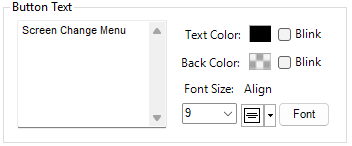
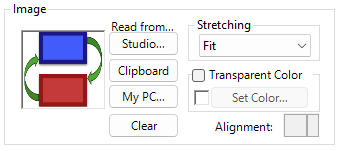
If you select Single or Multiple (Pop-up), you can configure custom text and/or images for the Screen Change button.
For more information see Common Object Settings.
For information about Press Delay and Release Delay, see Behavior.
For more information about setting passwords for objects, see Password.
CM191