Polygon
Insert polygon drawings (Triangle, Rectangle, Rhombus, Trapezoid, Pentagon, Hexagon…) into a project. The Polygon is available in a variety of configurations.
-
Identify equipment, components, buildings, or locations
-
Create drawings that rotate, appear, disappear, or change colors
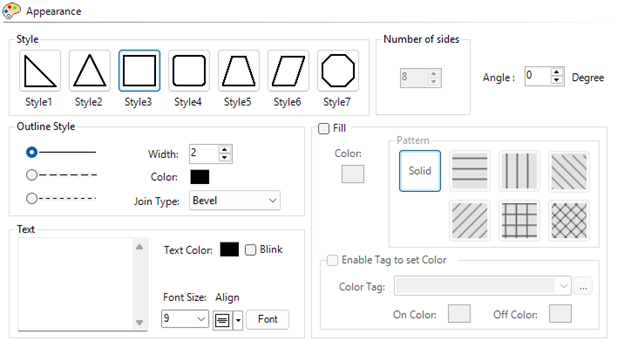
Appearance
Object Style
Click to select the polygon style: rounded corners, trapezoid, pentagon, hexagon, and octagon.
Number of Sides
Only available when you select Style 7 button the object style choices.
Click the up and down arrows to select the number of sides for the polygon. You can make hexagons, pentagons, and more.
Size
Drag the corners of the object to adjust the size.
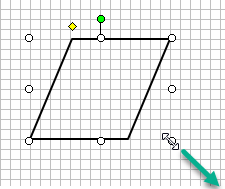
Angle
Set the rotation or grab the rotate handle and adjust the angle ±360°. Default is 0°.
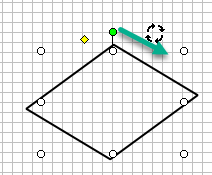
The angle is offset from the screen object position. This angle is the starting angle for any rotation animation.
Shift+Drag: hold shift and drag the handle to adjust in 15° increments.
Line Width
Click the up and down arrows to select line width.
Fill
Select the fill box and click a color to fill the polygon.
Enable Tag to Set Color
Tick this box for discrete tag control for On and Off fill colors and override the default line color selection.
Text
Enter text to display with available fonts and sizes.
Behavior and Animation
For more information, see Behavior and Animation.
 Related Topics
CM190