Button/Indicator
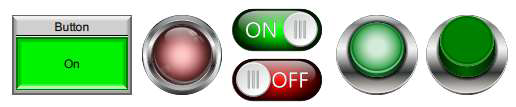
Data Type: Discrete
A Button/Indicator can be a button, an indicator, or both. Use a button to turn a discrete tag on or off. The indicator shows the discrete tag value in either state.
General Settings
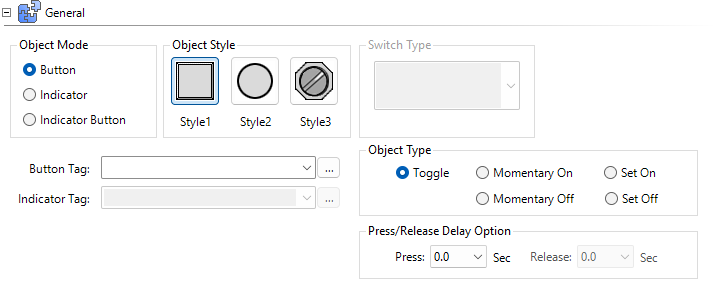
Object Modes
Button
Configures this object as an input device button. In this mode, only the Button tag is active.
Indicator
Configures this object as an output device indicator (light, pilot device). In this mode, only the Indicator tag is active.
Button Indicator
Combines the two objects. Button turns the Button tag On or Off, while the Indicator tag determines object appearance.
| Tip: | Use Button/Indicator combination when there is a delay or additional logic that controls the event. For example, with a written “Conveyor Start” tag, the button signals to start the conveyor, and when the start logic is satisfied and the conveyer starts correctly, it actives the indicator. |
Object Styles
There are three styles:
-
Style 1: basic rectangular button or Images
-
Style 2: basic round button or Images
-
Style 3: you can select from a range of images that represent common input device styles
Choose Style Type 3 to enable the Switch Type drop-down.
| Note: | If you choose Style 3, you cannot use the Image option under Appearance. |
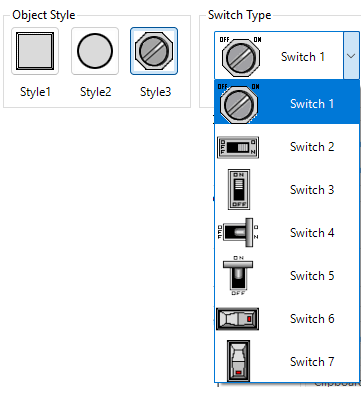
For image use, see Appearance below.
Object Type
The following operation types determine the Object Type:
-
Toggle: the button operates between ON and OFF every time you select the object.
-
Momentary On: the button turns the Button tag on with each press. As soon as you release the button, the Button tag turns off. You cannot use Passwords with this type.
-
Momentary Off: the button turns the Button tag off with each press. As soon as you release the button, the Button tag turns on. You cannot use Passwords with this type.
-
Set On: the button turns the Button tag on. It cannot turn the Button tag off. A separate device, such as another Bbutton or controller (PLC) turns its associated tag off.
-
Set Off: the button turns the Button tag off. It cannot turn the Button tag on. A separate device, such as another button or controller (PLC) turns its associated tag on.
General Timing Chart
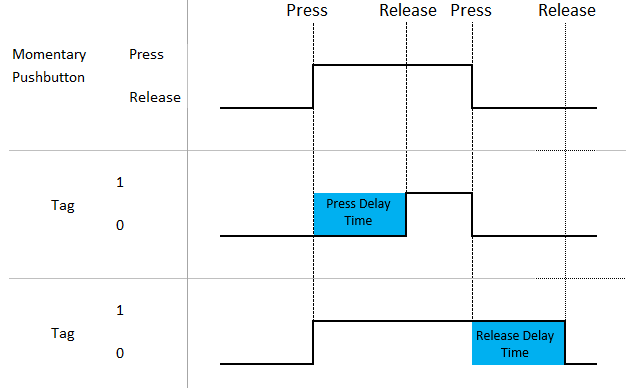
| Note: | This timing chart is for reference only and shows the general object operation. It does not consider communication timing delays associated with connected external devices. |
Press Delay/Release Delay
Press and Release Delay is available for certain objects.
When you press a button, there is a delay before the tag activates.
— or —
When you press the button, there is a delay before the tag deactivates.
 Example:
If you want an operator to hold a button press for at least 0.5s to prevent accidental presses, add a press delay or add a 0.5s release delay so it stays on for at least 0.5s, ensuring the PLC sees the button press event.
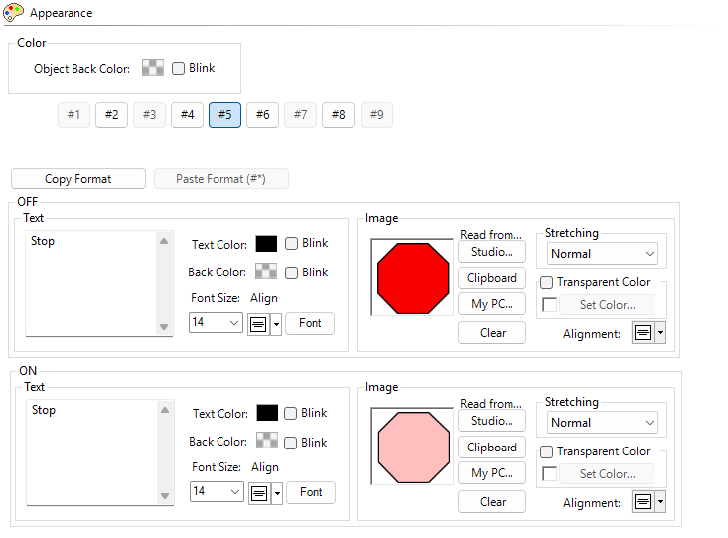
Appearance

Button Selector
You can add On and Off state text and images to object buttons/indicators. The selector allows you to select which button to configure.
You cannot use images with Style 4.
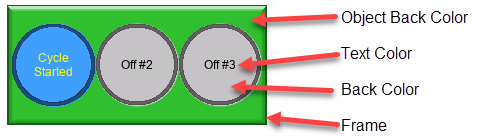
For more information see C-more Graphic Studio®® and Common Object Settings.
Behavior
For information about Press Delay and Release Delay, see Behavior.
Password
For more information about setting passwords for objects, see Password.
CM165