Image
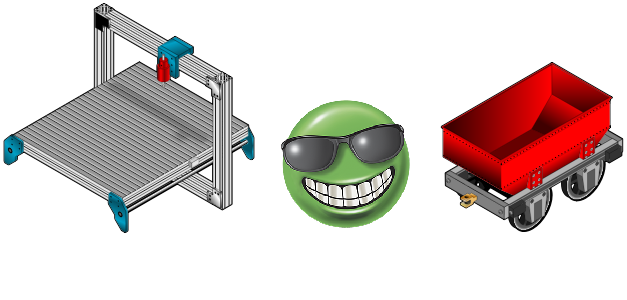
You can use Image objects for any of these and more:
-
Background images
-
Machine images
-
Company logos
Supported Image file types:
-
BMP
-
JPG
-
JPEG
-
PNG
-
SVG
| Note: | SVG files must meet Tiny V1.2 specification (https://www.w3.org/TR/SVGMobile12/). |
Each file type has pros and cons.
|
File Type |
Pro |
Con |
|---|---|---|
|
BMP |
Low processor impact |
Larger files, no compression, high memory impact for large images |
|
JPG/JPEG |
Small files, low processor impact |
Lossy format (images can degrade each save/compression) |
|
PNG |
Small files, low processor impact, lossless format |
Can be larger than jpg |
|
SVG |
Small files, low processor impact, highly scalable |
SVG Format can include advanced image rendering not supported in C-more |
Static Image
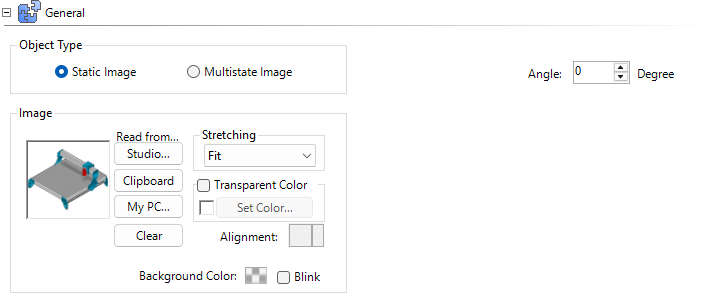
Static Images are the simplest. Static images are single images you can configure with basic properties.
Stretch:
-
Normal: the image is full-resolution. Re-size does not change the image size but allows you to only show a portion of the image
-
Stretch: allows you to re-size the image, but does not maintain the aspect ratio
-
Fit (Default): allows you to re-size the image and maintain the aspect ratio
Transparent:
Some images have solid backgrounds or fill colors. The “Transparent Color” option allows you to select a single (exact) color to make transparent. Use this to stack images and show backgrounds.
Angle:
Allows you to rotate the image clockwise an exact number of degrees.
Multistate Image
For more advanced functionality use “Multistate Image” to configure many images as part of an object and use a tag to select which image displays.
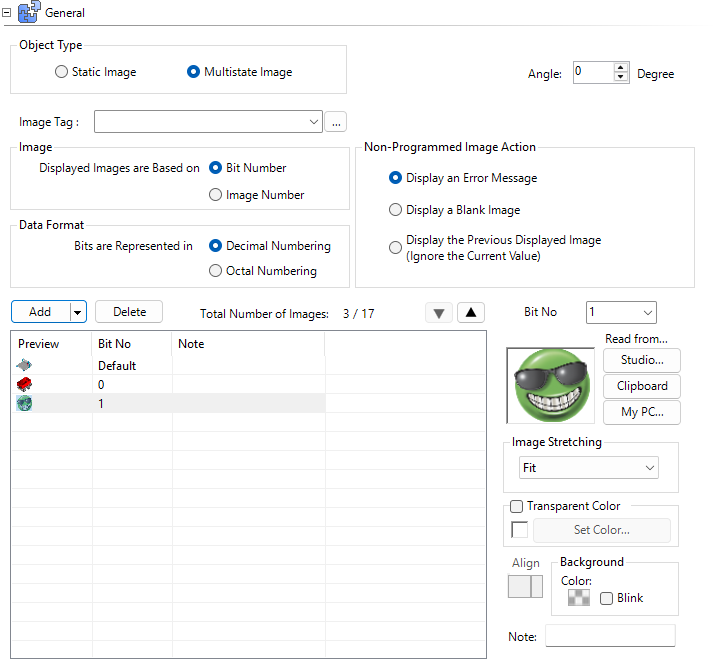
Select the image with an integer (Image number) or use "Bit number" to control the image.
Bit Number:
You can use 17 16-bit tags or 33 32-bit tags. Bits count from right to left.
 (Example:
A value of 2 is shown above.
-
If all bits are 0, the default image is shown
-
If bit number 0 is “1,” the image assigned to Bit No. 0 displays
-
If bit number 1 is “1,” the image assigned to Bit No 1 displays
| Note: | If there are multiple high bits, the “Non-Programmed Image Action” displays: the last image or an error message “Bitmap XX Not Programmed”. |
Data format:
-
Decimal: bits are from 0-15 or 0-31.
-
Octal: bits are Octal blocks from 0-7, 10-17 for 16 bit tags or 0-7, 10-17, 20-27, 30-37 for 32 bit tags. These are not common.
Image Number:
Set the tag to a number to select the image with the same number. Set the tag to a value outside the range of 0-255 to return the “Non-Programmed Image Action.”
Add Images
Add multistate images from Graphic Studio®®, your Windows clipboard, or from your PC. The software remembers your previous location selection. Edit images and image settings with the right panel with the same settings as Static Image.
Behavior and Animation
For more information, see Behavior and Animation.
CM052