Behavior
Behavior settings depend on the object type. The sections below describe the behavior settings for each object type.
Enable Object Visibility
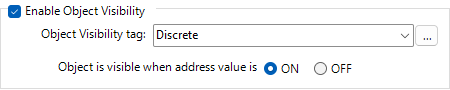
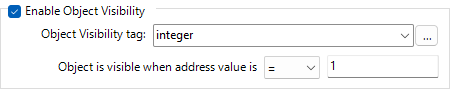
When the panel runs, you can use a tag and a condition to show or hide an object.
 Example:
You can link object visibility to a process so that only the relevant objects are visible at each step. This guides the panel operator through the process.
Almost all objects have a visibility option.
Discrete Objects

Discrete objects include Button/Indicator and Multi-Button/Indicator.
Sound
Select this option to play a sound when you activate a discrete object on the panel.
The default sound is a Beep.
You can also choose to play a sound from the Sound Library.
-
Click the Sound radio button.
-
Click the Browse button.
-
Choose a file from the Sound Library.
To learn how to add more sound files, see Sound Library List.
Press Delay/Release Delay
Press and Release Delay is available for certain objects.
When you press a button, there is a delay before the tag activates.
— or —
When you press the button, there is a delay before the tag deactivates.
Example:
If you want an operator to hold a button press for at least 0.5s to prevent accidental presses, add a press delay or add a 0.5s release delay so it stays on for at least 0.5s, ensuring the PLC sees the button press event.
Entry Objects
Enable Scaling
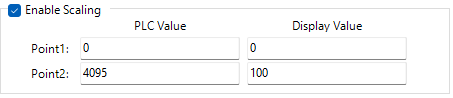
Enable Scaling lets you display a value that is different from the PLC Tag value.
-
Select the Enable Scaling check box.
-
Enter the PLC and display values.
-
The example below provides more details.
Example:
The PLC value range is 0 to 4095, but the display value range is 0 to 100.
PLC Value
Point 1: enter the minimum PLC value. For the example: 0
Point 2: enter the maximum PLC value. For the example: 4095
Display Value
Point 1: enter the minimum Display value you want to show. For the example: 0
Point 2: enter the maximum Display value you want to show. For the example: 100
Object Focus
| Note: | This feature is available only for Numeric Entry and Text Entry objects that use Style 2. |
Object Focus lets an input device enter data without the operator first selecting the object on the screen.
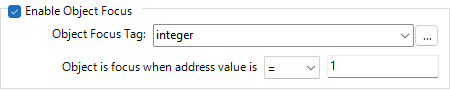
Example:
The PLC can turn on the bit that is associated with the Object Focus Tag. It does this when a bar code scanner is ready to scan a code into a Numeric Entry object.
When the tag value meets the Object Focus conditions, the associated object becomes the active focus. This is the same result as if the operator touched the object on the screen.
Notification & Handshake
Notification and Handshake lets you configure handshaking between the HMI panel and the PLC. This makes sure that the panel writes data within the specified time.
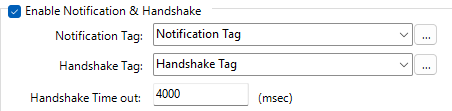
Notification Tag
The Notification Tag is the Controller Tag that is associated with a bit. This bit notifies the PLC when the operator enters data.
The C-more panel turns this bit ON when the operator presses the object. The panel turns the bit OFF when one of these conditions occurs:
-
The panel reads the Handshake Tag (ON) from the PLC.
-
The Handshake timer times out.
Handshake Tag
The Handshake Tag is the tag that is associated with a bit. The Controller turns this bit ON to confirm that it received the Notification Bit.
Handshake Timeout
If the Controller does not turn ON the Handshake Tag within the time that is set in the Handshake Timeout field, a timeout occurs. When a timeout occurs, the keypad stays open. This shows that the notification and handshake process failed.
CM232