Tag Name Database
C-more tags are a necessary part of most operations. A Tag Name shows how the project uses the tag.
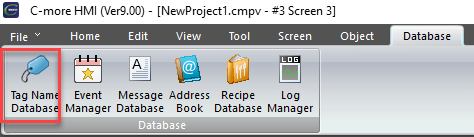
To keep Tag Names organized and easy to find, C-more gives you a Tag Name Database that you can open from the Database menu.
This topic shows you how to add, change, and delete tags in the Tag Name Database.
System Tags are a separate list of predefined internal tags. Use these to configure objects and functions. You cannot change the parameters.
Configure the Tag Name Database
-
Select the Database tab.
-
Select Tag Name Database.

Add a Tag
-
Click the Add button.
-
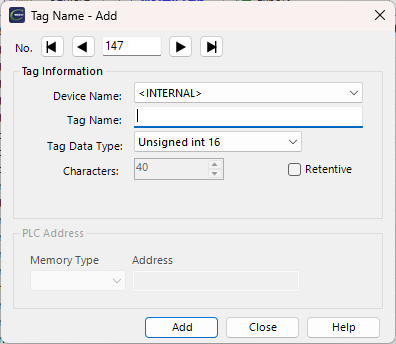
The Tag Name - Add window opens.
-
Select the device for this tag.
-
If the tag is not for a configured device, select Internal.
-
To set up devices, refer to Add a PLC Device to a Project.
-
Enter a tag name that identifies the tag purpose.
-
Use tag names that are easy to find, so you can change parts of them later with Find and Replace.
Example: Use Find and Replace to change Pump 1 Motor Start to Pump 2 Motor Start.
-
Select the data type that matches the PLC address: Discrete, Unsigned Int 16, or Signed Int 16. This selection sets the memory types available in the Memory Type drop-down list.
-
Enter the ASCII String character length.
| Note: | Characters applies only to the ASCII String data type. The maximum length is 128 characters. Select the shortest possible length for the best communications and performance. |
-
Select Retentive if you want the tag to keep its value through a power cycle. Retentive tags will be overwritten on project download.
| Note: | Retentive only applies to Internal tags. |
-
Select the Memory Type.
-
Enter the memory address.
Tag Name Database Operations
-
Fill Down: select a tag to make a sequence of tag names with PLC addresses.
The software copies the tag and adds a number to the tag name: (1) for the first copy, (2) for the second, and so on. The software gives each new tag the next PLC address in sequence.
Note: Fill Down does not examine the next address. Another tag can already have that address. -
Replace: change a tag name everywhere in the project.
Example: Change tag names that include WEST to include EAST. The tool changes tag names in all locations in the project.
Note: Replace changes the name of the current tag. This is different from Find and Replace. Highlight: This makes it easier to quickly identify tag issues
-
Unused Tags - Highlight any tag that is not assigned to an object or used in a configuration (email, mqtt...).
-
System Tags - System tags are internal C-more tags.
-
Duplicate Tags - if two or more tags point to the same device and device address, they can be highlighted. Duplicate tags are allowed, but can make troubleshooting difficult. If the Find/Replace functionality creates new tags, they will have the new name, but use the same PLC address. Duplicate tags will highlight those and simplify fixing the target address.
-
-
Import: import an existing Tag Name Database from an .xls, .csv, L5X, L5K, or XML file. Refer to Import a Tag Name Database for more details.
-
Export: make a CSV or XLS file of the existing tags in the project. Refer to Export a Tag Name Database for more details.
-
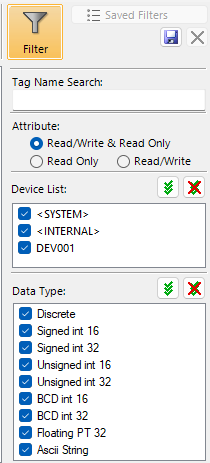
Filter: click Filter to apply a filter: Partial Text, Read/Write Attributes, Device Name, or Data Type.
Tag Name Database
CM416