Manage Events
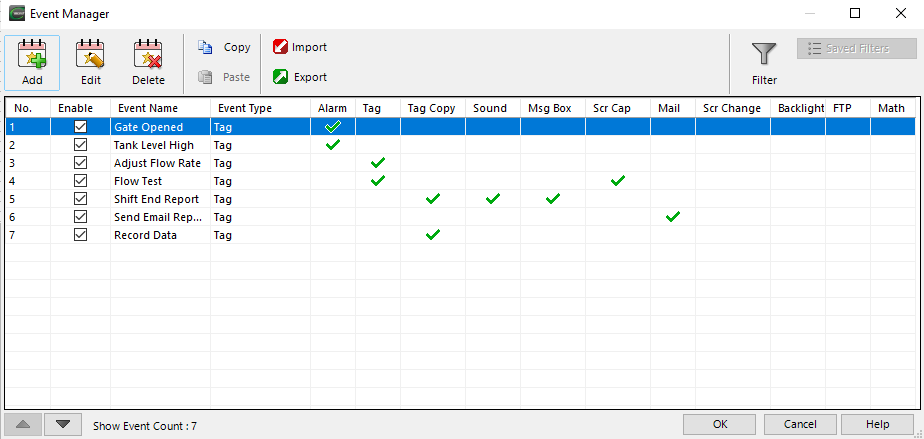
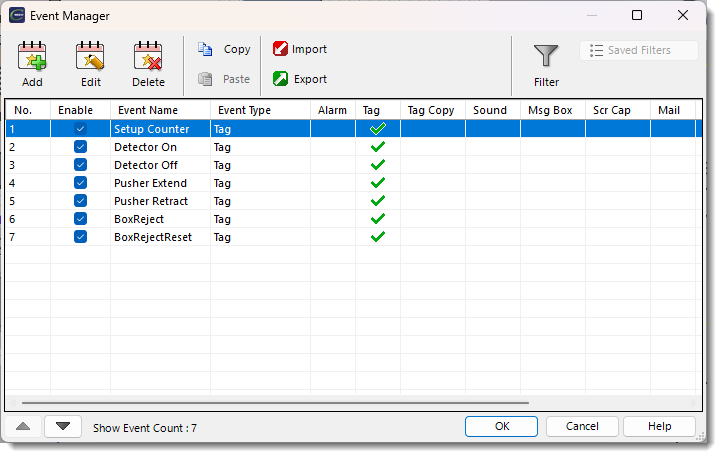
You can Add, Edit, or Delete both Events themselves and Event Actions (the things Events do) independently.
For similar Events, you can save time by using Copy and Paste.
Paste copies the Event to the end of the Event Manager Database list. Use the up and down arrows to change the order.
You can Export or Import he Event Manager Database.
For any Event that you enter:
A green check mark indicates at least one action of that type is configured and enabled for that Event.
A red check mark indicates that at least one action is configured, but all actions of that type are disabled for that Event.
Add an Event
-
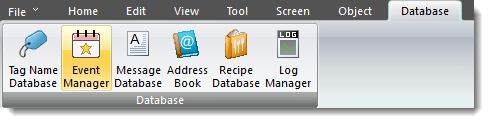
Open the Event Manager Database:
-
Top Toolbar → Database → Event Manager Database.
-
-
Click Add.
-
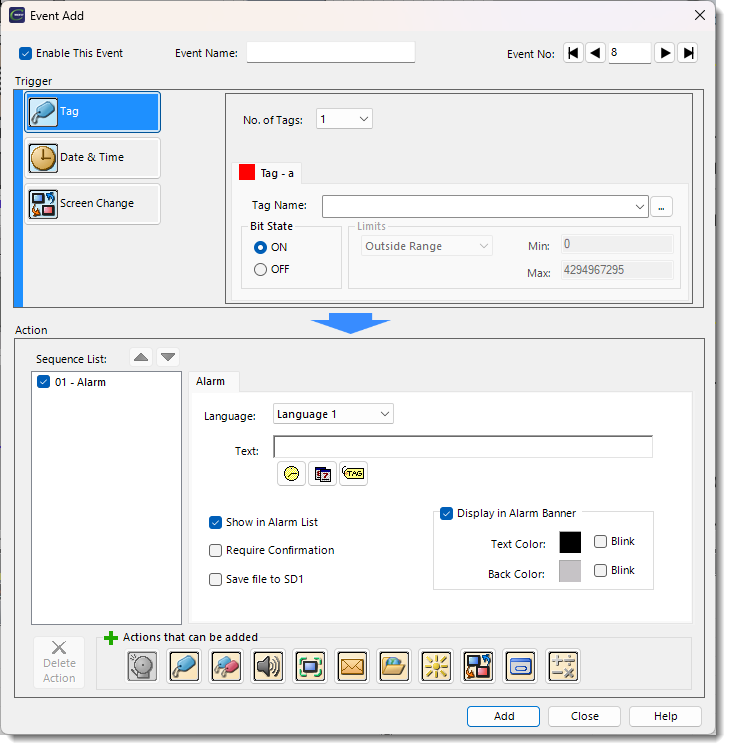
The Event Add window opens.
-
-
Select one of three Event Types in the drop-down:
-
-
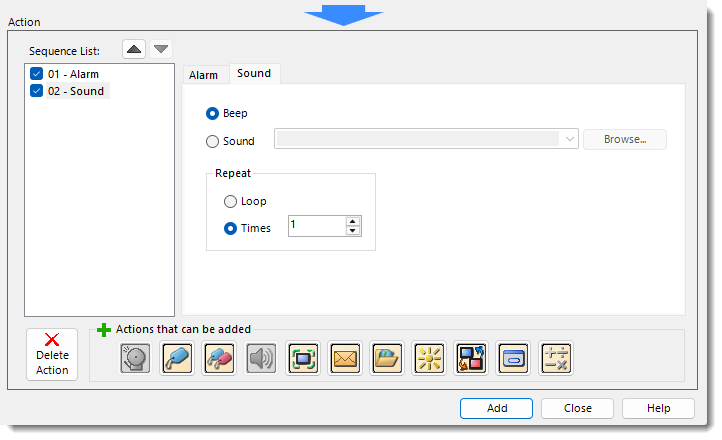
The Add Action window opens.
-
-
Configure your Event Action.
For more information about configuring Actions, see each topic below or see Manage Event Actions.
Edit an Event
-
Select the Event in the Event Manager Database.
-
Click the Edit button.
-
Make changes to your Event or Event Actions.
-
Click Save.
Delete an Event
-
Select the Event in the Event Manager Database.
-
Click the Delete button.
-
Click OK.
CM134