Event — Tag
Trigger an action based on tag(s) condition.
-
Discrete type tags: trigger an action when a tag changes state.
-
Numeric type tags: trigger an action based on a tag value condition.
No. of Tags
-
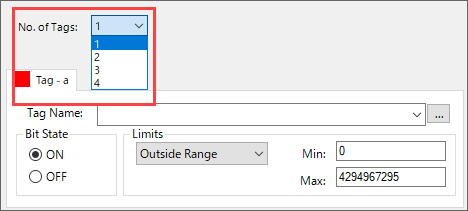
You can use up to four combined tags to trigger events.
-
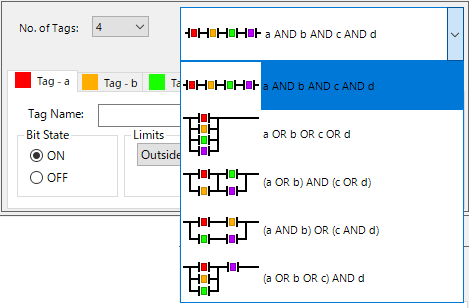
You can combine these tags in up to five combinations.
-
You can use discrete, numeric, or a combination of both tag types.
Add Event
-
From the Database tab in the top Ribbon, select Event Manager Database.
-
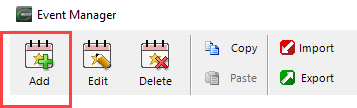
In the Event Manager window, click Add.
-
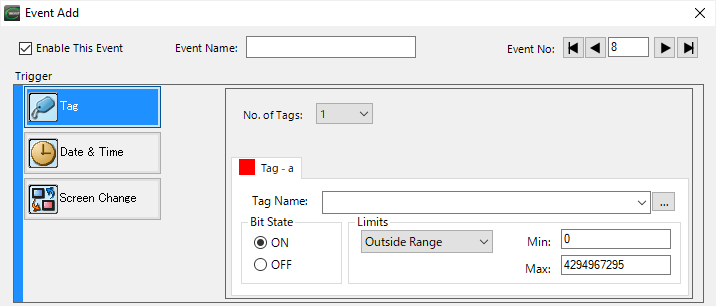
Select Tag.
-
Complete the fields on the top half of the screen with the information below.
-
Enable This Event: tick the box to enable the event.
-
Event Name: set an optional name for each event.
-
Event No.: an assigned event number for each specific event; used only as a reference in the database.
-
Complete the bottom half of the screen with this information:
-
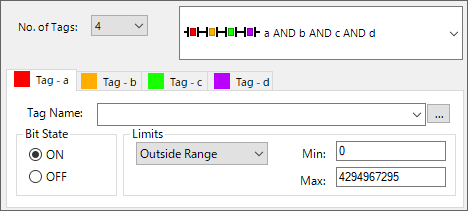
No. of Tags: select 1 to 4. If you select more than one tag, select a tag combination from the a drop-down list for each one.
-
Tabs (Tag-a, -b, -c, -d): each tag has a configuration tab. Set the monitoring conditions and event trigger.
-
Tag Name: select a tag to monitor. The event triggers when the tag condition is met.
-
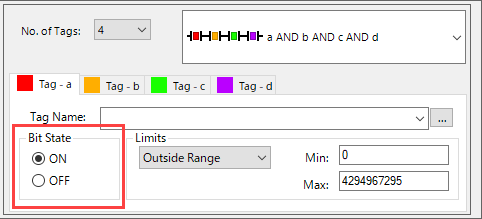
Bit State: for a discrete tag, select the event trigger state: ON or OFF.
-
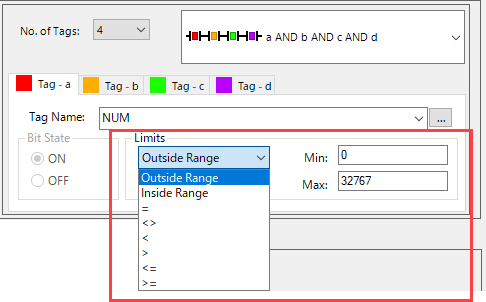
Limits: Numeric tags have several available event trigger conditions.
| Numeric Limits | Explanation |
|---|---|
|
Outside Range |
minimum and maximum tag value. If the tag value changes to one outside this range, it triggers the event. |
|
Inside Range |
minimum and maximum tag value. If the tag value changes to one inside this range, it triggers the event. |
|
Other Operations |
other operations require one comparison value for the tag. If the tag value makes the condition true, it triggers the event. |
-
To add a specific action, click the action type.
For more information about actions, see Manage Event Actions or specific actions below:
CM139