Event — Day & Time
Schedule an action for an exact day and time. Set the action to happen:
-
Daily
-
Specific days of the week
-
Multiple times per day at a set interval during a time frame
Add Event
-
From the Database tab in the top Ribbon, select Event Manager Database.
-
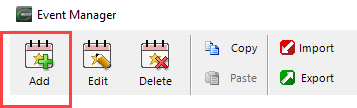
In the Event Manager window, click Add.
-
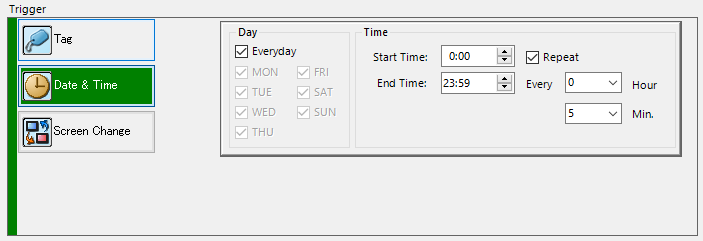
Select Day & Time.
-
Complete the fields on the top half of the screen with the information below.
-
Enable This Event: tick the box to enable the event.
-
Event Name: set an optional name for each event.
-
Event No.: an assigned event number for each specific event; used only as a reference in the database.
-
Complete the bottom half of the screen with this information:
-
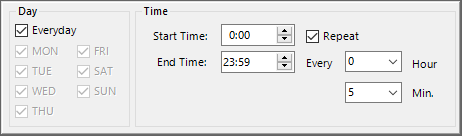
Day: tick the box for this event to occur every day or select day(s) of the week.
-
Start Time: set the event Start Time
-
End Time: set the event End Time
-
Repeat: tick this box to repeat the event. Choose how often you want the event to repeat.
| Note: | All times are in 24-hour format. |
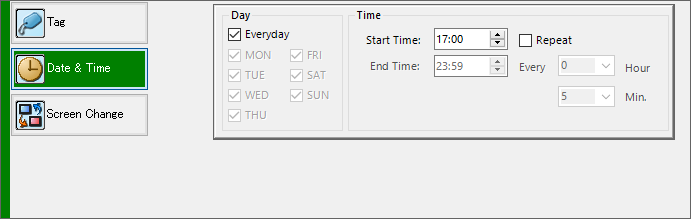
 Example: Day & Time Every Day
An example of a Day & Time event scheduled every day of the week at 5:00 PM.
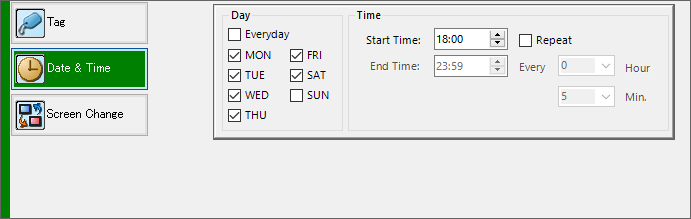
Example: Day & Time Week Days
(An example of a Day & Time event scheduled on work days at 6:00 PM.
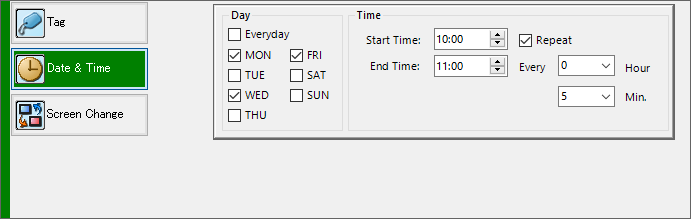
Example: Monday, Wednesday, and Friday
An example of a Day & Time event scheduled only on Monday, Wednesday, and Friday starting at 10:00 AM, repeating every 5 minutes, and ending at 11:00 AM.
-
To add a specific action, click the action type.
For more information about actions, see Manage Event Actions or specific actions below: