Event Manager Database — Export
Export an Event Manager Database as an Excel®™ .xls file.
-
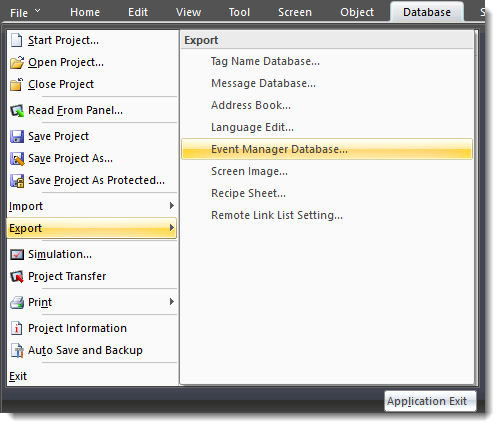
Click File, select Export and Event Manager Database.
-
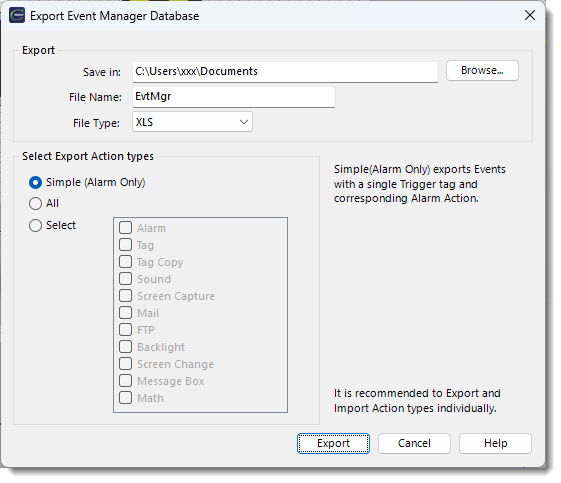
The Export Event Manager Database window opens.
-
Complete the fields using the table below:
-
Click Export.
-
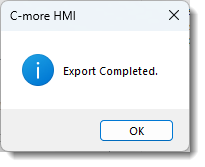
The Export Completed window opens.
-
Click OK.
-
The export is complete.
Edit Exported Data
You can export, edit, and re-import fields.
Add events in the file, then export and import.
Edit export files carefully. Many of the fields require a strict syntax for time, data, embedded data, file names, and additional fields. Edit complex fields in the Event Manager Database to ensure correct syntax and reduce import errors.
| Attention: | Insert additional rows above the existing End of Record row. Do not modify or copy and paste the End of Record row. |
 Example:
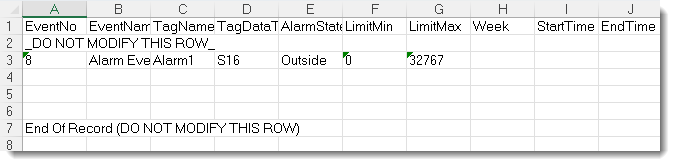
Event Manager Database with One Alarm Event Defined
-
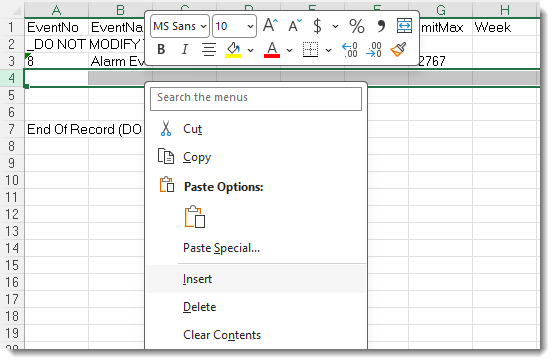
Use the MS Excel®™ Insert command to create additional rows for new Events.
-
Select the row above the row identified as End of Record to add rows as needed.
| Attention: | Do not modify the End of Record Row. |
| Note: | Tag names in the spreadsheet must already exist in the C-more project, or they will not import correctly. |
CM499