Event Action — Mail
Send email messages with attachments to addresses through a configured mail server.
| Note: | To configure a Mail action, assign at least one email address in the Address Book. To set up email addresses, see Address Book Database. Configure the email client in Panel Network: Email Client Setup. |
Configure an Action
The basic steps are the same for adding any Event Action. See Manage Event Actions.
From the Mail tab, a list of email addresses in the Address Book Database displays in the Send Address field. See Address Book Database to learn more about setting up email addresses.
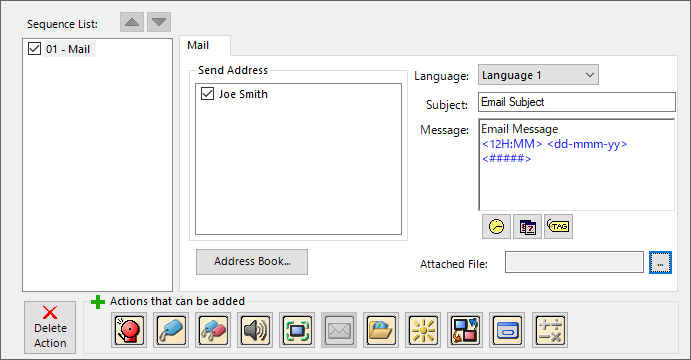
Mail Action Options
| Field | Description |
|---|---|
|
Tick boxes beside each recipient. |
|
|
Address Book |
If the recipient does not display in the list, select this button to open the Address Book and add it. See Address Book Database to configure email addresses. |
|
Select the language for the text in the subject and message body. You can enter different text for up to 9 languages. See Language. |
|
|
Subject |
Enter the subject for this email. If the subject field is blank, the first line of the email message appears in the email. |
|
Message |
Enter the message body to send with this email. You can embed a maximum of six tags, time, and date in the email message body. See Configure Embedded Data Value. |
Embed Tag, Time, or Date in an Email
-
To embed a tag, time, or date in the email body, click one of the icons directly below the message text box.
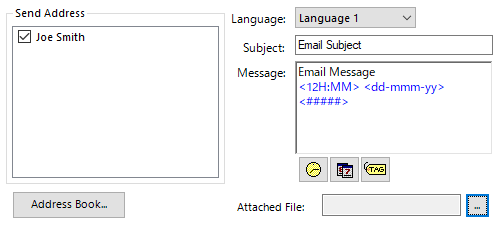
-
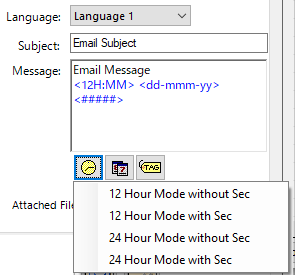
Click the clock icon.
-
Select the hour display mode.
-
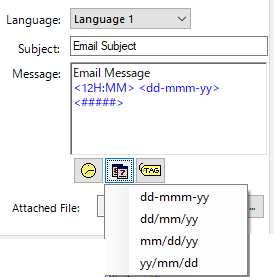
Click the date icon,
-
Select the date format.
-
Click the tag icon.
-
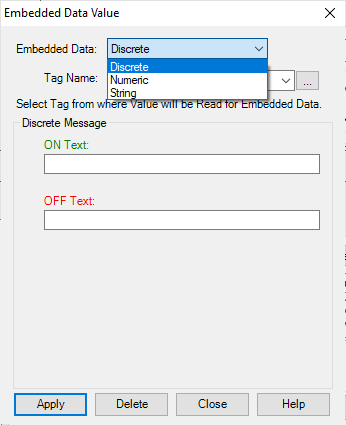
The embedded data value window opens. See Embedded Data value Configuration in Message Database.
-
Click the Embedded Data value drop-down list and select the type of tag you want to enter: Discrete, Numeric, or String.
-
Complete the fields for the type of tag you select. See Configure Embedded Data Value for more information.
Attach Files to a Mail Action
Attach a log file or screen capture to the email.
-
Click the Attached File browse button.
-
The Select Attached File for Email dialog opens.
-
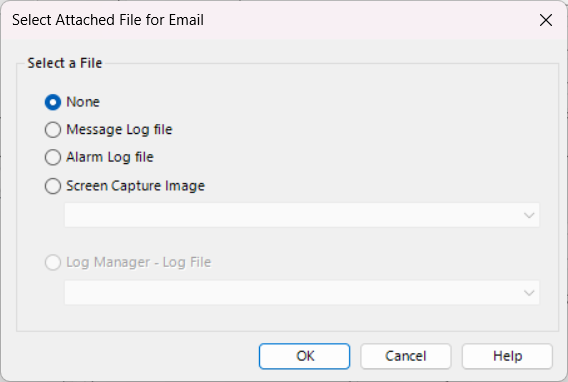
You can attach the following files to the email. Some files create daily copies.
| Note: | This action sends only the most recent file copy. |
| FTP Server Action | |
|---|---|
|
File |
Description |
|
Message Log File |
Sends the Look up Text object and Message Database message log file. |
|
Screen Capture Image |
Sends the latest screen capture image saved in Panel Manager. |
|
Log File |
Sends the Log file. |
| Note: | If the selected file does not exist, the system ignores it and sends only existing files. |
 Related Topics
CM028