Event Action — Configure Embedded Data Value
You can embed a maximum of six tags, time, and date in the email message body.
-
The Embedded Data Value window shown below opens.
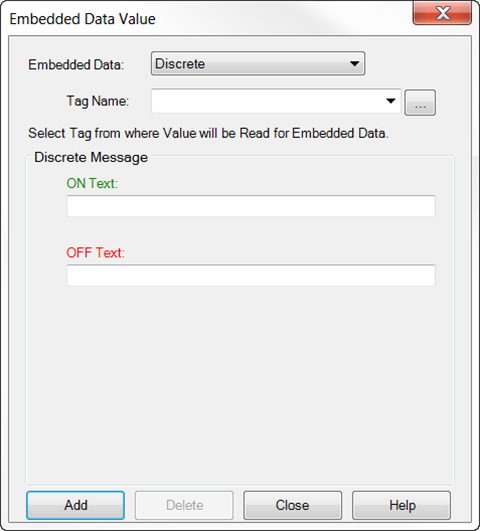
To configure an embedded format value in the Embedded Data field, click the down arrow and select the desired data type from the drop-down list. Your choices are:
-
Discrete
-
Numeric
-
String
Embedded Data Value — Discrete
The Discrete Data format is on by default when the Embedded Data value window shown above opens.
Complete the fields on the screen using the information in the table below.
| Field | Description |
|---|---|
|
Embedded Data |
Discrete data format is the default. |
|
Tag Name |
Click the down arrow and select a tag name from Embedded Data. If necessary, click the tag name browser icon to the right of the field to open the Tag Name Database. From the Tag Name Database window you can see available tag names available. Add, edit, or delete Tag Names as needed. The listed tags are limited to the data format you choose. |
|
Discrete Message |
|
|
ON Text |
Click in the field and type the active tag display message. |
|
OFF Text |
Click in the field and type the inactive tag display message. |
Embedded Data Value — Numeric
The Discrete Data Type is default when you open the Embedded Data value window.
-
Click Numeric Embedded Data.
-
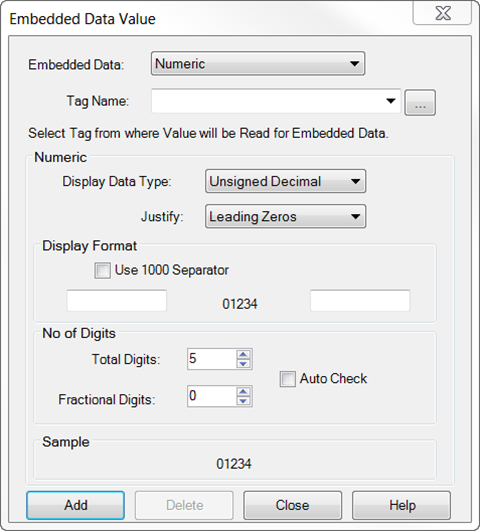
The Embedded Data value window opens.
-
Complete the fields on the screen using the information in the table below.
| Field | Description |
|---|---|
|
Embedded Data |
Click the down arrow to select Numeric data format. |
|
Tag Name |
Click the down arrow and select a tag name from Embedded Data. If necessary, click the tag name browser icon to the right of the field to open the Tag Name Database. From the Tag Name Database window you can see available tag names available. Add, edit, or delete Tag Names as needed. The listed tags are limited to the data format you choose. |
|
Numeric |
|
|
Display Data Type |
Click the down arrow and select a data type. The choices are:
|
|
Justify |
Select how you want to display the number:
 Example: Example:
If total digits is set to 5, the number 1.234 displays as 01.234.
Example:
If total digits is set to 5, the number 1.234 displays as 1.234.
Example:
If total digits is set to 5, the number 12.34 displays as 12.34. |
|
Display Format |
|
|
Use 1000 Separator |
Tick the box to add a comma separator to the numeric value. |
|
01234 |
Enter a common prefix (left side field) or suffix value (right side field) to display (i.e., Max. xxxxDeg. F). |
|
No. of Digits |
|
|
Total Digits |
Select the total digit display number. The maximum number is based on the data type you select in the tag name. |
|
Fractional Digits |
Select the total fractional digit number to include on the number displayed. |
|
Auto Check |
Tick this box and the object detects where the decimal belongs based on the tag name value. |
|
Sample |
A sample view of the number with the current settings. |
Embedded Data Value — String
-
Select String Embedded Data.
-
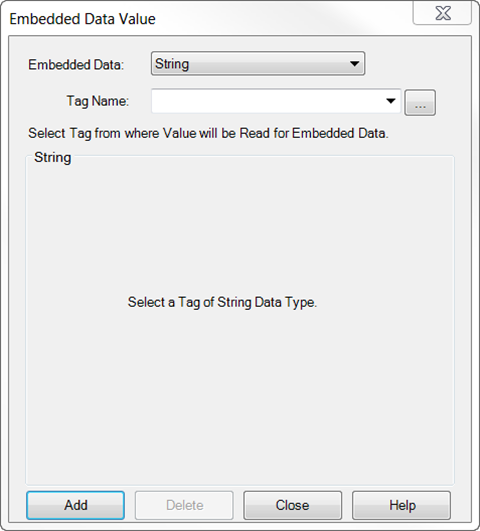
The Embedded Data window opens.
-
Complete the fields on the screen using the information in the table below.
| Field | Description |
|---|---|
|
Embedded Data |
Click the down arrow to select String data format. |
|
Tag Name |
Click the down arrow and select a tag name from Embedded Data. If necessary, click the tag name browser icon to the right of the field to open the Tag Name Database. From the Tag Name Database window you can see available tag names available. Add, edit, or delete Tag Names as needed. The listed tags are limited to the data format you choose. |
|
String |
A sample view with the current settings. |
CM163