Panel Network — Email Client Setup
Use Email Client to send email messages with:
-
embedded data
-
date and time stamps
-
attached files containing:
-
logged data
-
trend graphs
-
screen captures from the panel
This feature requires an SMTP (Simple Mail Transfer Protocol) email server.
You may need to consult your Network Administrator for assistance setting up this feature.
To use Email Client, you must:
-
Configure the Panel Panel Network: Ethernet Port Setup
-
Have at least one recipient in the Add Event Action: Mail
-
Set up an Email Action in Event Manager
Configure the Email Client
-
In the Panel Network window, click Email Client.
-
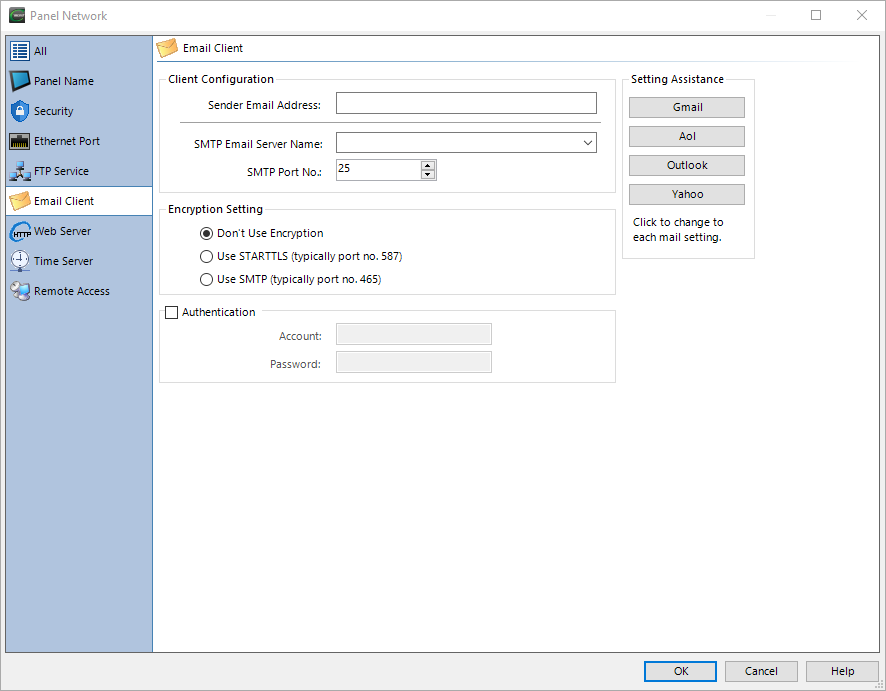
The Email Client appears on the screen.
-
Complete the fields on the screen with this information:
Client Configuration
-
Sender Email Address: the recipient email address. Your network administrator or email provider may apply restrictions, but any valid email address works with C-more.
-
Email Server Name: the SMTP email server IP address or URL. Type the information or select the address from the drop-down.
 Example:
smtp.gmail.com
-
Setting Assistance: select one of these to fill in the email server address automatically. You must enable DNS for the mail server to recognize the URL. See Panel Network: Ethernet Port Setup for more information on DNS.
-
SMTP Port No:Typical port numbers are:
-
25: SMTP No Authentication
-
587: SMTP Authentication
-
465: SMTPS
-
Encryption Setting
Three options are available:
-
No Encryption: uncommon unless using a local SMTP server.
-
STARTTLS (preferred): Transport Layer Security (TLS) secures communication over a network using security certificates. TLS versions 1.2 and 1.3 are supported.
-
SMTPS (legacy): Simple Mail Transfer Protocol Secure secures SMTP at the transport layer, providing authentication, data integrity, and confidentiality.
Authentication
-
Account: the email server requires an account to send email.
-
Password: the email server requires a password to access the account. Cloud-based email clients commonly require separate application passwords for each hardware device. This password may differ from your web portal password. See Google Gmail Functionality for more information.
DNS Server Requirement
To use a URL for the SMTP and POP servers, C-more must be able to reach a DNS server and known IP addresses. You can enter IP addresses in the SMTP email Server field. To enter DNS IP addresses, see Panel Network: Ethernet Port Setup.
Default Gateway Requirement
For the C-more panel to send email through an email server not on the same LAN, (in other words, over the Internet), you must set up a Default Gateway in Panel Network: Ethernet Port Setup.The Default Gateway is the router IP address linking the panel network to other networks. See Set Up Router for Remote Connection for more information.