Address Book Database
The Address Book Database contains a list of names and addresses that you can use in the Event Manager Database when you configure an email or FTP action.
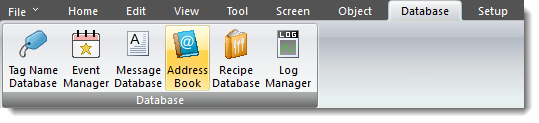
On the Main Menu Bar, select Database, then Address Book.
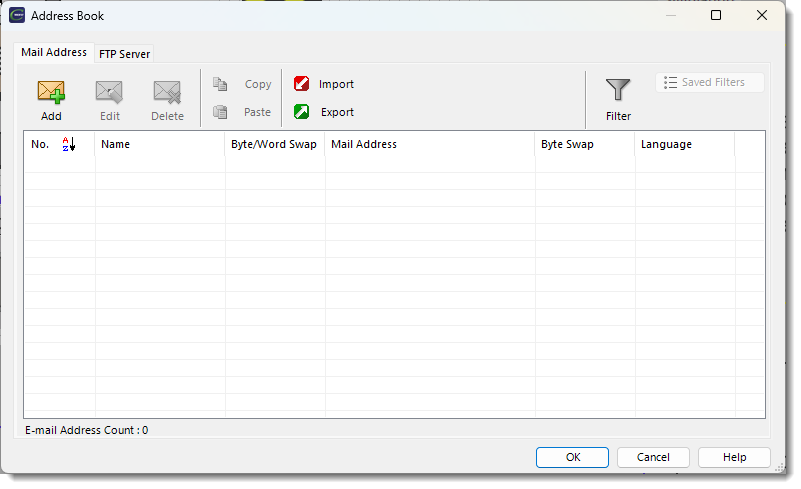
The Address Book window opens with your configured email addresses.
Manage the Address Book Database
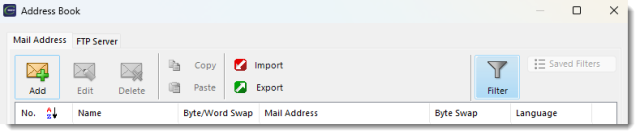
In the Address Book Database, you can add, edit, delete, copy, paste, import, export, and filter email addresses. To configure FTP Servers for Event Manager FTP actions, select the FTP Servers tab.
| Mail Address Tab | |
|---|---|
|
Function |
Action |
|
Add |
Refer to the Add an Email Address instructions below. |
|
Edit |
To edit an email address, select the address and click Edit. |
|
Delete |
To delete an email address, select one or more addresses and click Delete. |
|
Copy/Paste |
To copy and paste an address, select one or more addresses, click Copy, then Paste. Copy and paste makes a copy of the selected addresses. |
|
To import an address book, click Import. To export the address list, click Export. Import/Export: Click Import to get an address book from an .xls or .csv file. Click Export to save the address list as an .xls or .csv file. Refer to Import an Address Book Database and Export an Address Book Database. |
|
|
Filter |
To apply a filter to the list, click the Filter icon. This helps you find addresses in a large Address Book. You can make filters and give each filter a different name. Click the Filter icon to open the dialog box to set up filters by text or tag, name/address, name, address, or language. After you enter your filter, click the Save icon. |
Add an Email Address
-
Click Add.
-
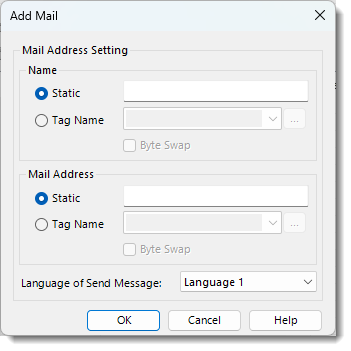
The Add Mail dialog box opens.
-
Use the information in the table below to complete the fields on the screen.
Add Mail Options
| Field | Description |
|---|---|
|
Name |
The name for the email address that you enter below. This name shows in the Event Manager Mail Action when you select Send Address recipients. |
|
Static |
Enter the static name for the email address. A static name cannot be changed unless you change the C-more project. |
|
Tag Name |
Select the Tag Name radio button and click the drop-down arrow to select a tag from the Tag Name database. Only ASCII String tags are valid. This lets you change the email name with the value of a string tag — for example, from a Text Entry object during project runtime. |
|
Mail Address |
The email address for the Name above. |
|
Static |
Enter the static email address. You cannot change a static email address unless you change the C-more project. |
|
Tag Name |
Select the Tag Name radio button and click the drop-down arrow to select a tag from the Tag Name database. Only ASCII String tags are valid. This lets you change the email address with the value of a string tag — for example, from a Text Entry object during project runtime. |
| Language of Send Message | Send emails to recipients with different message languages in one action. Mail Action sends emails to this recipient in the language that you select. |
|
— |
Click the drop-down arrow and select the recipient language. For example: You configure Person A in the Address Book with Language 1. You configure Person B with Language 2. In Event Manager, you configure the Mail Action Subject and Message Body with different text for Language 1 and Language 2. Person A receives messages in Language 1. Person B receives messages in Language 2. |
-
Click OK.
The Address Book Database shows the new address.
Address Book Database
CM036