Language
The Language Setup window offers up to nine language settings with ten languages to choose from. The C-more Programming software is pre-configured with these languages:
|
Chinese |
French |
Korean |
|
Chinese (Taiwan) |
German |
Russian |
|
English (Default) |
Japanese |
Spanish |
|
— |
|
Thai |
Other Languages may require additional setup or may be available in future versions.
| Note: | The Tag Name Database does not support all languages listed above. Enter Tag Name databases in English or Japanese. |
Access the Language Setup Window
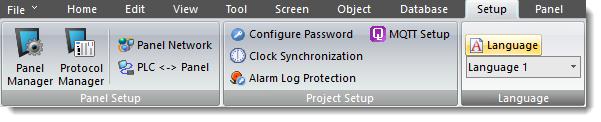
On the Main Menu, go to the Setup menu and select Language from the drop-down menu.
-
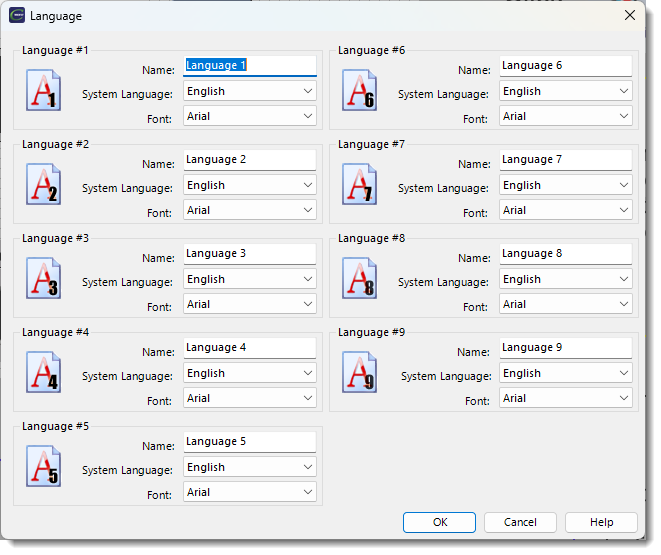
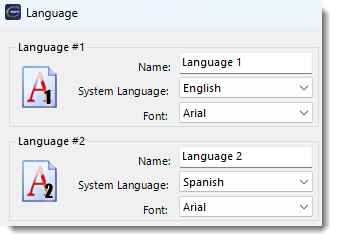
The Language Setup window shown below opens.
Set Languages
The Language Setup screen shows all nine language settings are set to English by default. If you need a project to use English and Spanish Languages, follow these steps:
-
Language #1 : since the default Language is English, the System Language field should stay as: English.
-
The Language #1 Name field Language 1. You can leave the default or use the Name "English" or use any other name (Inglés, Primary, Main).
-
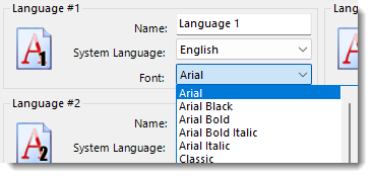
Arial is the default font used in the Language settings. To change the font, click the down arrow and select a font from the list. You can configure unique fonts for an object to use for each language. If the Use Default Font box is not ticked, a single font configuration is set for all languages in that object.
-
Language #1 is now set up.
Set Up Additional Languages
-
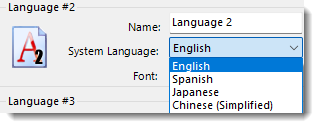
If Spanish is the secondary Language, click the down arrow on the Language #2 System Language field and select Spanish from the drop-down list.
-
In the Name field, the default label is Language 2. If preferred, type a new Name, like Spanish for example. You can leave the default or use the Name "Spanish" or use any other name (Español, Secondary, Second).
-
Arial is the default font used in the Language settings. To change the font, click the down arrow and select a font from the list. You can configure unique fonts for an object to use for each language. If the Use Default Font box is not ticked, a single font configuration is set for all languages in that object.
-
Language #2 is now set up.
For additional Languages, repeat these steps. When you set up an English and Spanish project, the two edited fields should look like the figure shown below.
-
Click the OK button to accept all changes.
CM231