Recipe Sheets
The Recipe Sheet window works like most spreadsheet programs. You can Copy, Edit, and Paste Recipe Sheets to and from Excel®™ spreadsheets.
The Recipe Sheet consists of Recipe Records (each row) and Destination Tags (top row). Recipe Records can contain values or Tags.
A Recipe Sheet displays on the C-more panel when you open it with the Recipe object. You can edit data in the cells and select and load a row to the Destination Tags.
Open Recipe Sheet Window
Click the Add button from the Recipe Database window
— or —
select an existing Recipe Sheet and click Edit.
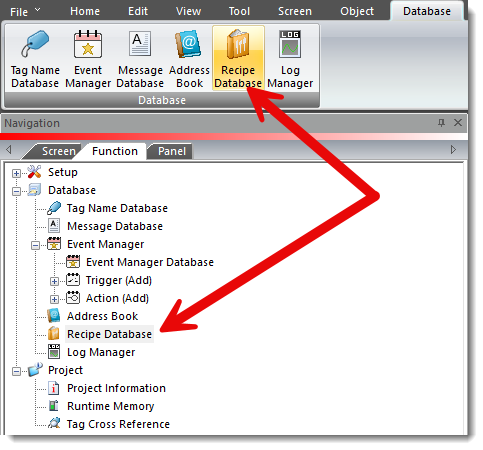
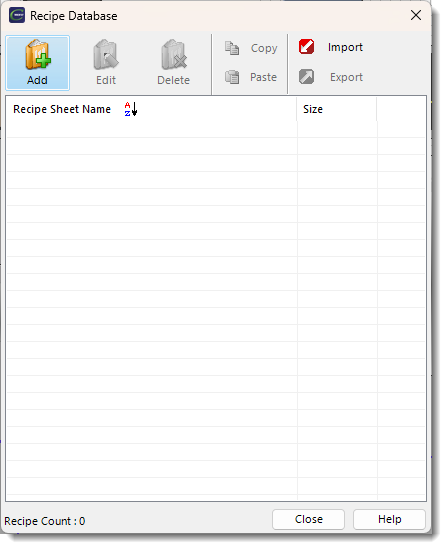
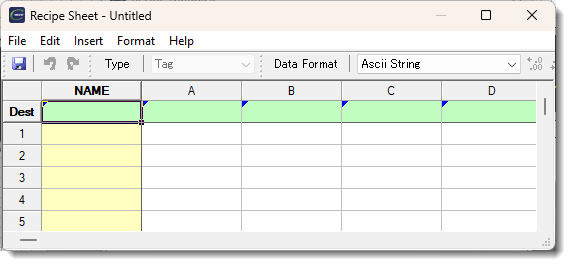
Use the information below to work with Recipe Sheets.
Export
Export Recipe Sheet data to a .csv file.
Find Errors
Recipe Sheet is designed to automatically search and identify any obvious errors in spreadsheet entries. When the C-more programming software detects an error, it changes the font to red as shown.
In addition, if you hover the pointer over the field with the red text, a pop-up message opens with error information.
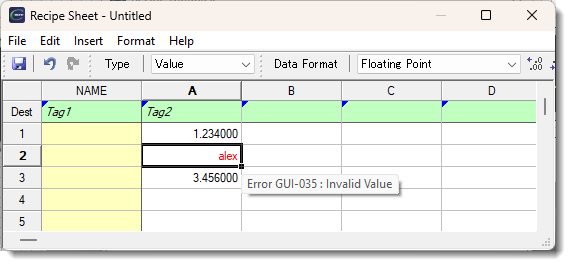
Each time you select Find Error (F3), the software automatically displays the next error, so you can locate errors quickly.
Format
Change the column width and the row height when you create or edit a Recipe. Adjust cell width and height in the Recipe Object.
Toolbar

Save To Project
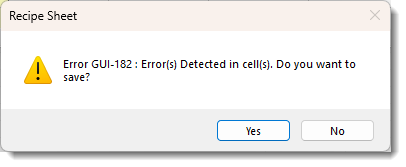
Click the Save Icon  to save the Recipe Sheet. If this is the first time you save the Recipe Sheet, the Save As... Project window opens. This does not save the Recipe Sheet as a separate file.
| Note: | If you try to save a Recipe Sheet that has errors in it, the Error GUI-182 warning pops up. The window allows you to click on Yes if you want to save it anyway and correct it at a later time. |
Type
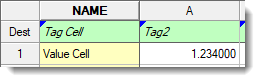
Select if the cell contains a value or a Tag. Identify tag cells with the small triangle on the top-left corner of the cell as shown below. Value cells have no identifiers. The default for this drop-down menu is Value.
Data Format
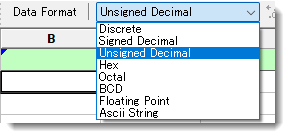
The Data Format drop-down list varies depending on the Tag Data Type you choose. The following is a list of data formats available.
| Tag Data Type | Data Formats |
|---|---|
|
Discrete |
Discrete |
|
Signed Int 16 |
Signed Decimal |
|
Signed Int 32 |
Signed Decimal |
|
Unassigned Int 16 |
Unsigned Decimal |
|
Hex |
|
|
Octal |
|
|
Unassigned Int 32 |
Unsigned Decimal |
|
Hex |
|
|
Octal |
|
|
BCD Int 16 |
BCD |
|
BCD Int 32 |
BCD |
|
Floating Point 32 |
Floating Point |
|
Floating Point |
|
|
ASCII String |
ASCII String |
Destination Tags
Destination Tags are cells located on the top green, shaded row. These tags identify where the values for a Recipe Record (row) load. When a recipe loads, the values in the corresponding column transfer to the specified Destination Tags.
| Note: | The first cell in the Name column, which is also the first cell in the Destination Row, only accepts ASCII format tags. This is the Name Destination Tag for the Name column. |
Name Column
The Name column has a yellow background. Use this column to assign a Name for each Recipe Record.
When you load the Recipe Record, this text loads into the Name Destination Tag.
 Related Topics
CM048