C-more Graphic Studio®®
C-more Graphic Studio®® is a collection of vector graphics developed by AutomationDirect. Vector graphics format is SVG Tiny v1.2.
Use these industrial images to embed realistic images and icons into an HMI for operator recognition of interactive objects and indicator states.
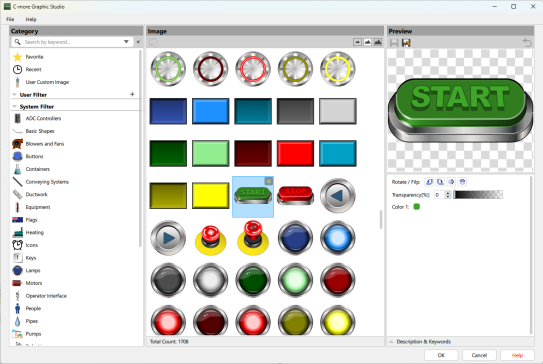
-
Select the Studio button on any graphic-supported object.
-
Graphic Studio®® opens.
-
-
Select an image.
-
Click OK.
-
The image is now part of your project.
-
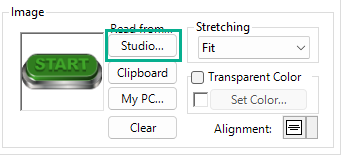
Find Images
Categories Panel
Use the Categories Panel to search images with keywords.
The group filters are predefined, but customizable.
Each image has basic descriptions assigned as system keywords. Use the Description and Keywords panels to assign User Keywords.
Each filter searches for one or more keywords to find images.
Search Bar
-
Type an image description in the search bar and system keywords finds images for you.
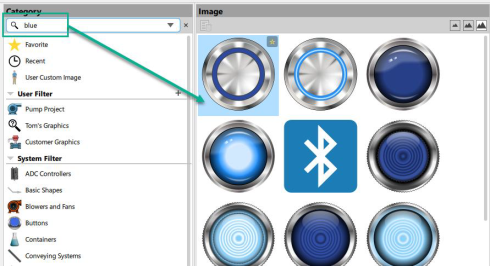
-
Click on a filter in the left panel to populate the search bar automatically.
-
Hold down the CNTRL key while you select images to choose more than one image.
-
The returned list is a combination of the selected categories, not a subset.
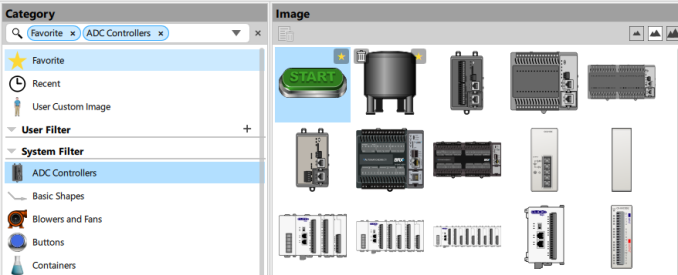
Favorites
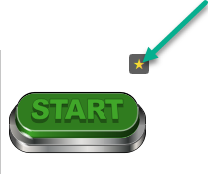
Select the star beside images to add them to your Favorites. Your favorites appear as one view, no matter which image category.
Recent
Shows the graphics you used most recently.
User Custom Image
Shows the images you modify and save.
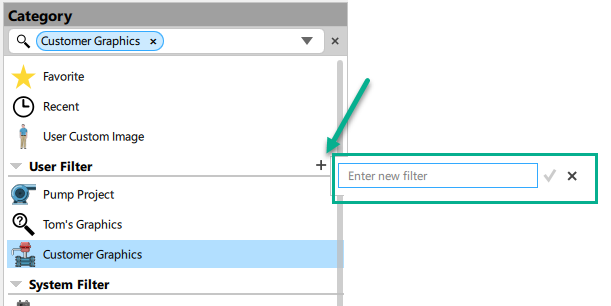
User Filter
Create your own search filters. You can use these filters with User Keywords.
System Filters
You cannot change System Filters because objects are linked to these filters as defaults.
Images Window
The Images window shows images that match filters.
Add an Image to an Object
-
Double-click or select the image.
-
Click OK.
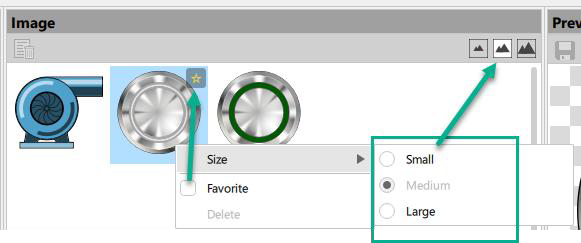
Size
Adjust the object graphic size.
Preview
See images with your changes. You can make additional changes and save.
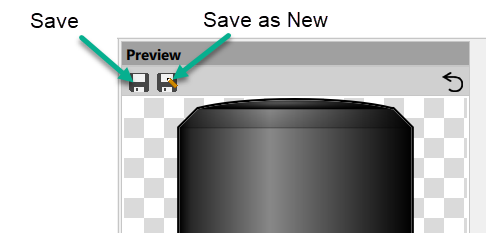
Save as New
You can save an image you make changes to as a New Image to automatically add it to the User Custom Image category.
You can enter a description and keywords to help find the image later.
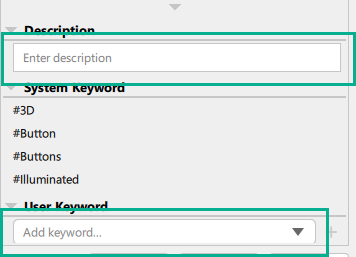
Save
Save and overwrite the existing image or Save as New to create a new image.
Edit the Image
Each image has different parameters you an edit.
-
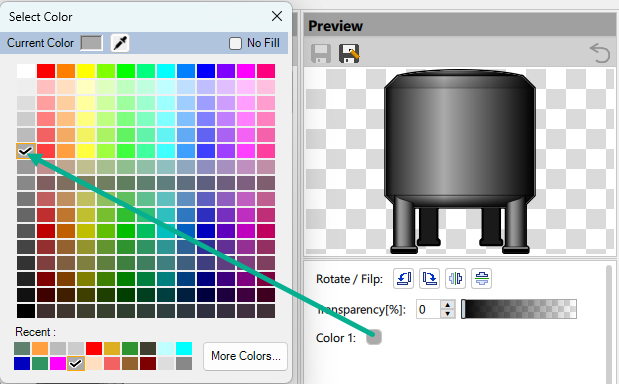
Select the Color icon to open a color picker to change colors.
-
Select No Fill to make the color transparent. In some cases, there is a white background behind the color to control image gradients.
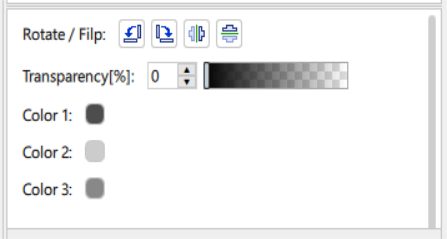
Rotate and Flip
You can rotate and flip any image.
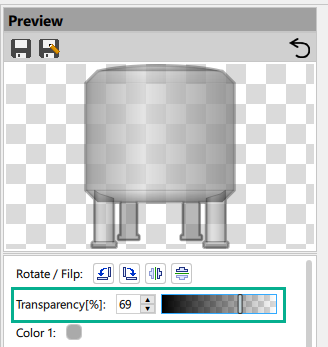
Transparency
All Images have an overall transparency option. The slider adjusts the transparency of all image colors, so you can overlay images.
Color
You can edit image colors. Some images have more than one color.
| Note: | Some images have a white background that you cannot edit. No Fill will not work for these images. Use the object Transparency feature for these cases. |
CM059