Set Up Router for Remote Connection
Use a VPN connection behind a firewall/router for increased security. Set up port forwarding in the router for use on a secure network.
When you send a TCP/IP message to a router, the router reads the destination IP address (WAN IP address) and the destination port number. If the destination IP address matches the router, the router checks the port number to determine whether to allow the message and where to route it. You must configure port forwarding in the router.
| Note: | Performance depends on network bandwidth, latency, and project screen complexity. |
Router Setup
The router replaces the destination IP address in the message with the local IP address specified in the port forwarding table. Configure the following port numbers in the port forwarding table for each C-more panel:
Specify port numbers in the Port Forwarding table for each C-more panel:
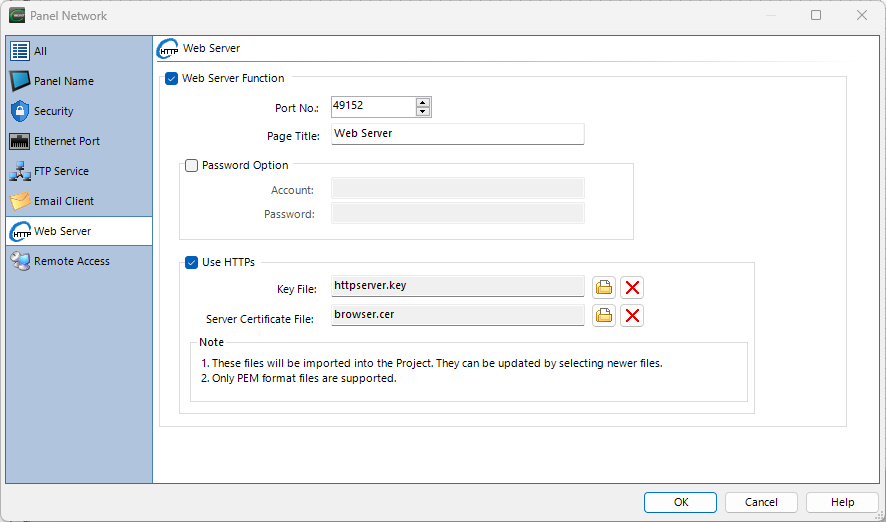
Web Server Port Number
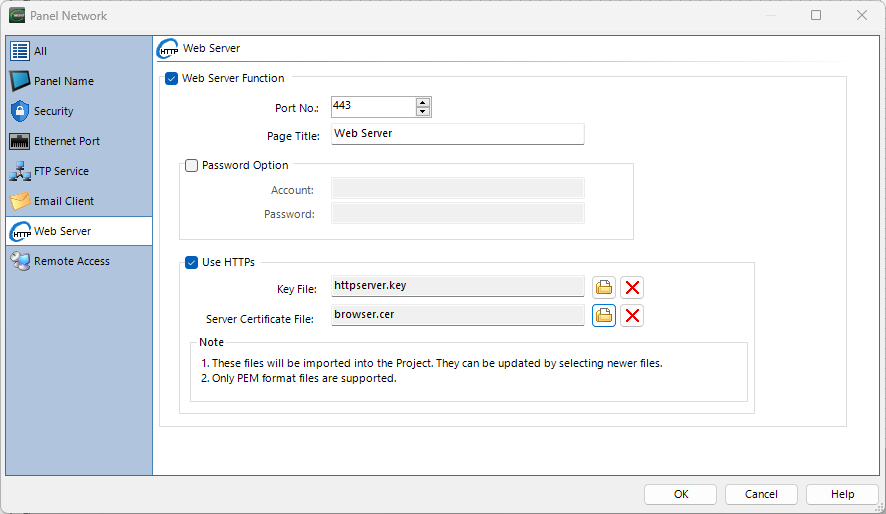
By default, this number is TCP port 80 (http) or TCP port 443 (https). In most web browsers port 80 is implied (443 for https) without typing the URL. If you need a port number other than the default port, you can add ":<port num>" after the IP address.
 Example:
The URL for the image shown below is: http://10.16.23.146:443
Web Server (Secure HTTPs)
You cannot change this port number because it uses Web Socket which requires TCP port 10902.
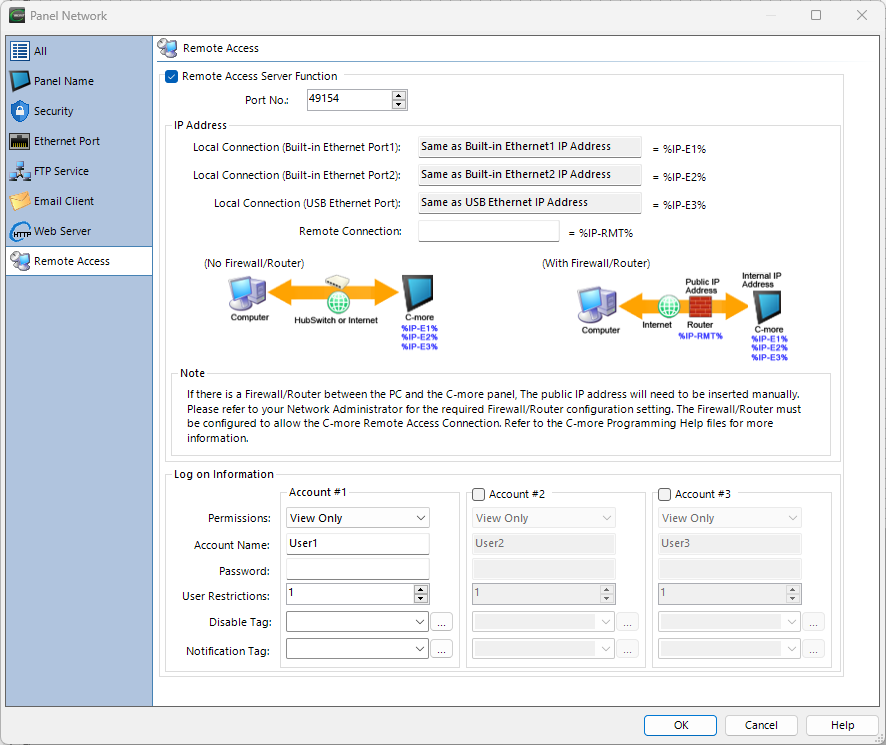
Remote Access
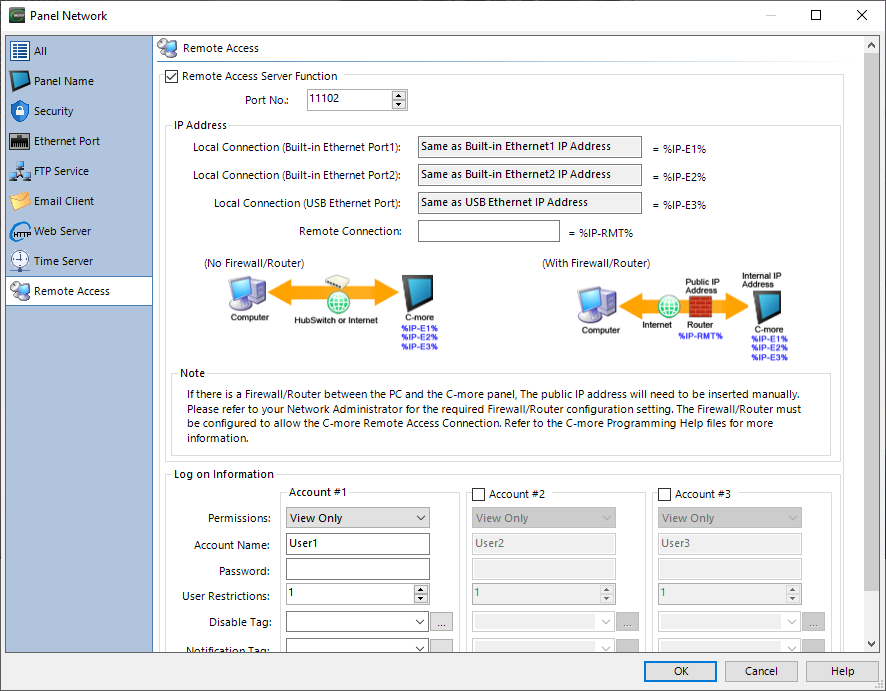
The default for this application is TCP port 11102.
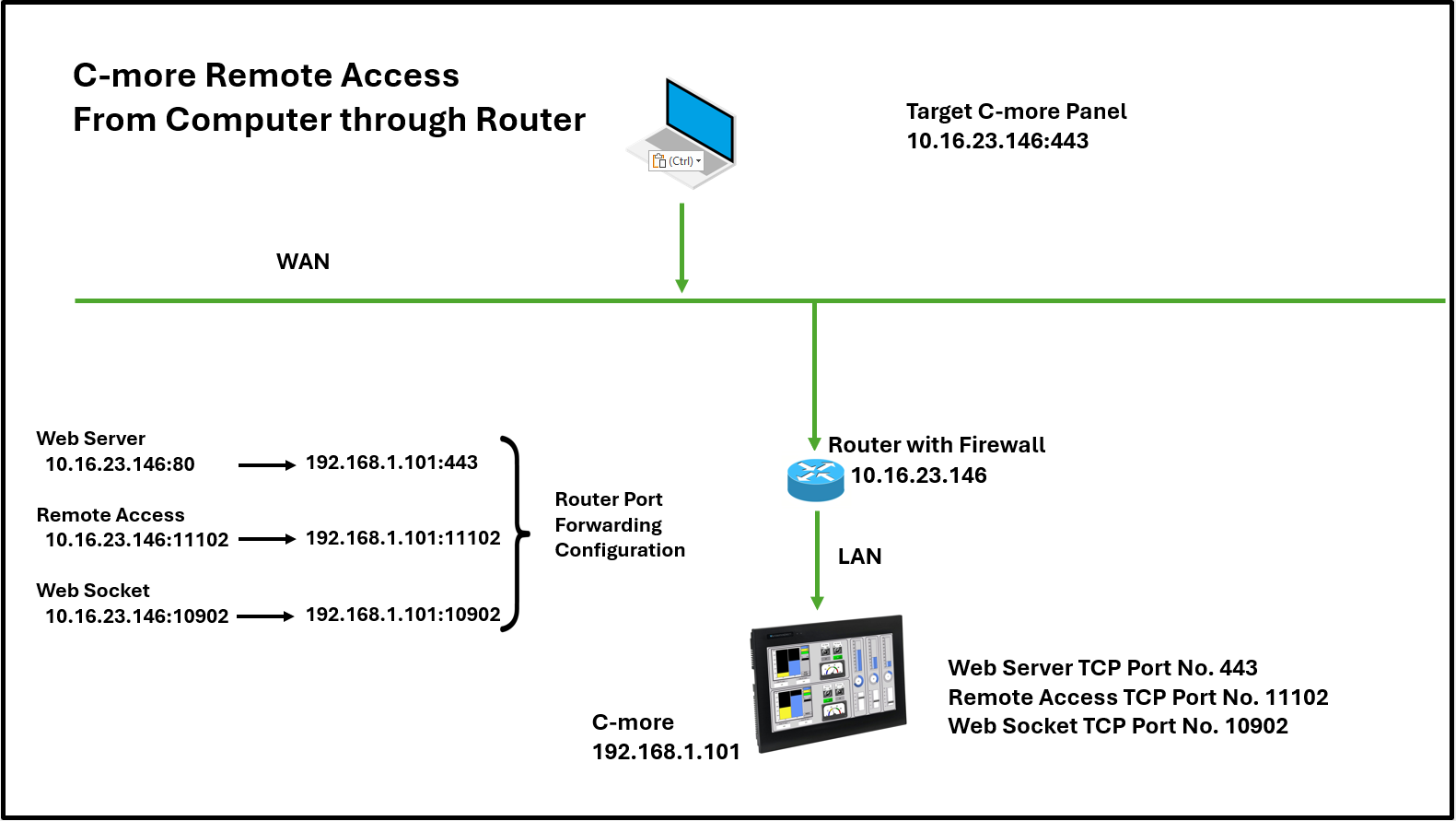
The application communicates the specified Remote Access port number to the router.
Web Server and Remote Access setup looks like this:
To access an additional C-more panel on the same router using the same public IP address, use a different Web Server port number and Remote Access port number for each panel.
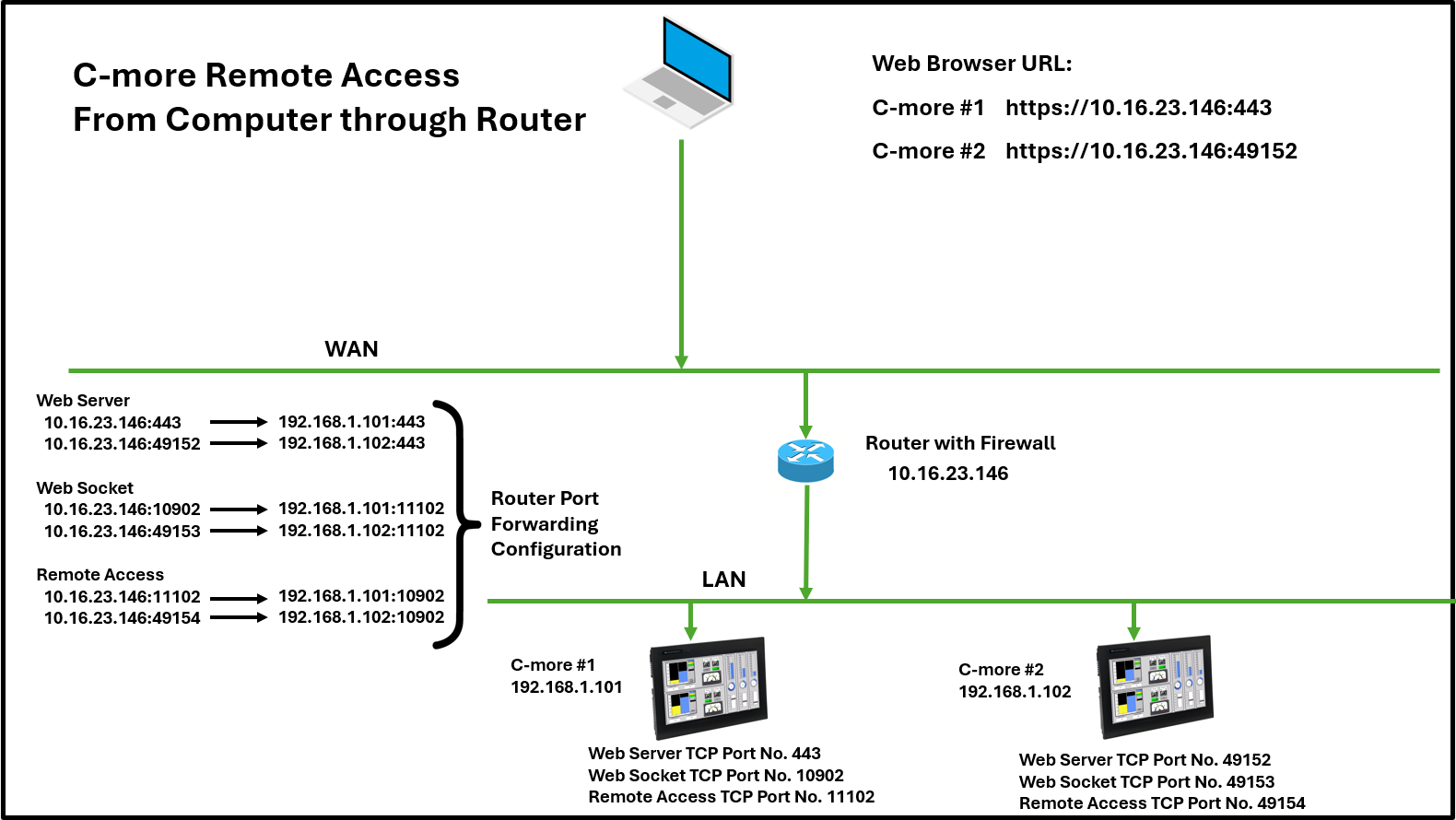
Link Panel Network — Web Server and Remote Access
Configure the Web Server and Set Up Remote Access shown below for each additional C-more panel.
CM511