Event Action — FTP
Use the FTP action to send files from the panel to an FTP server on the network. FTP action requires an FTP server address in the Address Book database FTP tab.
| Note: | Set the network folder destination in the Address Book FTP Server tab. |
Configure an Action
The basic steps are the same for adding any Event Action. See Manage Event Actions.
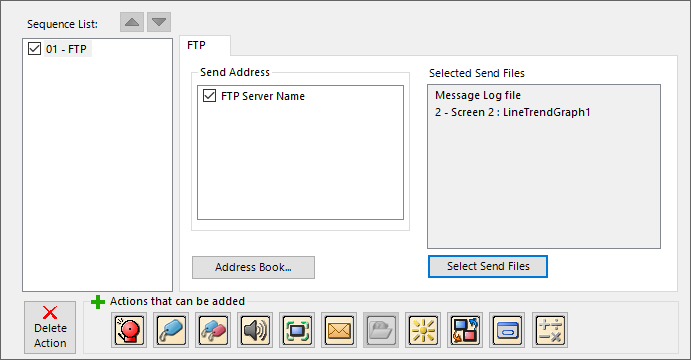
FTP Options
| Feature | Description |
|---|---|
|
Send Address |
|
|
FTP Server Name |
For files you want to send, tick the box beside the addresses configured in the FTP Client Setup |
|
Address Book |
If you do not see the FTP server, open the Address Book Database and add it. |
|
Selected Send Files |
|
|
Select Send Files |
Send files to the designated FTP server. |
Selected Send Files
Select the Select Send Files Button.
-
The Select a File dialog box opens.
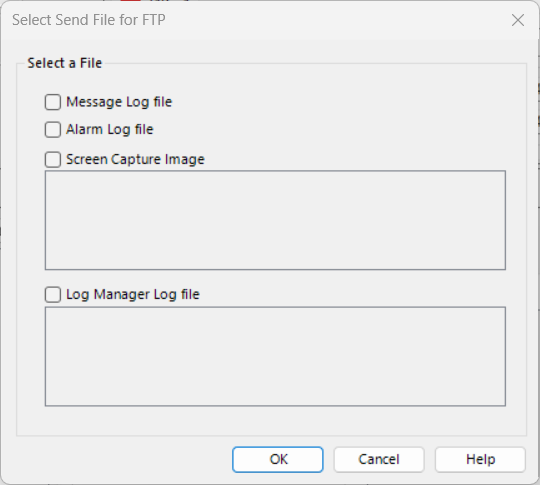
You can send the following files to the designated FTP server. Some files have daily copies.
| Note: | This action sends only the most recent file copy. |
Select a File Options
| File | Description |
|---|---|
|
Sends the Look Up Text object and Message Database log file. |
|
|
Sends the Event Manager Alarm Action log file. |
|
|
Sends the latest screen capture image saved in Panel Manager. |
|
|
Log File |
Sends the Log file. |
| Note: | If the selected file does not exist, the system ignores it and sends only existing files. |
 Related Topics
CM027