FTP Client Setup
You can use the C-moreas an FTP client to an external FTP server. Enter server information in the Address Book to send files the targeted FTP Server with Event Action — FTP in the Event Manager Database.
| Note: | The FTP port number 21 is not configurable when the C-more panel acts as an FTP client. |
Set Up the Address Book
-
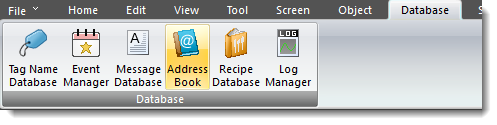
From the Main menu, click the Database menu and select Address Book
— or —
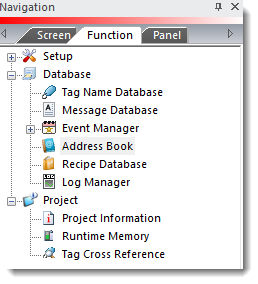
From the Navigation window, select the Function tab and then under Database, click Address Book.
-
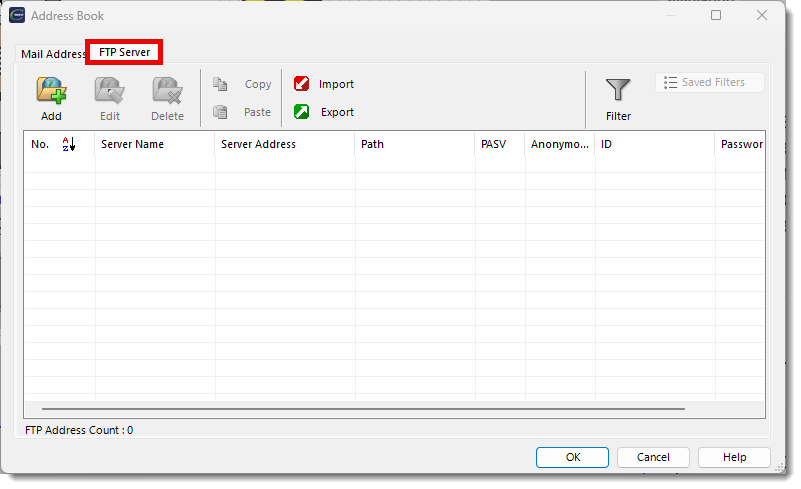
The Address Book window opens.
-
Select the FTP Server tab.
-
Click Add to add a new FTP Server to this list.
-
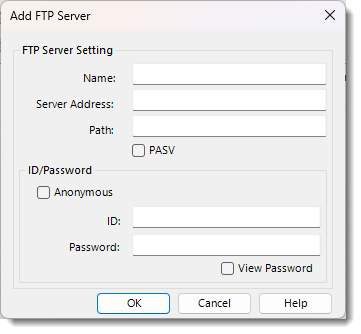
The Add FTP Server dialog box opens.
-
Complete the fields on the screen using the information in the table below:
FTP Server Tab Options
| FTP Server Tab | |
|---|---|
|
Field |
Description |
|
Name |
Event Manager name to more easily recognize the server from a list. |
|
Server Address |
The target FTP serverIP address of the target FTP server. The person responsible for the FTP server (the Network Administrator) has this IP address. |
|
Path |
The writer folder on the FTP server. If the location is the default folder, no path is required. |
|
PASV FTP, also called passive FTP, is an alternative mode for establishing File Transfer Protocol (FTP) connections. Passive FTP is a preferred FTP mode for FTP clients behind a firewall and is often used for web-based FTP clients and computers connecting to an FTP server within a corporate network. PASV FTP is more secure than active FTP because the client initiates the transfer, as opposed to the transfer being initiated by the FTP server. |
|
|
ID/Password |
|
|
Anonymous |
Select if the FTP server does not require a log in ID and password. |
|
ID |
User name or ID required by the FTP server. |
|
Password |
Password required by the FTP server. |
 Related Topics
CM150