Message Display
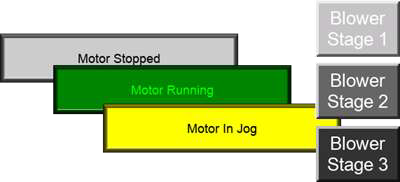
Message Display combines two objects from Version 8: Look-Up Text and Multi-State Text Indicator. Both use a message database to display messages based on the tag value.
The Message Database allows several message display objects to share a single source list. The local message list allows each message object to display distinct messages.
Data Types:
-
Signed Int 16/32
-
Unsigned Int 16/32
-
BCD Int 16/32
-
Floating Point 32
General Settings
Message Source
Global Message Database
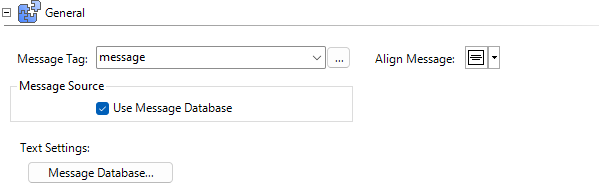
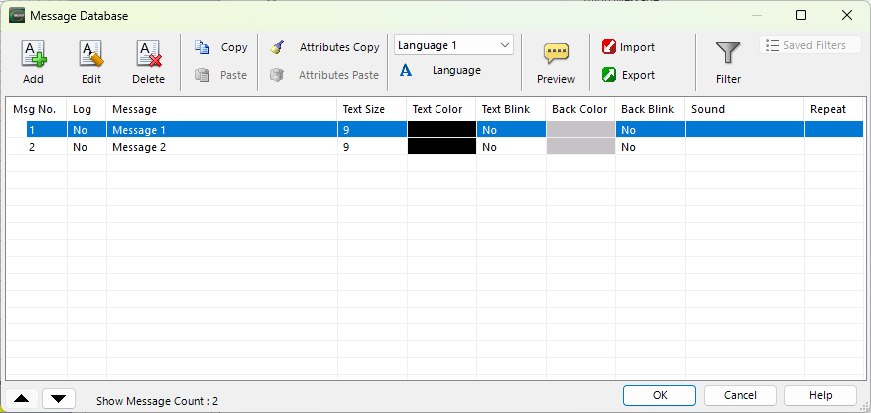
Message Database is a single, unified database that all Message Display objects in the project can access. The message tag value determines the display message.
 Example:
A value of 1 displays Message 1.
Click the Message Database button to open the global Message Database. See Message Database for more information.
Local Message Database
Stores messages in the object exclusively for use with that object. You can export messages to other Message Display objects, but each object maintains its own independent database.
Messages
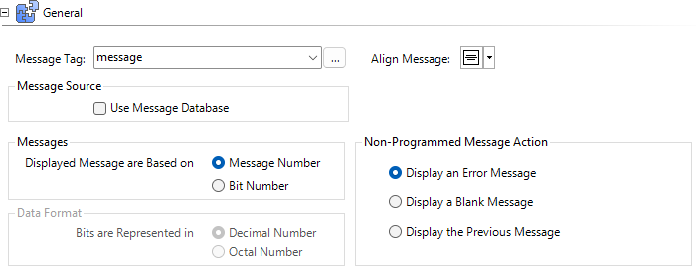
Message Display is Based on:
-
Message Number: the tag value is numeric. This option supports up to 255 messages.
Example:
A value of 1 displays Message 1.
-
Bit Number: the tag value is a binary number. The active bit determines which message displays. This option supports up to 17 messages for a 16-bit integer and 33 messages for a 32-bit integer. If multiple bits are on, the display shows "Message XX not programmed," where XX is the decimal value of all active bits combined.
Example:
Bit 0 on displays Message 0, bit 1 on displays Message 1. If all bits are off, the default message displays.
Data Format
Use decimal or octal bit format.
Octal 10 = 1000 Binary: display Msg No. 3
Decimal 8 = 1000 Binary: display Msg No. 3
Non-Programmed Message Action
If the tag value does not correspond to a message number, you can decide what happens (as configured on the Message tab).
-
Display an Error Message
-
Blank Message
-
Display Previous Message
Object Local Messages
The Message Display Object enters and formats messages with the Local Message database.
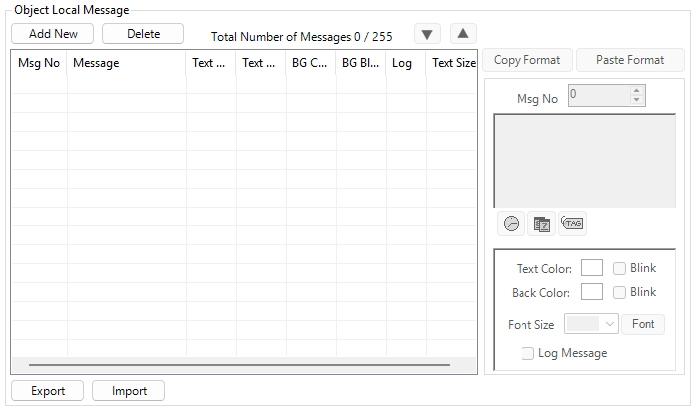
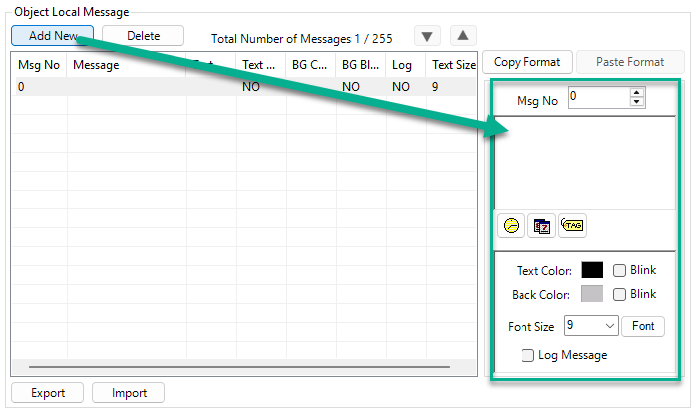
Add New
Click the Add New button.
-
A list of available fields displays.
Delete
Delete the messages.
Copy Format
Copy the message format. Use it with Paste Format to copy font, text color, background, color, and blink format from one message to others.
Message
Type the message text in this window. The message can have up 200 characters.
Clock Icon
Click the clock icon and select the time display format to embed the current time in a message.
Date Icon
Click the calendar icon and select a format to embed the current date in a message.
Tag Icon
-
Click the tag icon to embed a tag value.
-
The Embedded Data value set-up window opens.
-
Select the data type, tag name, and format.
Log Message
Messages log to a file each time a message displays. To configure the log destination, use Panel Manager.
| Note: | Messages only log when the Message Display object is on the active screen. To log messages at all times, place the Message Display object on a background screen that is enabled for the entire project. |
Export/Import
Export the local Message Database from a Message Display object as an XLS file. Modify messages in the exported file or import them into another Message Display object.
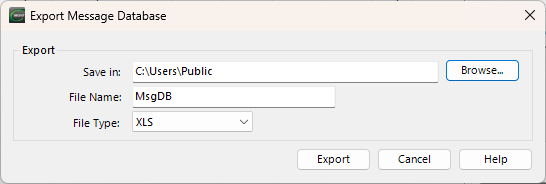
| Note: | When you edit the spreadsheet, do not modify the first two rows or insert anything above them. |

String 1, String 2,…String 9 represent the 9 different supported languages.
Font & Color
Behavior
For information about Press Delay and Release Delay, see Behavior.
CM179