Update Firmware
The C-more panel firmware progams the hardware so the panel communicates all the functions available through the PC software. C-moreprogramming software updates/upgrades include a necessary firmware update. When you install/upgrade the software, also upgrade the firmware on the panel to match the software.
| Note: | When firmware updates, the project files currently loaded in the panel are erased. Save the project so you can reload it to the panel. Refer to the Read From Panel: USB and Ethernet topic. |
Update Firmware
-
Connect the C-more touch panel to your PC via the USB or Ethernet port.
-
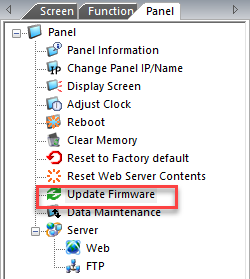
Access Update Firmware From the C-more software application with one of these:
-
Select Update Firmware from the Panel Menu

— or —
-
select Update Firmware from the Navigation window Panel Tab.
-
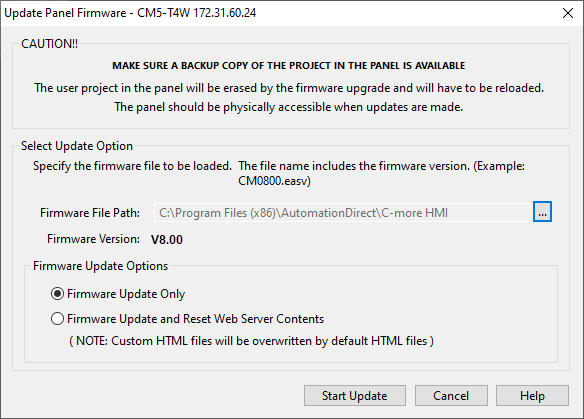
The Update Panel Firmware window opens.
-
If you don't see the path, click the browse button at the far right of the Firmware File Path field and select the firmware file.
-
The default location of the firmware file is C:\Program Files(x86)\AutomationDirect\C-more_HMI Ver8.00\Firmware.
-
-
From the Firmware folder, select the ".easv" file.
-
Normally only one firmware file displays. However, if you make any software upgrades without uninstalling the previous version, previous firmware versions display.
-
The firmware version must match the software version.
-
-
Select the firmware file and click Open.
-
The firmware file path displays in the Firmware File Path field.
-
-
Select Firmware Update Only or Firmware Update and Reset Web Server Contents.
| Note: | If you select Reset Web Server Contents, this overwrites any custom Web Server pages. |
-
Click OK.
-
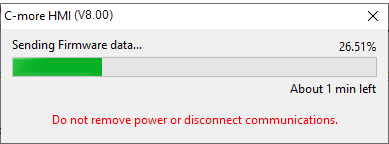
The Update Firmware window appears and shows the transfer progress bar.
-
The panel screen shows a message indicating that an update is in process.
-
Allow a few minutes for this process to complete.
-
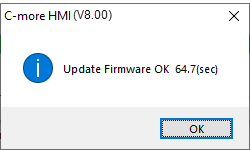
The panel beeps to indicate that the upgrade is complete and a confirmation message appears.
-
Click OK.
-
Project Transfer the project to the panel.
CM445