Read From Panel — USB and Ethernet
Back up the project currently loaded in a panel and /or to edit the project in the panel.
Read From Panel Button
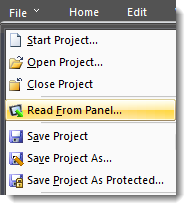
If a project is open, select Read from Panel.
-
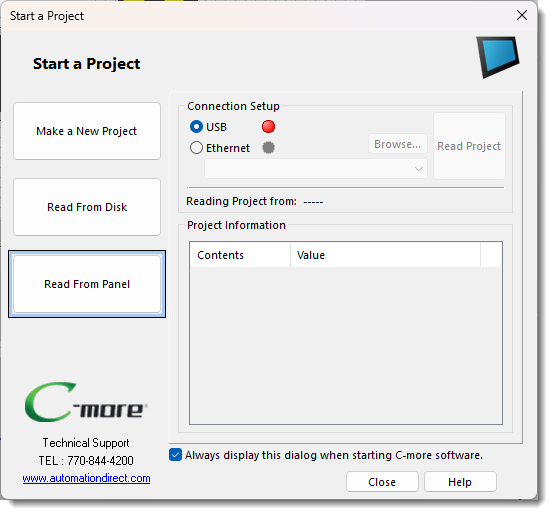
The Start a Project window opens.
-
If a project is not open, select Start a Project from the File menu.
-
Select Read From Panel.
-
Select the Connection Type.
-
Refer to the Communication Ports section in Chapter 2 of the C-more panel User Manual for information on Connection Types available.
-
USB cable connection: select the USB option and follow the instructions provided below for Read a Project from a Panel Using a USB Connection
-
Ethernet Connection: select the Ethernet option and follow the instructions provided below for Read Project from Panel Using an Ethernet Connection.
Read a Project from a Panel Using a USB Connection
Select the Read from Panel button.
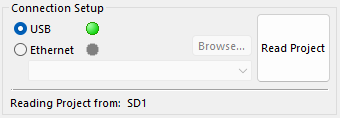
Click the USB radio button.
If the Indicator is Green, click the Read Project button.
Verify that the connection indicator turns green.
A red indicator means there is a USB port connection failure. Check your cable connections.
Read Project from Panel Using an Ethernet Connection
See Ethernet Connection Setup: PC to C-more panel for details about connecting to a panel over Ethernet.
-
Once you establish a connection with the panel, click the OK button.
-
You return to the Start a Project/Read From Panel window.
-
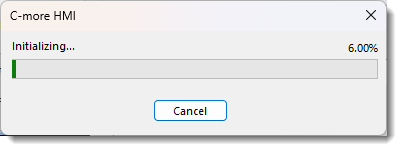
A progress window appears during a project read and closes when the read finishes.
-
Click OK.
-
The project reads from the panel opens in the work area.
-
You can Save, Save as, and Save as Protected Project and proceed with the development.
CM361