Project Transfer
Compile a project file that is ready to transfer to a panel. Then write the project file to the panel, to a USB device, or to an SD card. The compiled project uses the .cmpv extension instead of the .easv extension from the Save a File and Save As commands in the File menu.
| Note: | If you save a project with an .eapv extension, you cannot restore the project to the panel in the field. |
To transfer a project:
-
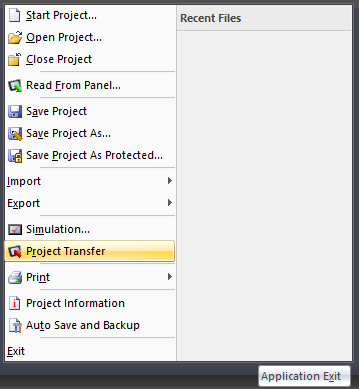
In the File menu, select Project Transfer. Or, in the lower toolbar, click Send.
-
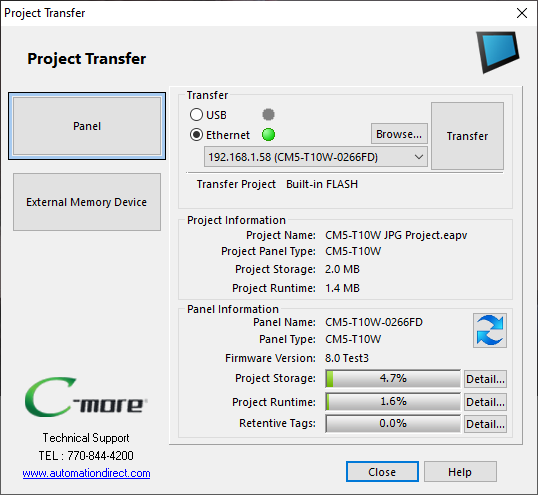
The Project Transfer window opens.
| Note: | A project that you transfer to the panel overwrites any existing project in the panel. To save the existing project before you transfer a new one, exit the current project and select Start a Project, then Read from Panel. |
-
Select Panel to transfer the compiled project directly to a panel
—or—
or select External Memory Device to write the compiled project to USB memory or an SD card.
-
You can take the USB device or SD card to a panel in the field and restore the project from the System Screen, because this project has the correct file extension.
-
Connect to the panel or select the location to store the compiled file.
-
Click the Transfer button to start the project transfer to the panel or the external device.
If the panel is configured with the "Project storage/Boot Location set to Auto or SD1, and there is an SD card in the SD card slot. The project will be saved to the SD card. This is done to maximize the life of the panel by reducing the number of write cycles to internal solid state storage. If the panel is configured to write to built in flash or no SD card is present, the project will be written to the internal Flash memory.
-
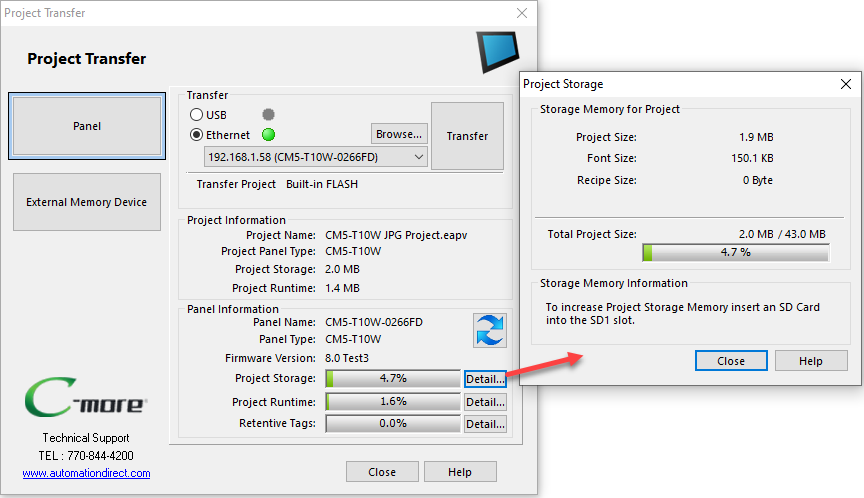
If the Project Panel Type does not match the Target Panel Type, refer to Project Resolution Difference for details about the necessary settings.
-
Memory Usage information is summarized. Refer to Project Runtime Memory for more information.
| Data Type | Internal Flash | USB | SD1 |
|---|---|---|---|
|
Logs |
No |
Yes |
Yes |
|
Yes |
No |
Yes |
|
|
No |
Yes |
Yes |
|
|
Restore From |
No |
Yes |
Yes |
Project Storage Memory
You can increase the Project Storage Memory if you store the project on an SD card in the SD1 slot. Refer to Project Storage/Boot Location for more details.
To restore a project to the panel, insert an SD card into the SD1 slot. In the System Screen, select Restore.
| Note: | You cannot restore a file directly to the panel if you saved it with Save a File or Save As in the File menu. |
| Note: | If you transfer a project to SD1 and then remove the SD card, the panel shows an error and you must start the panel. |
Project Transfer
CM350