Save, Save as, and Save as Protected Project
C-more provides three methods to save a project from the File menu.
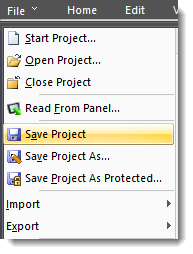
Save Project
Saves an existing project with its current files name or a new project to a new file name.
-
Select Save Project from the File Menu located on the Main menu
— or — -
click the Save Project Icon
 on the File Toolbar
— or — -
Use the shortcut Ctrl+S
When you click Save Project, the existing project saves with its current file name. If the project file is new and not saved, the Save Project As window opens.
Save Project As
Saves a current file with a new file name.
-
Click Save Project As.
-
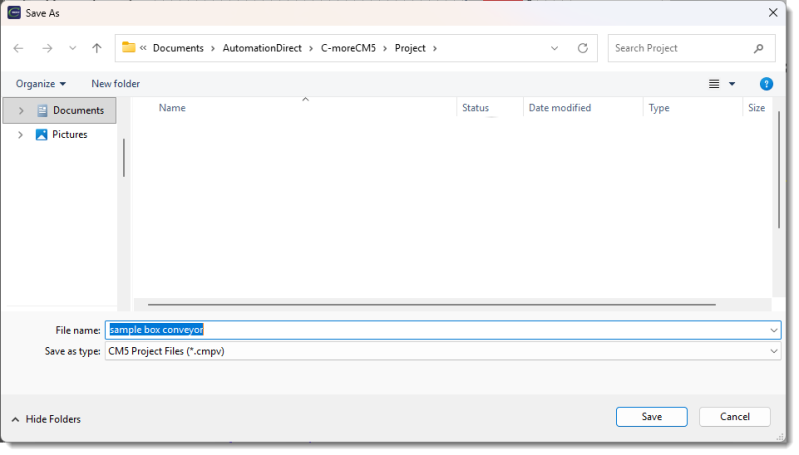
The Save As window opens.
-
Use the Save In field to browse to a folder to save the project.
-
Click the folder to select it.
-
The Create New Folder Icon
 means that a new folder is required.
-
Click the File Name field and enter the new project name.
-
Click the Save button.
-
The window closes and saves your new project file. The new file is the open project and the previous project is closed with no saved changes.
| Note: | If you accidentally open this window, click the Cancel button to close and cancel the operation. |
Save Project as Protected
Protect the intellectual property the project represents. Saves a protected file no one can edit. Write a project to panel memory and not an SD card in the SD1 slot. If the project writes to the panel with a card installed in the SD1 slot, you can copy the SD card and install it on another panel but you still cannot edit the project in the C-more software.
You can only use a protected file to transfer a project to another panel. You cannot access a protected project with C-more Programming Software.
When you create a protected project file, save another version you can edit and store for backup or future authorized modifications.
CM377