Edit Recipe Sheets with Excel®™
Create Recipe Sheet in the C-more HMI Programming Software. The software provides edit options such as drop-down menus, formatting options, and error checks.The best way to edit a Recipe Sheet is to use the C-more HMI Programming Software, you can use a spreadsheet editor such as Excel®™.
| Note: | You can edit the values in a recipe directly from the panel if you configure edit privileges in the Object. |
To edit a Recipe Sheet with Excel®™, export the Recipe Sheet.
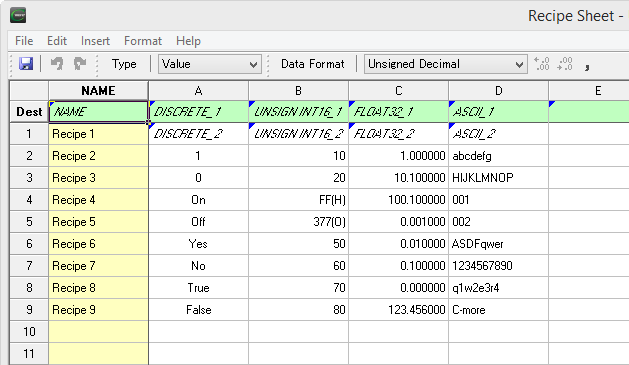
See Export Recipe Sheet if you need export instructions. When you export a Recipe Sheet, it saves the data as unicode text with a " .csv" extension.
-
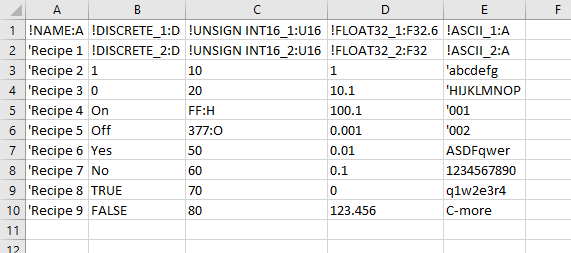
Open the exported Recipe file in Excel®™ to view contents in a format similar to this:
-
Look at the following to distinguish between a tag name, string, and value:
-
Tag Names: the first character is an ! (exclamation mark). For example: !TagName
-
ASCII Character String: the first character is a ‘ ( single quotation ). For example, 'abcdefg
-
Value: No leading character
In the spreadsheet:
-
The first row contains Recipe Sheet Destination Tags.
-
The first column contains Recipe Record Names.
-
The remainder is Destination Tag data. The data in the Recipe Record Name row loads into the corresponding Destination Tag. This data may be Tag Names ( ! ) or values. Values can be Strings ( ' ) or values. Values indicate data format with an ":H" for hexadecimal and an ":O" for an octal.
If you are not very comfortable with Excel®™, only edit values and not tag information. To learn about the formats used for the information in the cells, see the File Formats section below.
Once you edit the Recipe Sheet, save it as a Unicode Text file with a " .csv" extension in order for the panel to use the Recipe Sheet.
| Note: | Any recipe sheet must be a Unicode Text Format File Exported/Saved with a " .csv" file name extension To import. When you save from Excel®™, make sure to save the file as a Unicode Text file format and change the file name extension to " .csv". |
| Note: | You can also copy/cut cells on either the Excel®™ spreadsheet or the Recipe Sheet Editor in C-more , and paste them to each software. |
File Formats
When you import a recipe sheet, you must format it as detailed above.
When you export a recipe sheet, format them like this:
-
File/Encode Type: Unicode (When you save a file in Excel®™, the file extension must be .csv. Excel®™ saves Unicode files as.txt by default).
-
Extension: .csv.
-
Number of Columns: 2 to 256 (When you edit with Excel®™, the columns shift one column to the right. This means that if the column in the recipe sheet is D, in Excel®™ shows E. This is because the Name column in the C-more software is Column A in Excel®™.
-
Number of Rows: 1 to 1,000 Rows (Recipe Records).
Tag Data Type
The characters at the end of the Tag Name designate the tag data format. See the table below.
| Tag Data Type | Mark | Example / Notes |
|---|---|---|
| Discrete | :D | !DISCRETE:D (DISCRETE is the Tag Name) |
| Signed int 16 | :S16 | !SIGNED INT 16:S16 (SIGNED INT is the Tag Name) |
| Signed int 32 | :S32 | !SIGNED INT 32:S32 |
| Unsigned int 16 | :U16 | !UNSIGNED INT 16:U16 |
| Unsigned int 32 | :U32 | !UNSIGNED INT 32:U32 |
| BCD int 16 | :B16 | !BCD INT 16:B16 |
| BCD int 32 | :B32 | !BCD INT 32:B32 |
| Floating PT 32 | :F32 | !FLOATING PT 32:F32 |
| Floating PT 32 | :F32.6 | !FLOATING PT 32:F32.6 (six digits below decimal point) |
| Floating PT 32 | :F32E | !FLOATING PT 32:F32E (E is for Exponential Format ) |
| Floating PT 32 | :F32E6 | !FLOATING PT 32:F32E6 (E is for Exponential Format; Six is a number of decimals) |
| ASCII String | :A | !ASCII STRING:A |
| ASCII String | :AB | !ASCII STRING:AB (B indicates ASCII Byte SWAP ) |
Discrete Value Format
You can use discrete values other than 1 and 0, such as YES or NO.

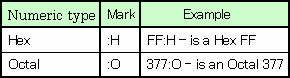
Values can be Strings ( ' ) or values. Values indicate data format with an ":H" for hexadecimal and an ":O" for an octal.
Hex and Octal value Format
ASCII Character String

 Related Topics
CM464