PLC to Panel Tab
Sends PLC information to the panel.
-
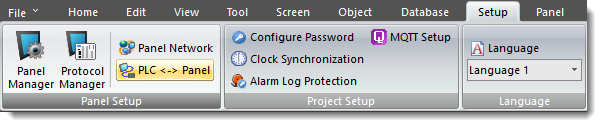
Click Setup on the Main Menu.
-
The Setup drop-down menu opens.
-
Select PLC <-> Panel.
— or —
-
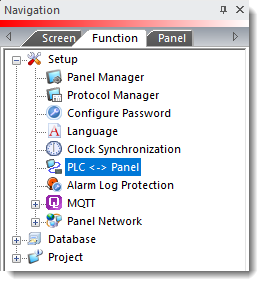
Click the Function tab from the Navigation window.
-
From the Setup branch Function tree, Select PLC <-> Panel.
-
The PLC<->Panel window opens to the Panel to PLC tab.
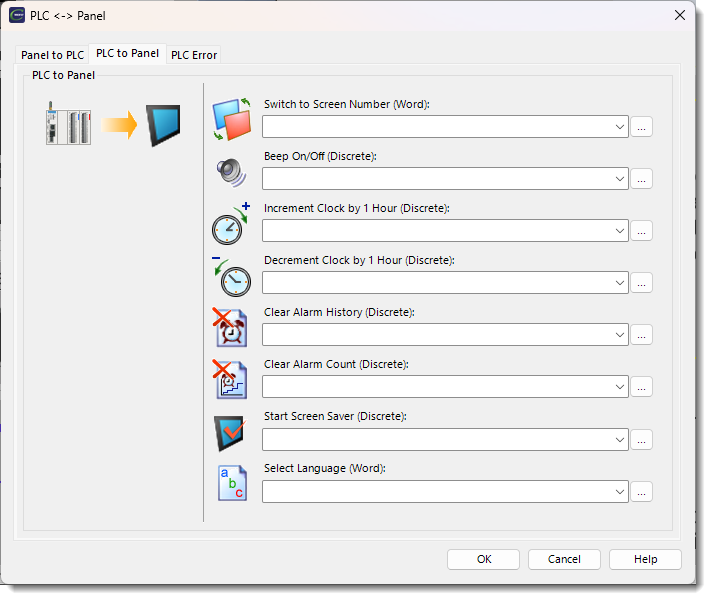
The following fields are available for this tab:
Switch to Screen Number
-
Change the panel screen display to the number in the associated PLC address.
-
Write the current panel display screen number to the tag-associated PLC address.
-
When the value changes, it executes only once.
-
If the value in the tag does not correspond to an existing screen number, there is no error and the tag is ignored.
-
If you load a "0" (usually with a PLC Tag) into the Switch to Screen Tag, the panel goes to the last display screen.
 Example 2:
Switch to Screen contains Tag Name "Screen Number", assigned to PLC address V1200. V1200 contains a random number and the panel is on screen 1. The operator changes the screen to screen 5 with a screen change button or screen selector. If a "0" then writes to V1200, the panel changes back to Screen 1.
Beep On/Off
Turn the panel beep On and Off. Beep stays on until the bit turns off.
| Note: | This is different than Beep On/Off in Panel Manager which only enables or disables the beep. Use Beep On/Off and the panel can use Beep as an alarm and a button as an acknowledgment to silence the alarm. |
Increment Clock by 1 Hour
Adjust the panel to Daylight Saving Time (DST)
Each OFF to ON transition increments the internal clock by one hour.
Decrement Clock by 1 Hour
Adjust the panel to Daylight Saving Time (DST)
Each OFF to ON transition decrements the internal clock by one hour.
Clear Alarm History
Clear the panel Alarm History. Each OFF to ON transition clears the history.
Clear Alarm Count
Clear the panel Alarm Count. Each OFF to ON transition clears the count.
Start Screen Saver
The backlight turns OFF when the Start Screen Save tag changes from OFF to ON. The panel backlight turns ON again:
-
When an operator touches the panel.
-
When a screen is clicked in a Remote Access session.
-
When an Alarm Action in the Event Manager occurs. (only when the Alarm Action Display setting is active).
-
When the PLC changes a screen.
-
When an error (such as a communication error) occurs.
Select Language
The PLC can change the present display language on the panel. Refer to Language under the Setup Menu. When the value changes, it executes only once. If the value in the Tag is out of the range 1 to 9, it is ignored.
CM325