Simulation
See how a project works on the panel before you transfer it. Objects in the project can have internal or external tag names.
Object Test
Test objects in Simulation.
Click the object
— or —
In the Simulation Control Window, enter the value in the tag list.
Simulate a Project
Detect problems before you transfer a project to the panel.
-
On the Home Tab, click the Simulation button

— or —
from the Main menu, click the File menu and select Simulation.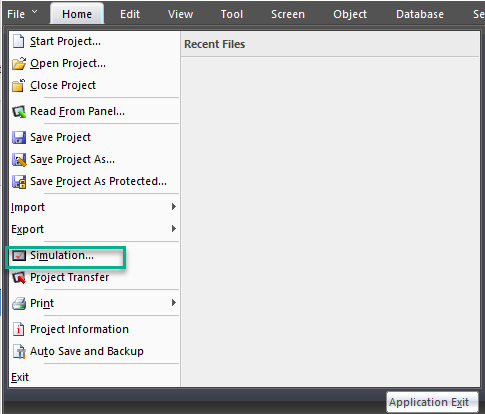
-
The Simulate window opens.
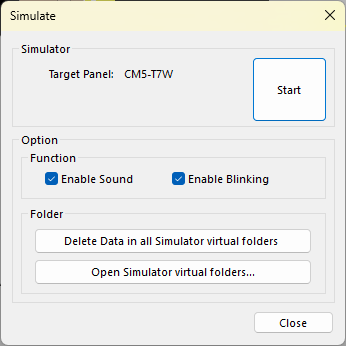
Options
Delete Data in All Simulation Folders
Simulation creates virtual USB and SD card locations on your hard drive to simulate features such as logging. If there are files from a previous simulation, delete them.
Open Simulation Virtual Folders
-
Click this button to open the folder location in File Explorer.
-
By default the location is: C:\Users\%user%\Documents\AutomationDirect\C-moreCM5\Simulation\Default.
-
Click the Start button.
-
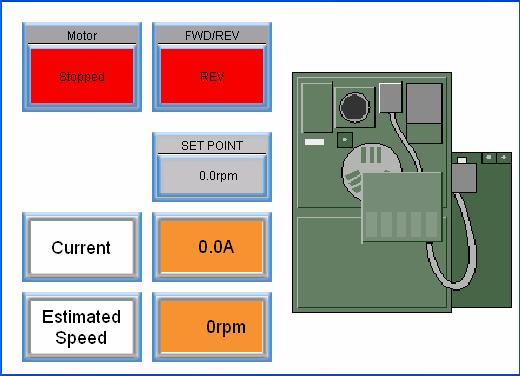
Two Simulation windows open:
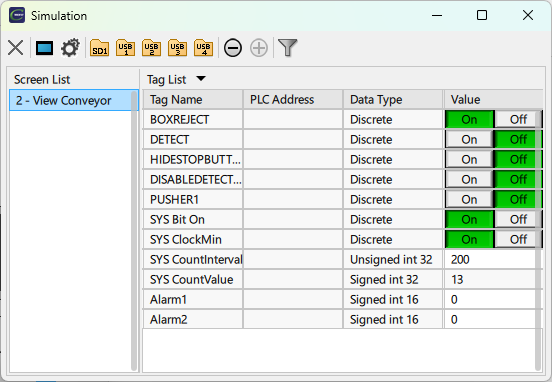
 Simulation Control Window
Test meters, graphs, numeric displays, and similar objects.
The Screen List portion of the window provides a list of all the project screens. Click a specific screen to open it in the Simulation window.
The tag list includes a tag name, PLC address, and data type for each object on the screen. Enter a value in the field to test an object.
Use these functions from the Simulation control window:
Exit Simulation

End and exit Simulation.
Bezel

Display a frame around the Simulation window as it appears on the panel screen.
Simulation Setup

Open the Simulation setup window.
Folder
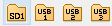
Open the simulated folder on your PC. The folders in C:\Users\%user%\Documents\AutomationDirect\C-moreCM5\Simulation\Default on your PC represent the same folders on the C-more panel.
View simulated data logs, alarm logs, and screen captures in these folders.
Simulation Setup Window
The Simulation Setup window provides a few setup options when running a Simulation.
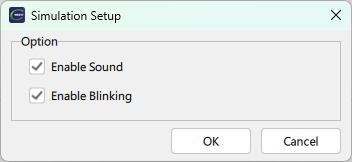
Enable Play Sound
Any object with a sound file executes the sounds during simulation.
-
On by default.
-
Click to remove the tick from this box to turn off sound during simulation.
Enable Blinking
Any object with a configured blink feature executes during simulation.
-
On by default.
-
Click to remove the tick from this box to turn off blink during simulation.
Simulate Panel
You cannot simulate CM5 panels as another model.
Click close  to end the project simulation.
CM394