Clear Memory
-
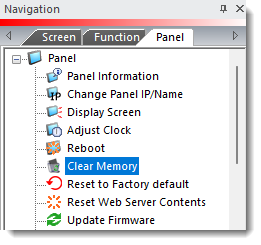
Click Clear Memory in the Panel drop-down menu on the Main Menu.
-
The Clear Memory window opens.
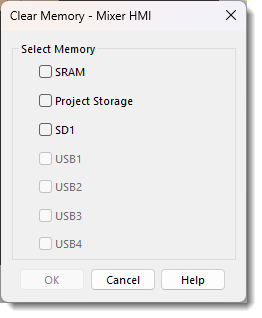
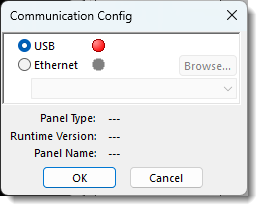
| Note: | If your panel does not have an SD Card, the Clear Memory window looks like the figure shown above. If the panel does have an SD Card, the SD1 text and tick box are black, indicating active. If the panel is not connected to the PC, the Communication Config window (shown below) displays instead of the Clear Memory window to indicate that there is no communication with the panel. To proceed, establish communication with the panel. See User-Defined Keypad for more information. |
Be aware that all the data in the SRAM, Built-in Flash, and SD is PERMANENTLY ERASED. Back up the data before you proceed if you need to keep it.
-
In the Clear Memory window, tick each Memories to be Cleared box to select them.
-
Click OK to accept the settings and proceed.
-
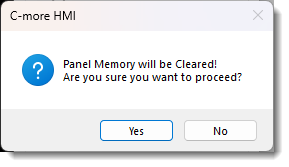
The following Warning window displays:
-
If unsure or to cancel the process, click the No button to cancel the process and close the window.
Be aware that all the data in the SRAM, Built-in Flash, and SD is PERMANENTLY ERASED. Back up the data before you proceed if you need to keep it.
CM253