Find and Replace

Overview
This information provides basic knowledge for find and replace features.
Find and Replace allows you to update the following for any object you select:
-
Tag Names
-
Object Labels
-
Control Text
If the tag does not exist, you can create a new one.
When you work with multiple similar subsystems, such as pump stations, conveyor lanes, and HVAC zones, use this feature to make partial edits to tag names or labels.
| Note: | Find and Replace updates text only in the selected screen or objects. |
 What Does Find Locate?
Any text string:
-
Part of a Tag Name
-
Label Text
-
Control Text
-
Complete text
Within each subsystem you group on a single screen or specific control regions.
Search scope:
• Full Screen: search all objects on the active screen
• Selected Objects: search only selected objects
What Does Replace Change?
Content that matches the search text.

Example:
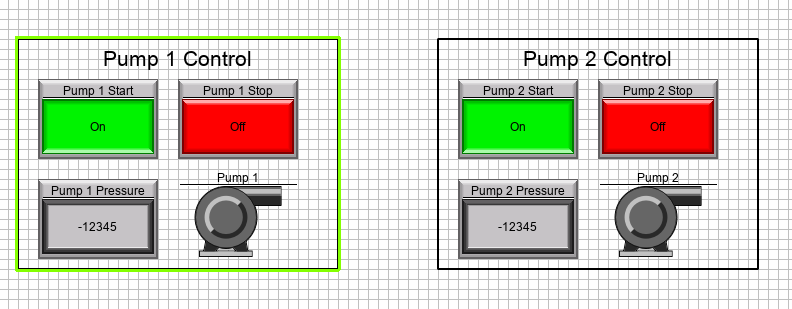
With multiple identical subsystems (e.g., Pump Stations 1–4):
1. Create all objects for Pump Station 1.
2. Copy the full group of Pump 1 objects.
3. Select the new objects for Pump Station 2.
4. Use Find and Replace to change “1” to “2”.
All associated tag names, labels, and button text update at once for Station 2.
Open the Find and Replace Tool
1. Select the object(s) you want to modify or choose nothing to update the entire screen.
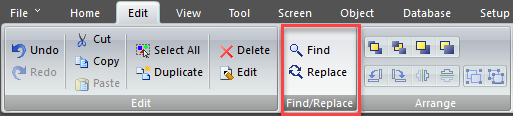
2. Open the tool using one of the following:
-
The Edit menu
-
Ctrl+F: Find
-
Ctrl+H: Replace
Find Replace Window
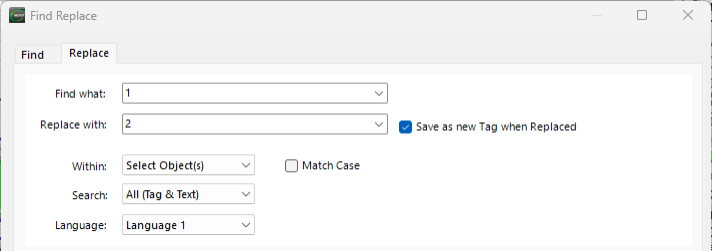
The window includes two tabs:
Find Tab
Locate matching tag names, labels, or control text within:
-
The full screen
-
current objects
| Note: | You can also use this feature for system tags (i.e. “SYS Delete SD1 Log”). |
Replace Tab
Search and replace text.
Save as New Tag when Replaced
Tick this box and Replace results in a new tag name, C-more creates a new tag with the same data type and the same PLC address as the original tag.
If this box does not have a tick, if Replace results in a tag name not in your project, C-more renames existing tags are to the new tag name.
| Attention: | If you create new tags, manually adjust the device name or PLC address as needed. |
Search Options
Tag Names
Searches tag names in selected objects.
Label Text
Searches user-visible labels (e.g., “Pump 1 Start”).
Control Text
Searches internal object text, such as button On/Off labels.
All Text
Searches object text and labels.
All Tag and Text
Searches and updates all Tag Names and all text forms.
Language Considerations
In multi-language projects, update each language set separately.
Search text may differ between languages, so perform the same Find/Replace operation for each language.
Best Practices
• Use a minimal, consistent identifier in your tag and label text (e.g., “1” or “P1”) to improve results with mixed formats such as:
"o pump1.start"
vs.
"o Pump 1 Start"
Differences in formatting (capitalization, spacing, punctuation) may skip items in the search.
Find All
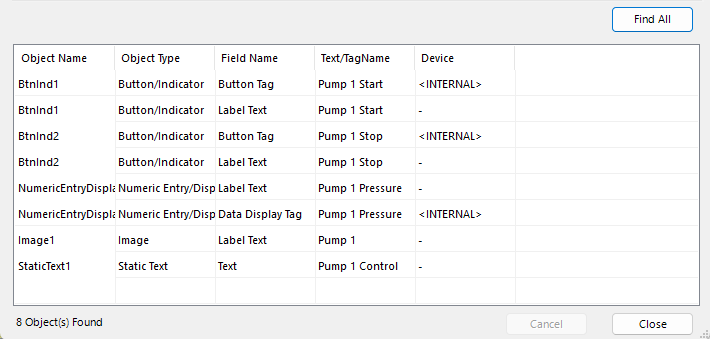
After you enter criteria, click Find All.
Find Results
Your results appear in a table with the following information for each match:
• Object Name
• Object Type
• Field Name (where the text exists)
• Original Text/Tag Name
• Device associated with the original tag
Replace and Replace All
Defines what information the software replaces.
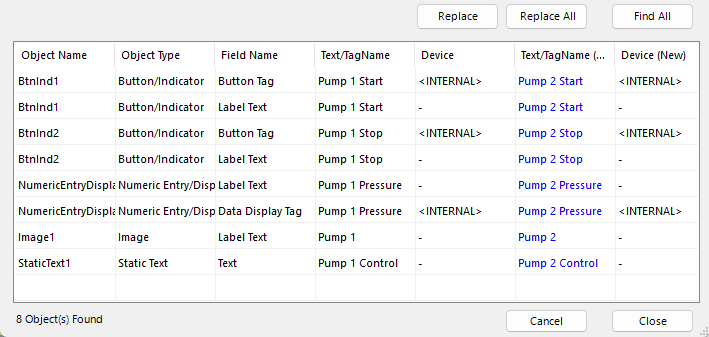
-
New Text/Tag Name
-
Device associated with the new tag (if applicable)
-
Address: original PLC Address
-
Feature: selects each row or:
-
Shift-Click: selects a contiguous range
-
Ctrl-Click: selects individual non-adjacent rows
Replace Options
Replace results affect objects on the screen. The changes are not permanent until you select Close.
Replace
Applies Replace to the selected rows. If you do not select any rows, replace starts at the top row and replaces one row at a time.
Replace All
Replaces all rows in the results list, whether you select them or not.
Cancel
Discards all changes you make in a session.
Close
Accepts all changes.
CM222