Data Maintenance
Access the files on the connected C-more panel instead of using an FTP Client to download log files or upload recipe files.
| Note: | Uploaded files overwrite existing files of the same name. |
Open the Data Maintenance window in the Panel Tab
— or —
in the Panel Menu.
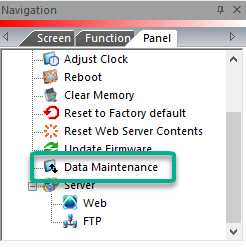

| Note: | The C-more software tool must be online with a C-more panel to access data on the panel. |
-
If the software is online with a panel, the Data Maintenance window opens.
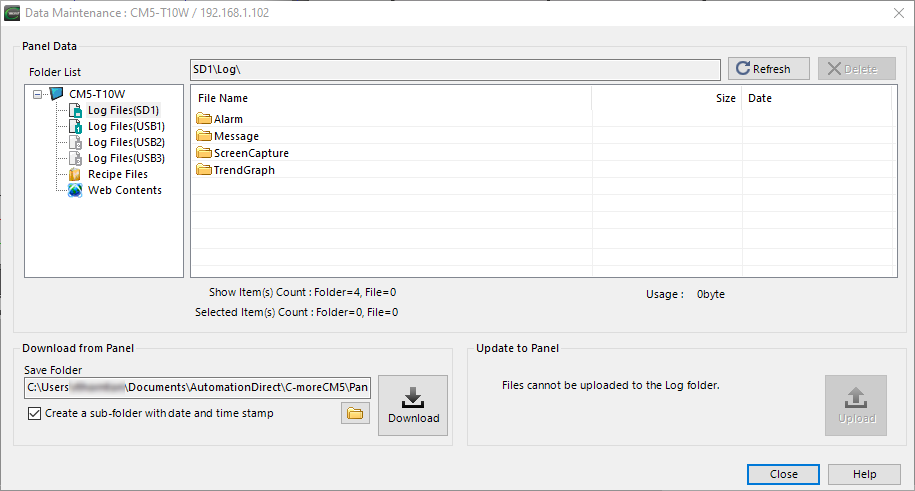
Panel Data
 Refresh :
Refresh the list of folder contents when you remove or insert a memory device.
Delete:
Select one or multiple files or folders and select Delete to remove the file or folder. This permanently deletes the data.
Folder List
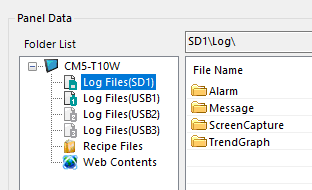
The accessible memory devices and folders for the connected panel are here. Depending on the panel model, some of these locations may not be available. Select the memory device or folder to see the contents.
The following are external memory devices:
-
SD1
-
USB1
-
USB2
-
USB3
File Name
Folders are created as you write different types of files to the memory device. The possible folders are:
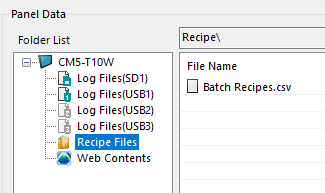
You can download these files and folders. You cannot upload files to these locations.
All Web Server (Secure HTTPs) file contents are preloaded by default in the panel. You can overwrite these with your files to display custom HTML pages. Reset Contents resets the folder contents to defaults. The folder is in the built-in memory of the panel.
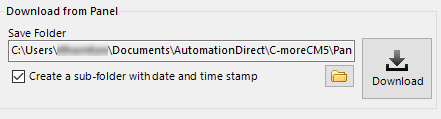
Uploading to Panel
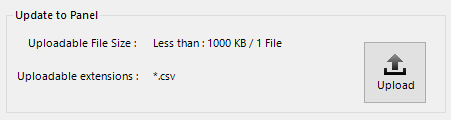
Update Web Contents or Recipe Sheets.
-
Click Upload.
-
Select Open to write files to the panel and overwrite any existing files of the same name.
CM212