Project Resolution Difference
You can show screens at the original resolution or adjust screens to a different panel resolution.
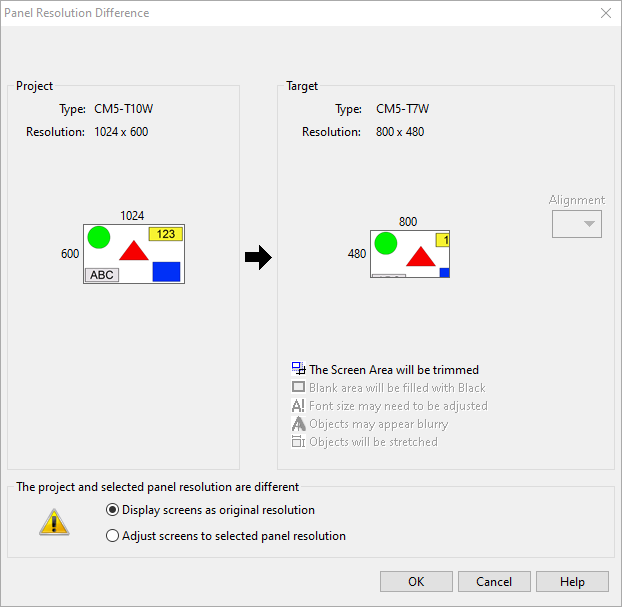
Display Screens as Original Resolution
The original project screen is the target project screen pixel for pixel, regardless of the target screen pixel settings.
-
Lower resolution: some objects can extend off the screen view. Adjust the object size and move objects back into the viewing area manually.
-
Higher resolution: all objects in the viewing area show. There is extra space for more objects or to manually resize existing objects.
Adjust Screens to Panel Resolution
-
The pixel count for the project increases or decreases to fit the target panel resolution. Objects can stretch or shrink. The result shows in the Panel Resolution Difference window.
-
Font size settings do not scale. Fonts can appear smaller or larger. You can adjust them manually.
Target
Trim Screen Area
When you select to show screens at original resolution, the project area can be too large for the target screen area. When you decrease the screen size, objects that do not fit remain in the working area outside the screen.
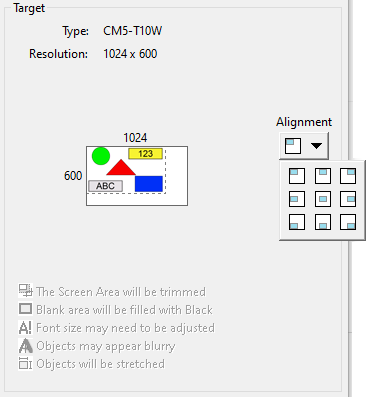
Alignment
When you show screens at original resolution and the target panel is larger than the original project panel, there is extra empty space on the screen. You can select where to place the smaller screen area.
Adjust Font Sizes
When you adjust screens to the selected panel resolution and the target panel is larger than the project panel, the screens and objects stretch. The text size does not change. For example, a size 9 font is still a size 9 font, but on a higher resolution panel the text appears smaller.
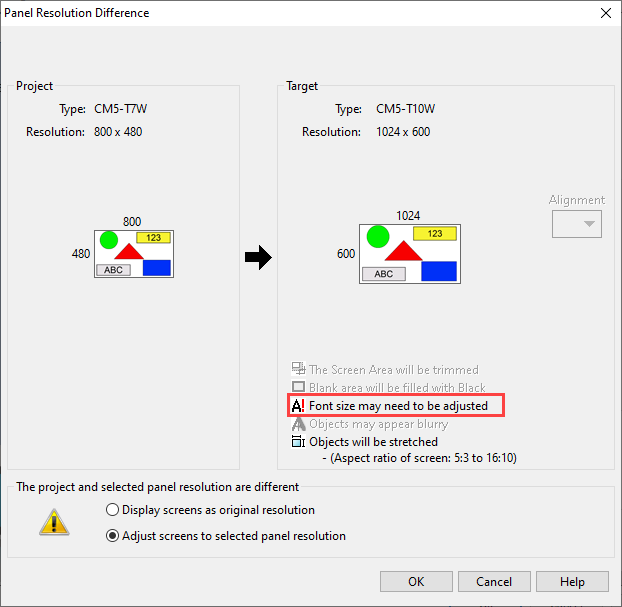
To keep the same look in the project, increase the object font size.
-
Use Ctrl+A to select all objects on a screen.
-
Select the Font Size Up or Font Size Down toolbar buttons
 in the Edit Menu to adjust the font size.
Stretch Object
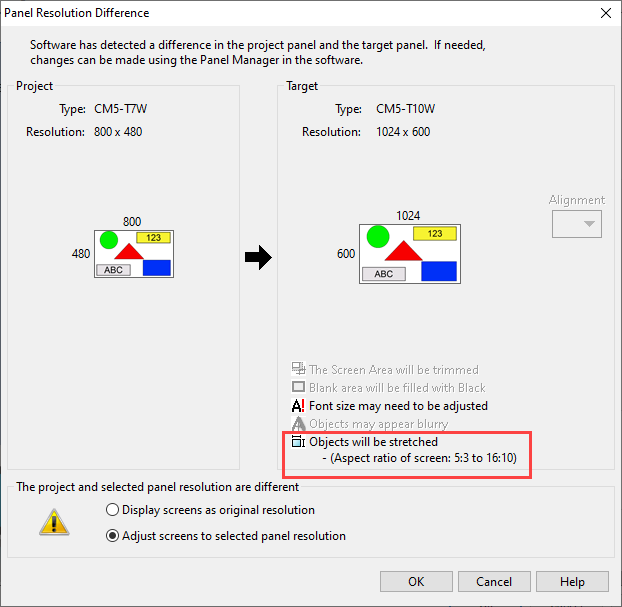
When you adjust screens to the selected panel resolution and the target panel is larger or smaller than the project panel, objects stretch. They can become wider, taller, or both. The fonts do not change. If you change the Panel Aspect Ratio, for example from 10in wide to 12in wide, the aspect ratio of the objects changes as well.
These changes can be difficult to see when you convert from one CM5 panel size to another, because most of the resolutions are the same or close. The difference is more noticeable when you convert from an EA9 panel.
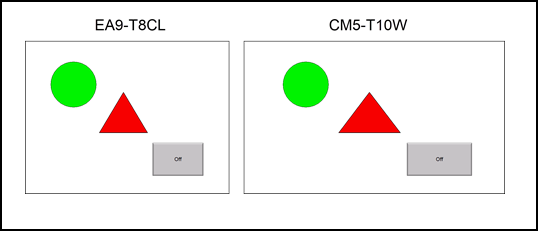
| Note: | If you select Lock Aspect Ratio for objects such as images, the object space can change its aspect ratio, but the image does not change. To let the image fill the object space, cancel Lock Aspect Ratio. |
Stretch Image Property
You can stretch an image in the General properties of the image object:
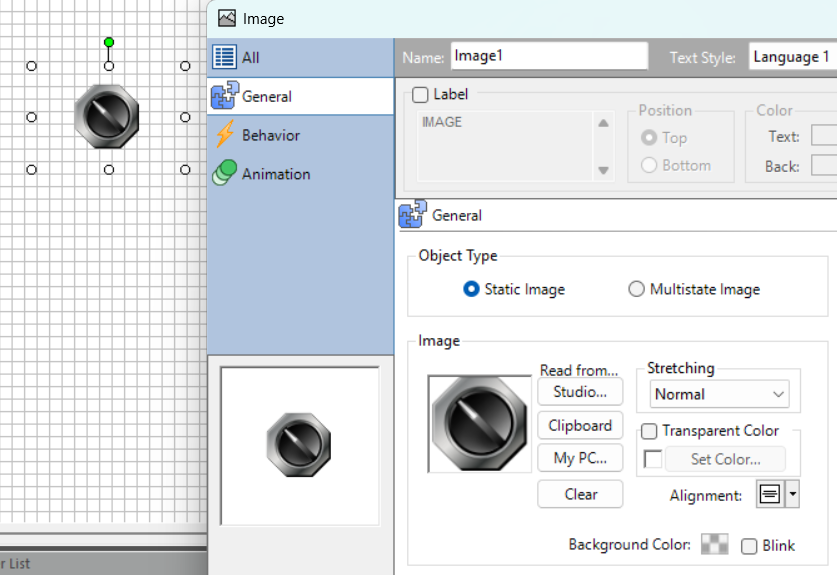
Normal: keeps the image in the defined object based on the original image size.
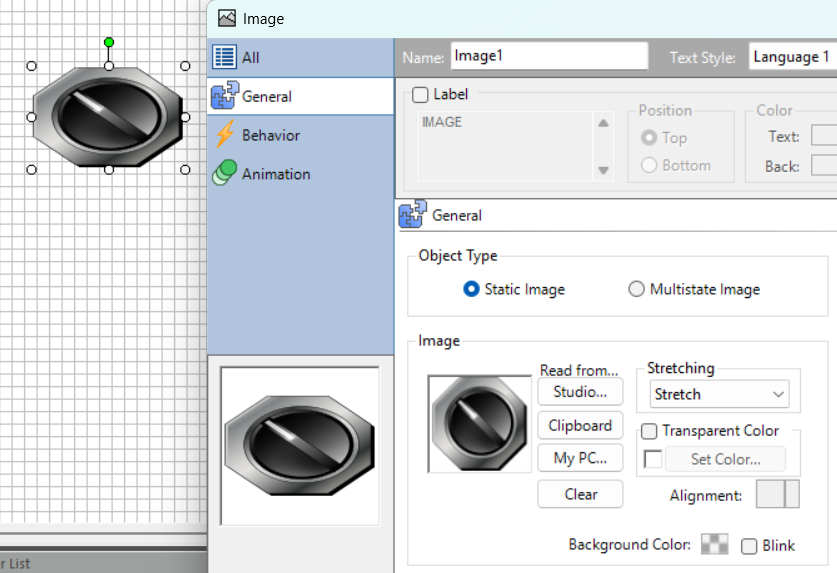
Stretch: stretch the image to the defined object size and shape without the aspect ratio.
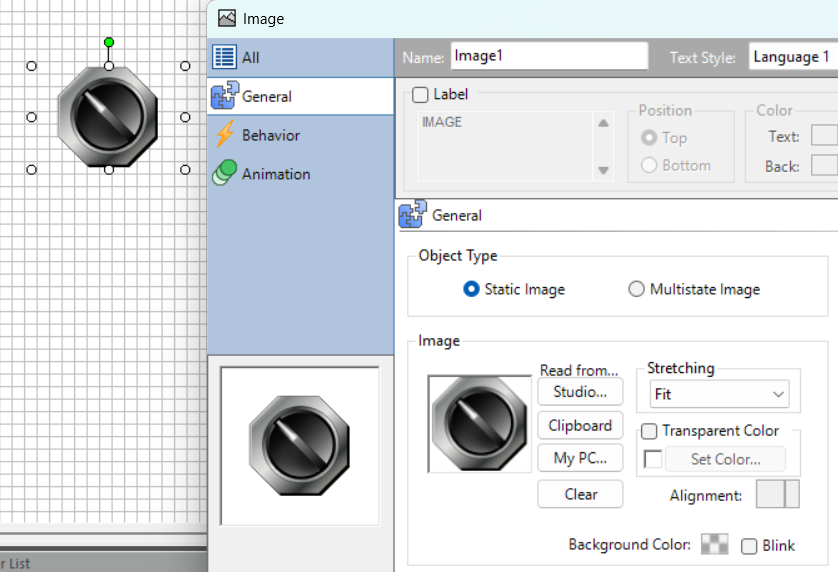
Fit: makes the image as large as possible in the defined object size and keeps the image aspect ratio.
CM016