|
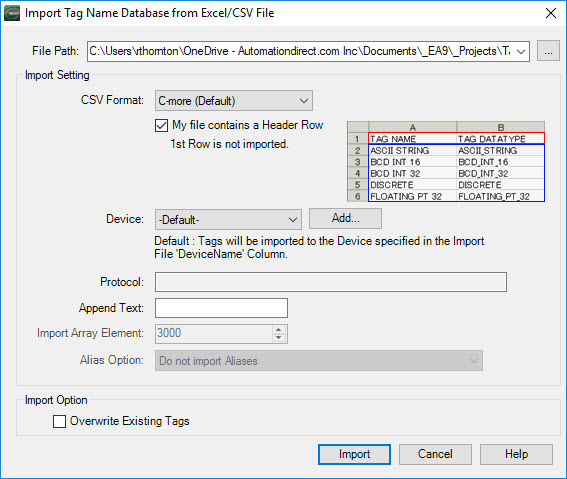
File Path
|
Enter the path, or click the adjacent button to browse for the file. The file must be a .csv, .xls, L5K, L5X, or xml file type. The file type sets the options that are available.
|
|
.csv Format
|
.xls – If the file selected is a .xls file, then .csv Format is disabled. The .xls file must be a Tag Name Database file exported from a project with the C-more Programming Software. .csv - If the file selected for import is a .csv file, then this drop-down list lets you select one of several predefined formats
C-more (Default) – This is a Tag Name Database file that was exported from a project using the C-more Programming Software.
DirectSOFT – The Tag Name Database file was exported from the DirectSOFT PLC Software using the “Export Element Documentation in C-more format.”
CLICK – The Tag Name Database file was exported from the CLICK PLC Software. Only Tag Names with Nicknames will be imported.
Productivity Series – The Tag Name Database file was generated by the Productivity Suite Programming Software. The basic file must be selected for import.
Do-more – The Tag Name Database file was exported from the Do-more Designer Software using “C-more Do-more Driver Format”.
A-B SLC and MicroLogix Format – When A-B SLC and MicroLogix is selected, the Import function looks for the .csv file to be in the format that Rockwell Automation RSLogix™ programming software exports. You can import these data file types for the A-B SLC and MicroLogix:
B - Binary
T - Timer
C - Counter
R - Control
N - Integer
F - Floating Point
L - Long
ST - String
I, O, and S are not imported. Only these elements of the Timer, Counter, and Control data files are imported:
TIMER: EN, TT, DN, ACC, PRE - If ACC or PRE are not designated in the Import file, the Import will default to ACC.
COUNTER: DN, CU, CD, OV, UN, ACC, PRE - If ACC or PRE are not designated in the Import file, the Import will default to ACC.
CONTROL: EN, DN, EU, EM, ER, UL, IN, FD, LEN, POS.
C-more Tag Name determination: when imported, the software selects the C-more Tag Name by this priority. If the higher priority is blank, the software uses the next priority.
A-B Symbol
Description Lines 1 through 5
PLC Address. Do not use special characters and symbols in these three areas. Special characters and symbols include ! @ # $ % ^ & * ( ) + = \ | ] } [ { / ?. > , < ; : ’ ” These characters break the delimiters of the file data.
|
|
My File contains a header row
|
When this box is selected, the software does not import the first row of the file. When it is not selected, the software imports all rows.
|
|
Device
|
Select the device for the tag names that you import. Add and configure devices in the Panel Manager. If you select Default, the software imports the tag names to the device in the Import file's DeviceName column.
|
|
Add Button
|
To add a device, click the Add button. The Panel Manager opens so you can add a device.
|
|
Protocol
|
This field is read-only and is for information only. It shows the Protocol settings of the selected device. The field is blank if you select Default from the Device drop-down list.
|
|
Append Text
|
This field lets you enter text that the software adds to the end of each Tag Name to make it different from the other Tag Names. C-more does not let you use two Tag Names that are the same, even for different devices.
|
|
Import Array Element
|
This field is for devices that can use Tag Arrays. It sets the number of array elements that the software imports for each array. If the array in the device contains 1200 elements but you need only the first 10 in the C-more application, change this value to 10. This can reduce the number of tags in the C-more Programming Software and make tag name selection more efficient. Select the number that is applicable to the application.
|
|
Alias Option
|
If the file selected for import is an L5K or L5X file type, this field is enabled. These options let you select the most efficient method for your tag and alias names.
-
Do not import Aliases: imports only regular tags.
-
Import all Aliases & Tags: imports all aliases and tags.
-
Import only Aliases: imports only aliases.
-
Import Aliases & Tags that do not have Aliases: imports all aliases, and only the tags that do not have aliases.
|
|
Overwrite Existing Tags
|
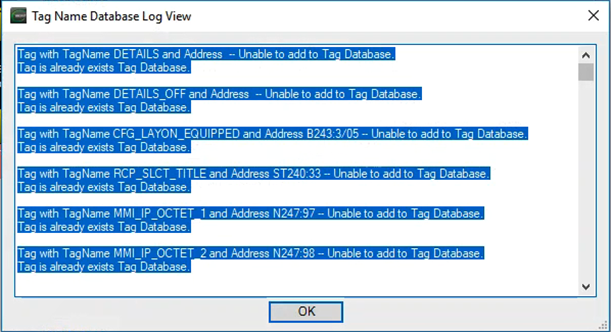
Select this box to let imported tag names overwrite existing Tag Names that have the same name. If the box is not selected, the software does not import Tag Names that have the same name as existing Tag Names. The software gives an error for each Tag Name that already exists.
|