|
|
Topic: P343 |
Structured Text Editor |
|
|
|
Topic: P343 |
Structured Text Editor |
|
Icon / Button =
Structured Text Editor is an extremely powerful feature of the Productivity Suite software that improves the maintainability, uniformity, and readability of your routines.
The Structured Text Editor Window, also known as the ST Task Window or ST Task Pane, is the area where all Structured Text (ST) program code is written, edited, compiled, debugged, and monitored. The Structured Text Editor shares the same workspace location as the Ladder Editor but with features specific to Structured Text programming.
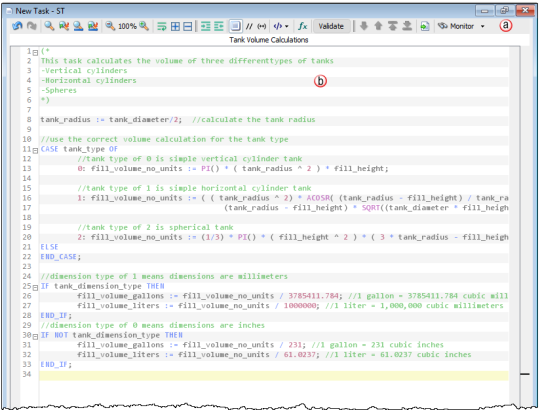
The Structured Text Editor Window is divided into two main areas:
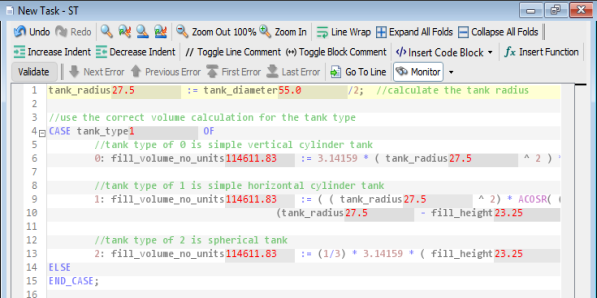
The Header displays the name of the Structured Text task currently open and includes commonly used controls for programming and viewing the task.
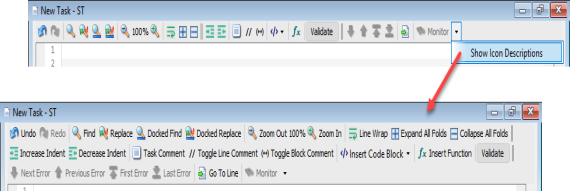
The drop-down arrow to the right of the header icons provides the Show Icon Descriptions option. When selected, the Show Icon Descriptions option will populate the header with icon descriptions as seen below.
The following section describes each of the header options:
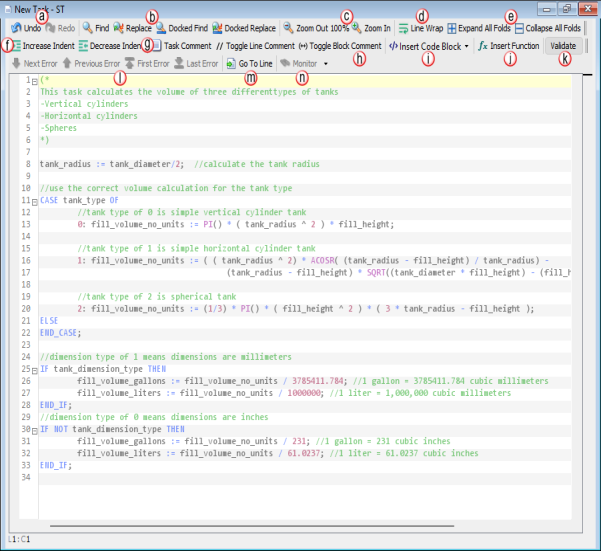
Task Comment – toggles the display of the task comment in the header”
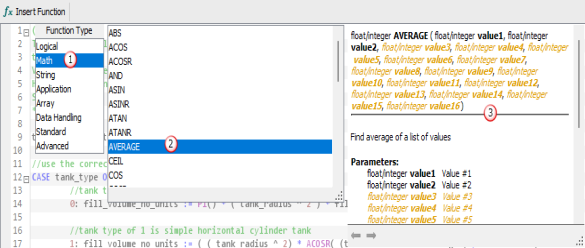
- Function Type lists the eight categories of functions and function blocks.
- List of function or function block names in the currently selected category.
- Description of the function block – includes parameter names and what the function does.
Note: A complete list of all available functions can be found in the Structured Text Function List help topic. Parameters in the description that are orange are optional and not required for the function to compile.
The Editor is a text editing interface where Structured Text code is entered and displayed.
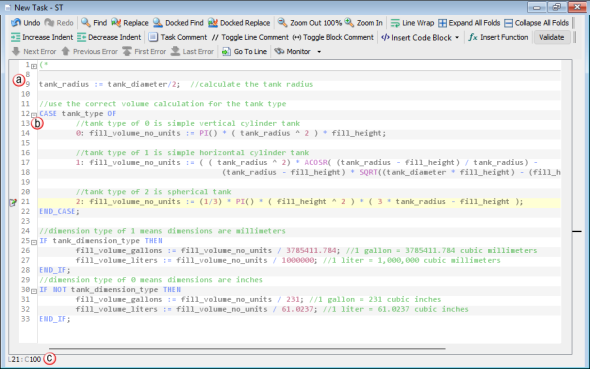
The cursor location is displayed at the bottom of the editor window – for example L21:C100 means the cursor is at line 21, column 100”
The ST Editor has the following features to aid in writing and formatting code:
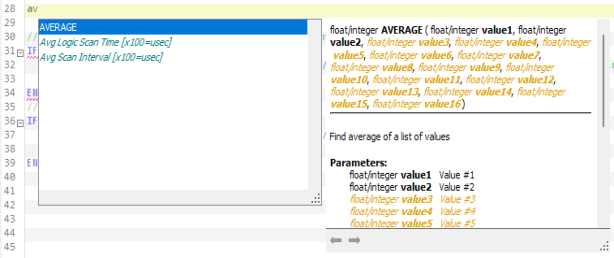
Note: The ST Editor supports up to 4096 lines per task.
The following is a list of keyboard shortcuts supported by the ST editor:
Ctrl + Z (undo)
Ctrl + Y (redo)
Ctrl + F (find dialog)
Ctrl + R (replace dialog)
Ctrl + Shift + F (docked find dialog)
Ctrl + Shift + R (docked replace dialog)
Ctrl + W (toggle line wrap)
Ctrl + Numpad+ (expand current fold)
Ctrl + Numpad- (collapse current fold)
Ctrl + Shift + Numpad+ (expand all folds)
Ctrl + Shift + Numpad- (collapse all folds)
Ctrl + Shift + . (increase indent)
Ctrl + Shift + D (delete entire line of code at cursor location)
Shift + Tab (decrease indent)
Ctrl + / (toggle line comment)
Ctrl + \ (toggle block comment)
Ctrl + L (go to line dialog)
Ctrl + Space (display inline auto-fill list)
Ctrl + Shift + Space (display inline function list)
Note: Use the Up/Down arrow keys to navigate within the list of functions and use Ctrl + Up/Down to navigate within the Function Type portion of the inline function list.”
Shift + Space (open advanced instruction dialog – for @CALL and @UDI instructions)
Shift + F8 (validate/compile task)
Ctrl + Left Arrow (move cursor to the next word)
Ctrl + Right Arrow (move cursor to the previous word)
Ctrl + Up Arrow (scroll up without moving the cursor)
Ctrl + Down Arrow (scroll down without moving the cursor)
Ctrl + M (monitor the selected tag or instruction in Data View)
Ctrl + Q (show in Tag Cross-Reference)
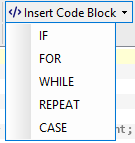
Shift + Enter after the first line of an IF, FOR, WHILE, REPEAT, or CASE statement to automatically generate the remaining statement code structure
The ST Editor visually indicates undefined tags, incorrect parameters, and syntax errors using red underlines. See below for some examples:


In addition, the following icons indicate the status of each line of code that is written:
 the line of code contains unverified / uncompiled edits
 the line of code contains unsaved changes
 the line of code contains edits that have not been saved or transferred to the CPU
 the line of code contains edits that have not been transferred to the CPU
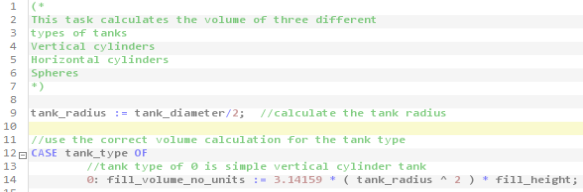
To add a multi-line comment, enclose the comment with (* and *). Everything within will be considered a comment and will not be validated or compiled as code. Multi-line comments have no restriction on the number of lines.
To add a single-line comment, use //. Everything after // will be considered a comment and will not be validated or compiled as code.