|
|
Topic: P339 |
UDI (User Defined Instruction) Definition Editor |
|
|
|
Topic: P339 |
UDI (User Defined Instruction) Definition Editor |
|
Icon / Button =
UDI (User Defined Instruction) definition editor panel is where users can create, edit, and configure a UDI Definition that can be instantiated in ladder using the User Defined Instruction.
The User Defined Instruction editor window can be accessed by double clicking on a specific UDI definition in the management panel.
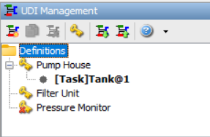
Note: Each bold text item below the UDI definition name is associated with the location of an instance of the User Defined Instruction in a ladder task. Double clicking on the Instance Name will navigate you to that section of ladder logic. For the example shown, there is one instance of the Pump House UDI in the Tank task on Rung 1.
If parameters with the same name but different data types are already existing in the UDI Definition, the newly copied and pasted instruction(s) will be appended with a “_1”.
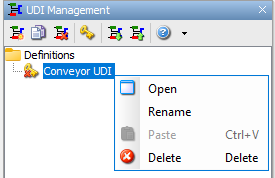
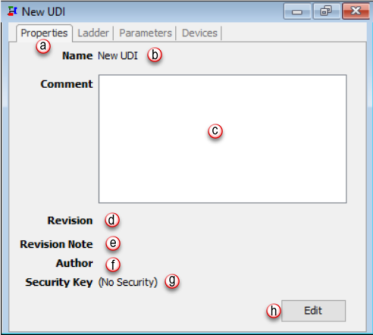

Note: Nesting of up to 4 UDI definitions is supported.
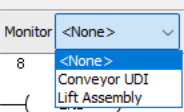
These logical states are represented in two ways:
The contacts and coils will be highlighted with either a red or green color.
A numerical 1 or 0 (1=On, 0=Off) will be displayed above the contact or coil indicating its binary state.
There are several items that are not supported in UDI Definitions.
Unsupported Communication Instructions
|
AIN |
AOUT |
CPI |
VMW |
|
|
CPO |
MRX |
MWX |
RX |
|
|
WX |
NETW |
GSR |
GSW |
|
|
DWX |
|
|
|
Unsupported Program Control Instructions
|
CALL |
ACLR |
RFCT |
Unsupported High Speed I/O Instructions
|
* All High-Speed Functions |
Unsupported PID Instructions
|
PID |
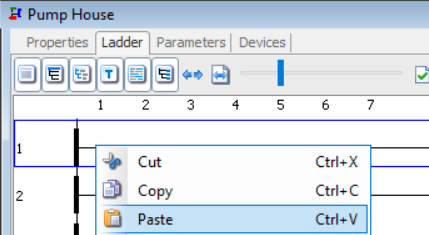
Copy selected rung(s) from another task or UDI Definition and paste into the ladder editor window.
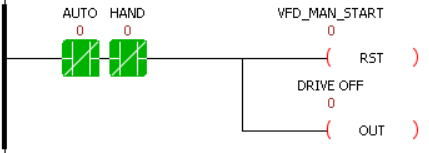
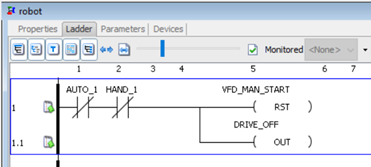
If parameters with the same name already exist in the UDI Definition, the newly copied and pasted instruction(s) will be appended with a “_1”.
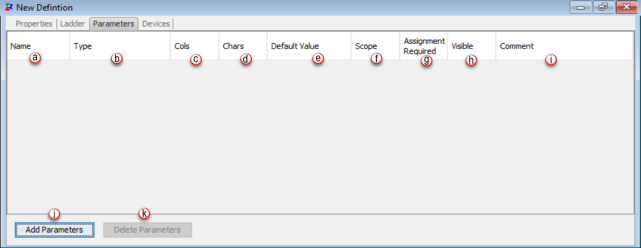
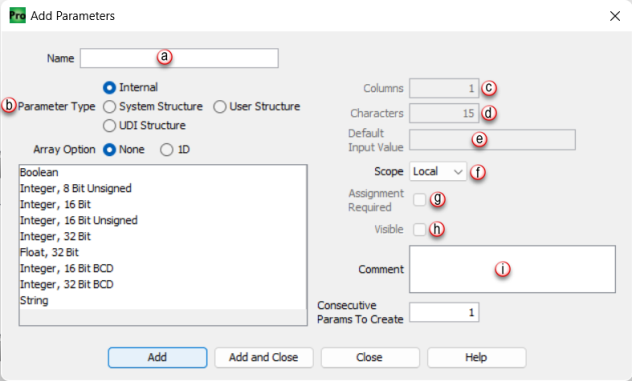
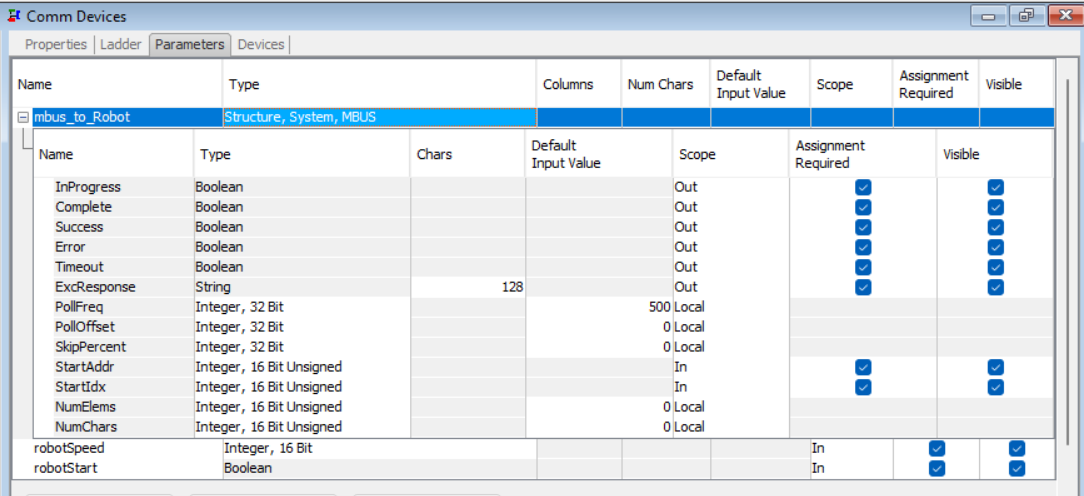
Note: Expanding a pre-defined (PDS) and user-defined (UDS) structures will allow a user to set the scope for each individual element.
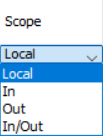
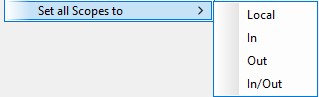
Note: Right click on a PDS column header allows option to become available for setting all scopes, assignment required, and visible to available options.
Example
Note: Not applicable to Local Tags which cannot be assigned.
Note: This will allow the user to view parameters that are not required but may be useful to view in UDI instruction for troubleshooting.
Note: Not applicable to Local Tags which cannot be visible.
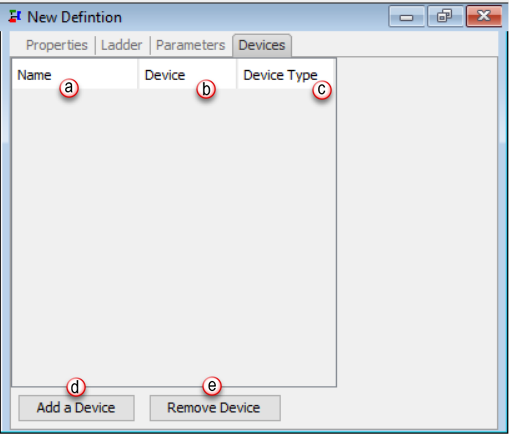
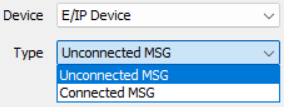
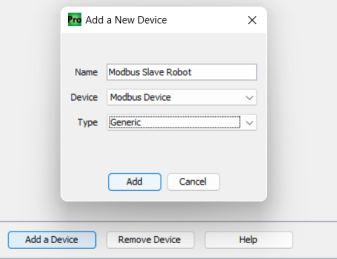
Virtual hardware devices are required for some instructions, such as EMSG, to be used in the UDI. The Devices tab allows the user to add a virtual hardware device that the instruction(s) in the UDI definition ladder are able to reference.
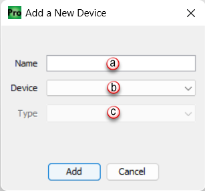
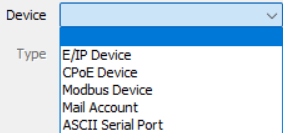
Example
There are two ways to create a UDI definition from a task in the Task Library.
Method 1: Drag a task from the Task Library and drop it into the UDI management panel.
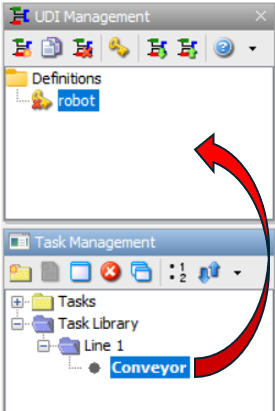
Note: Any unsupported instructions or 2D arrays references must be removed first prior to adding from Task Library.
Method 2: Copy and paste a task from the Task Library into the UDI Management panel.
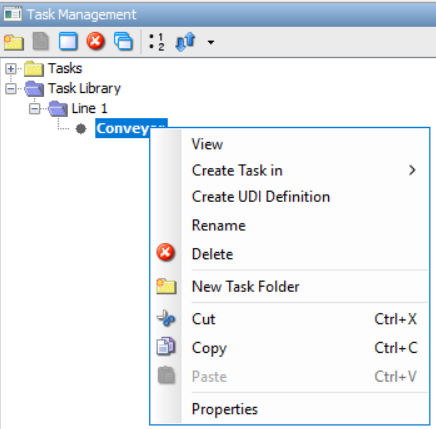
Note: If a task from the library is moved into a task folder that contains a task with the same name, then a copy will be generated and a _1 will be appended to the task name.
Note: When moving a task from the library, any tags with names that already exist in definition parameters will not inherit any attributes and be set to local scope.
Note: If a task from the library is moved into a task folder that contains a disallowed instruction an error will be displayed listing that instruction.

 Related Topics