Creating a User Function Block
| Step | Action |
|---|---|
| 1 | Create or Open your project. |
| 2 |
In the Project window panel locate the User Function/Function Block section.
|
| 3 | Right-click on the User Function/Function Block section. Select Add Item è Function Block…
|
| 4 |
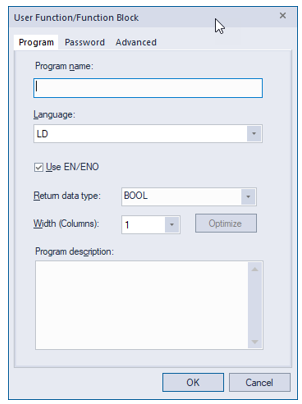
Enter information for your function block in the window that pops up.
|
| 5 |
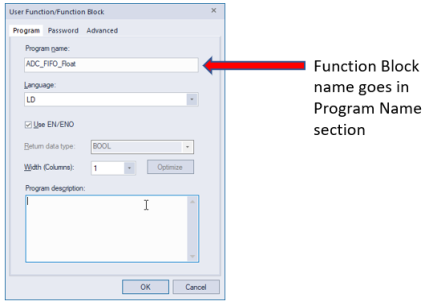
Give your function block a descriptive name.
|
| 6 |
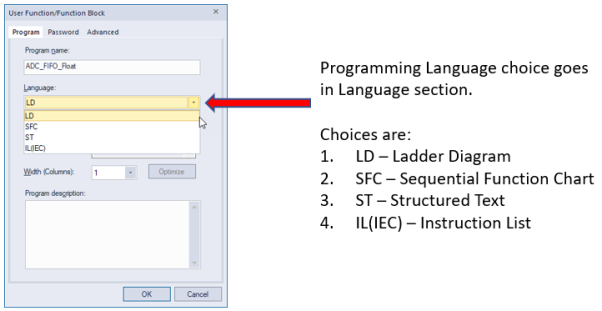
Choose the language of the function block’s code.
|
| 7 |
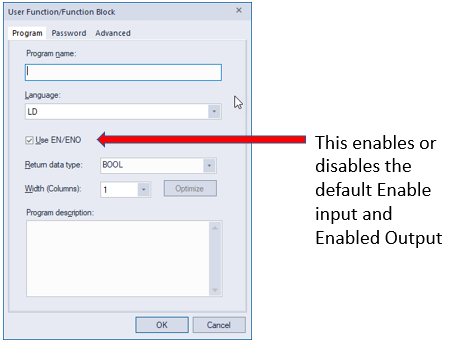
Select or de-select the Use EN/ENO option.
|
| 8 |
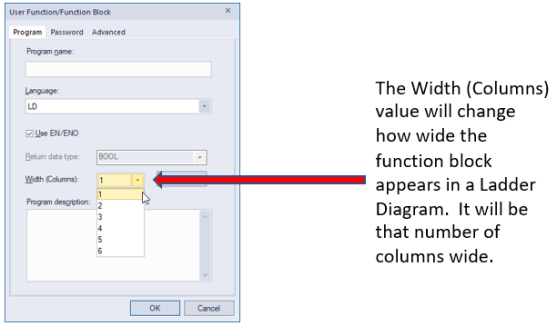
Choose a value for Width (Columns).
|
| 9 |
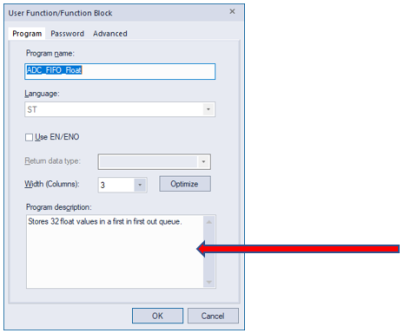
Add a Program Description to let other users know what the function block does.
|
| 10 |
Select Password tab to add security options to your function block. Using the password function is optional.
|
| 11 |
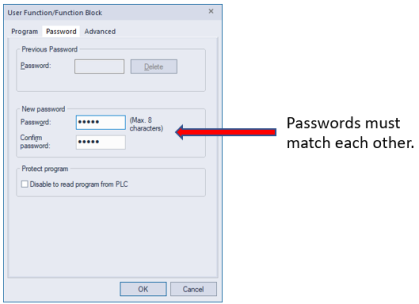
Use New password section to password protect your function block. This step is optional.
|
| 12 |
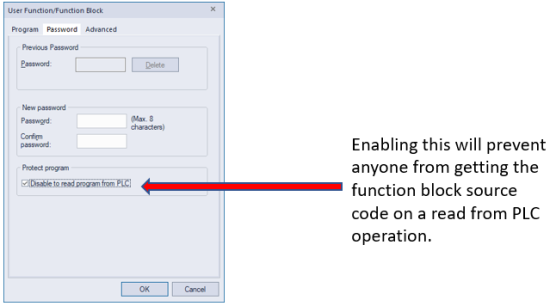
Enable or disable Protect program check box. This step is optional.
|
| 13 |
Open the Local Variables file for your function block.
|
| 14 | Add Local Variables to your function block. |
| 15 |
Choose Variable Kind for your local variable.
Variable Kind Definitions:
|
| 16 |
Enter a name for your variable in the Variable column.
|
| 17 |
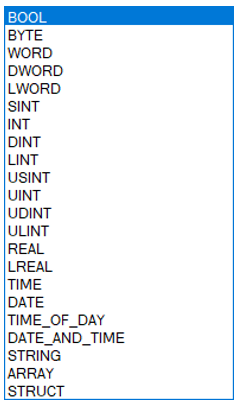
Choose the data type of your variable in the Type column.
Available data types:
|
| 18 |
If using a BOOL variable of VAR_INPUT kind, select if an edge trigger is needed.
Trigger Options:
|
| 19 |
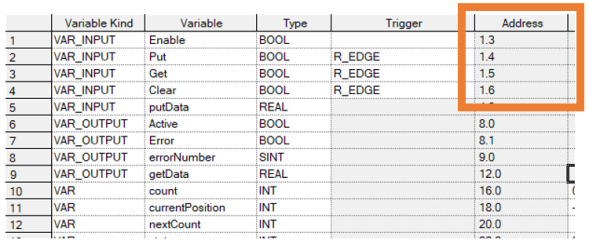
Pay attention to the address column for memory address usage.
Note: Grouping BOOL variables together can save on memory address usage. |
| 20 |
If using a VAR or VAR_CONSTANT type variable, you can setup an initial value for the variable. This will set it to that value on first function block call.
Note: When using a variable of VAR_CONSTANT type, the Initial Value is the constant value of the variable. It needs to be set to the appropriate value. |
| 21 |
Retain check box will be grayed out for Function Blocks. Used check box is checked if variable is used in the code.
|
| 22 |
Add a comment to the variable to let other users know what the variable is used for.
|
| 23 |
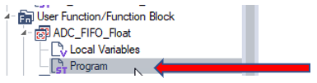
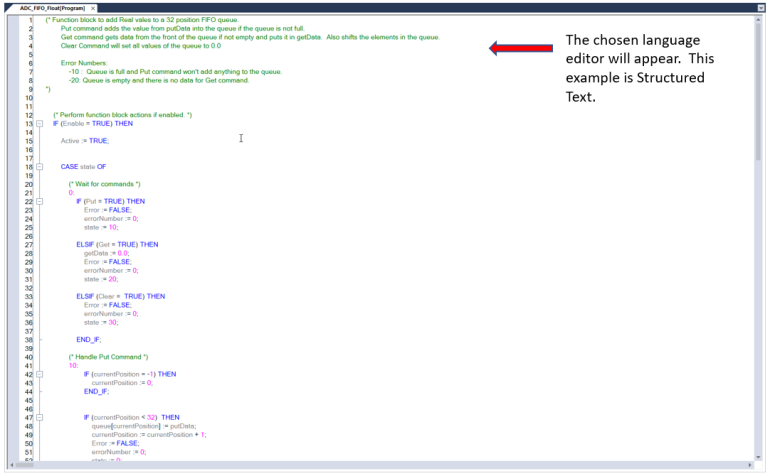
Open function block Program to add code.
|
| 24 |
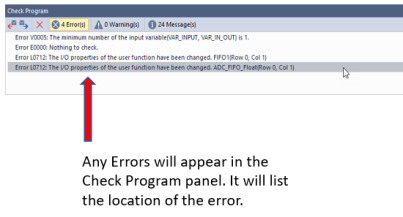
After adding Function block code, press Check Program to check your function for errors.
|
| 23 |
Fix any errors that appear or proceed to next section to start using your function block.
|














LM121-1