EtherCAT Setting up and Using a Virtual Axis
The XBF-PN08B and XBF-PN04B modules support using Virtual Axes in their XG-PM project.
-
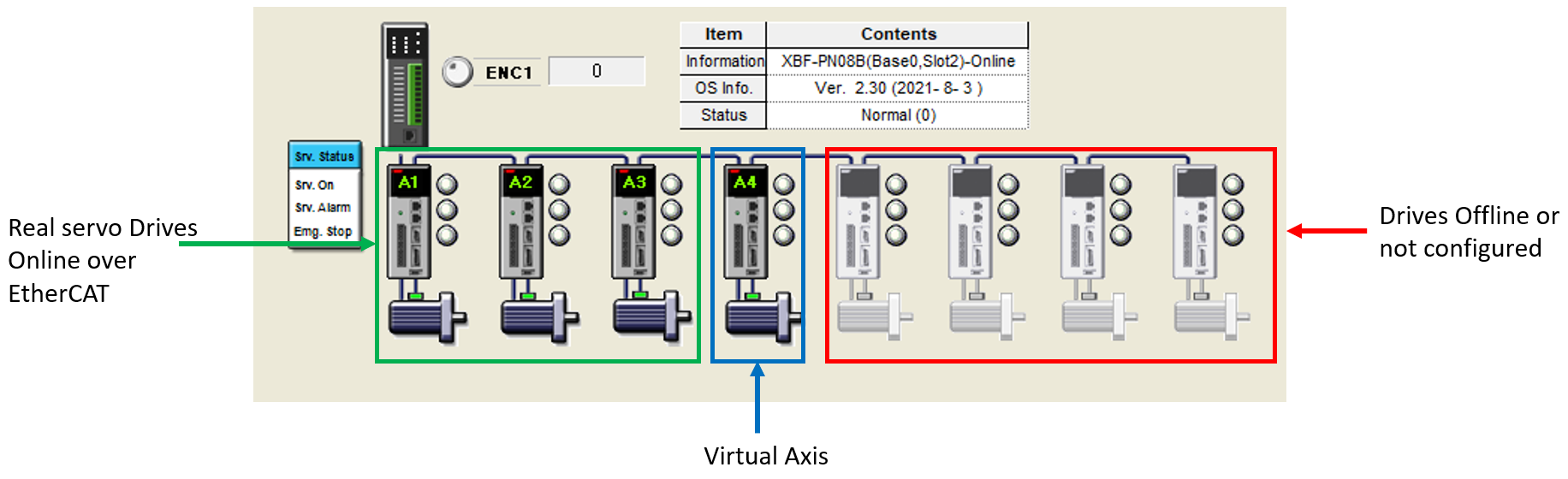
A virtual axis behaves like a real axis but doesn’t need a physical servo drive.
-
A virtual axis will use up one available axis slot on the XBF-PN04B or XBF-PN08B.
-
If one virtual axis is configured on an XBF-PN04B, there will be 3 physical servo axes available.
-
A virtual axis requires using the XPM_ECON function block to connect the EtherCAT network.
-
A virtual axis requires using the XPM_SVON function block to turn servo on before any movement commands can be executed.
 Setting up a Virtual Axis
| Step | Action |
|---|---|
| 1 | Open XG-PM project for the XBF-PN04B or XBF-PN08B. This example will be using an XBF-PN08B. |
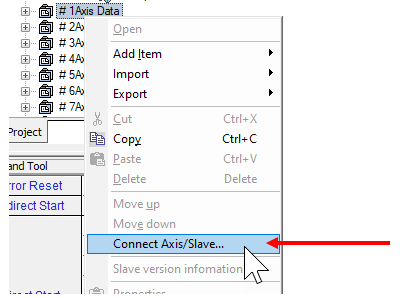
| 2 | Right-click on an Axis in the Workspace window. Select Connect Axis/Slave…
|
| 3 |
Choose an Axis number that is after all the real servo axes. Select the axis type of that axis to be Virtual Axis from the drop down selection. This example uses Axis 4 since there are 3 servos configured in the project.
|
| 4 |
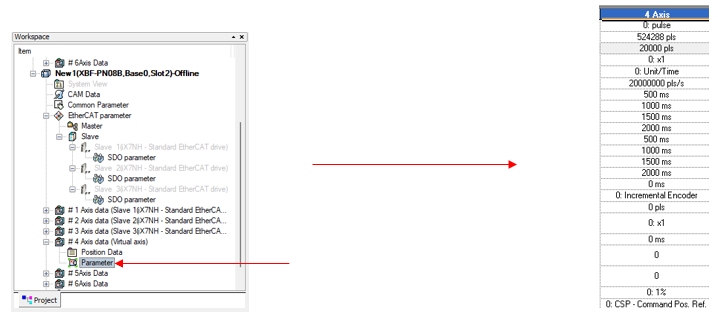
Open the Virtual Axis Parameter file from the Workspace window. Configure the virtual axis parameters for your application. This example shows the default configuration, and the virtual axis is axis number 4.
|
| 5 |
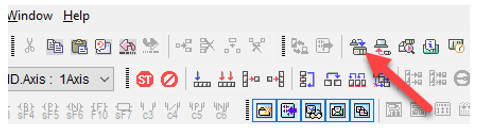
Connect to XEM CPU and click Write to write the configuration to the PLC’s motion CPU è XBF-PN08B or XBF-PN04B.
|
| 6 |
Check the Project Name check box to write everything to the CPU and click OK.
|

 System View showing Virtual Axis
-
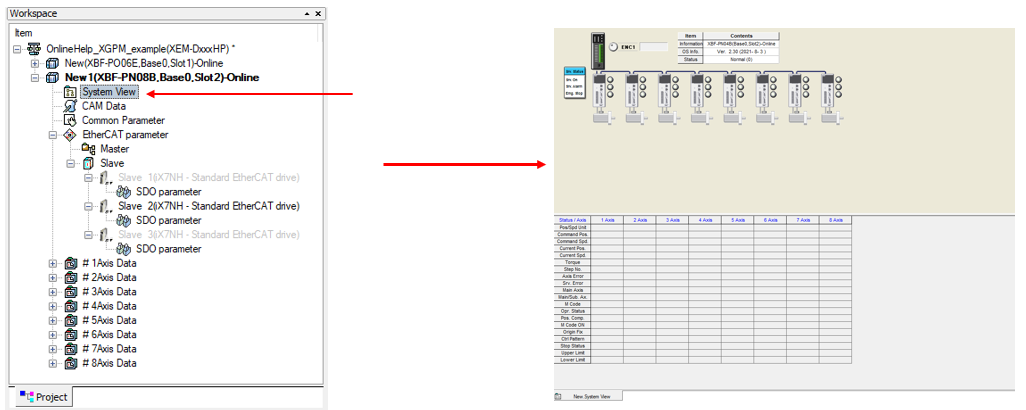
XG-PM System View is only available when connected online to the XEM CPU.
-
It can be used to see which of the Axes are active on the EtherCAT network.
-
It also shows drive status and error status.
| Step | Action |
|---|---|
| 1 |
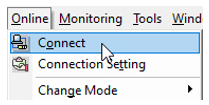
Connect to the XEM CPU in XG-PM. Go to Online menu è Connect.
|
| 2 |
Open the System View window by double-clicking on it in the Workspace window.
|
| 3 |
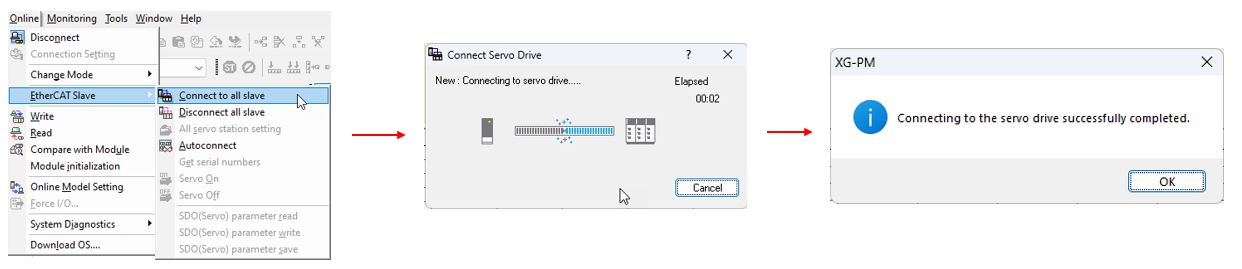
Go to Online menu è EtherCAT Slave è Connect to all slave.
This will connect XG-PM to the EtherCAT Servos.
|
 Using Virtual Axis in XPM function blocks
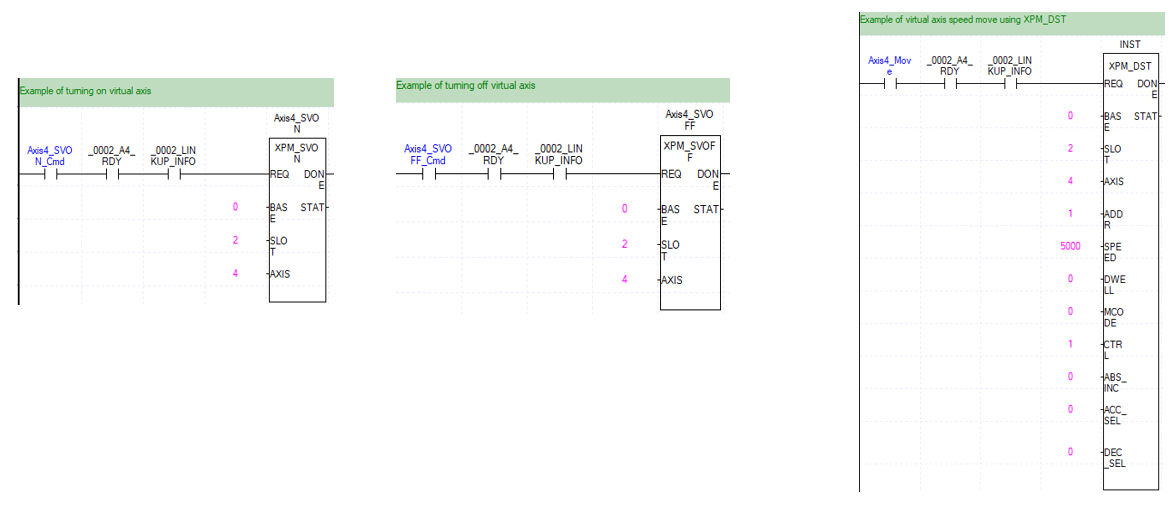
The virtual axis uses the same XPM function blocks as a real axis.
-
Use the axis number of the virtual axis in the XPM function blocks.
-
XPM_SVON must be used before performing any movement function blocks.
Example XPM function blocks
LP619