Trend Monitoring for Motion Control
This procedure will walk through setting up the Trend monitoring feature in XG5000 to monitor the motion control with the PTO built in the XEM CPU modules.
Trend Monitoring
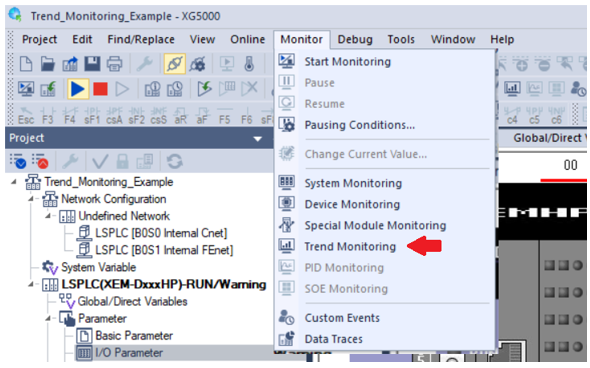
Select the Trend Monitoring in the pull-down menu Monitor.
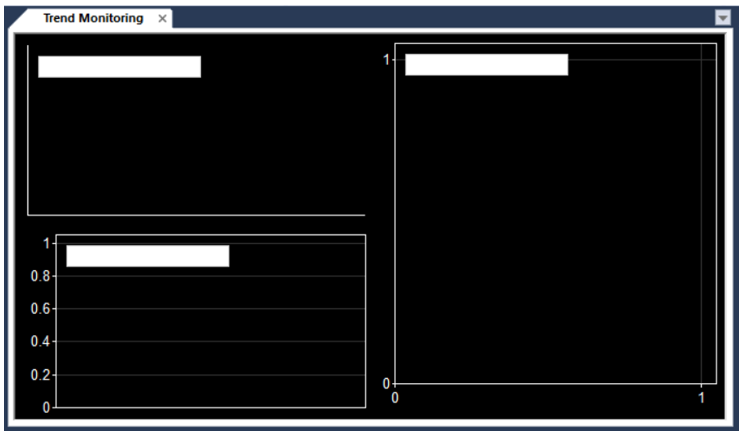
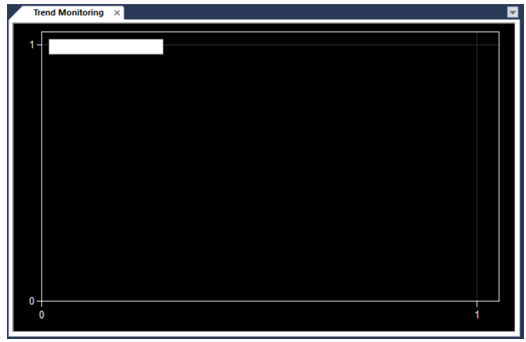
This blank Trend Monitoring window is displayed.
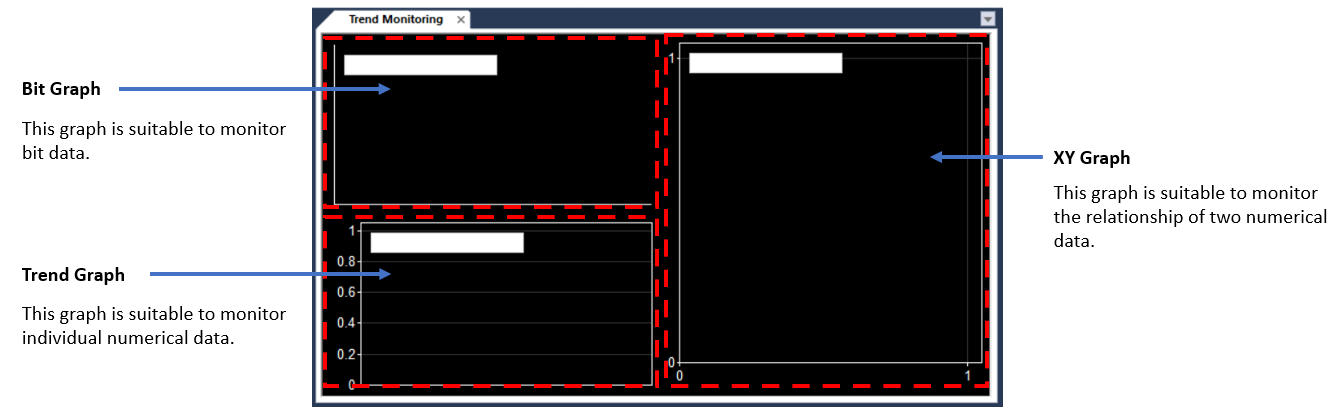
 Overview of the Trend Monitoring window
The Trend Monitoring window has 3 sections to monitor different types of data.
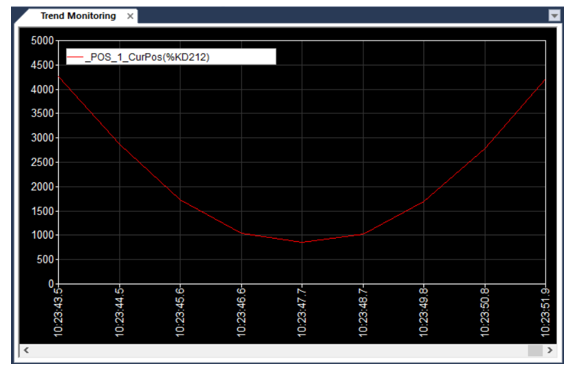
Example 1: Monitor the current position of a single axis with the Trend Graph.
In this example, we are going to monitor the current position of Axis 1.
| Step | Action |
|---|---|
| 1 |
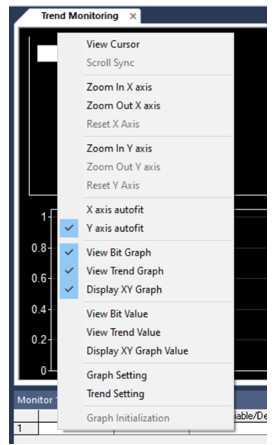
Click the right mouse button in the Trend Monitoring window, the following menu pops up.
|
| 2 |
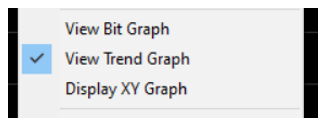
Uncheck View Bit Graph and Display XY Graph.
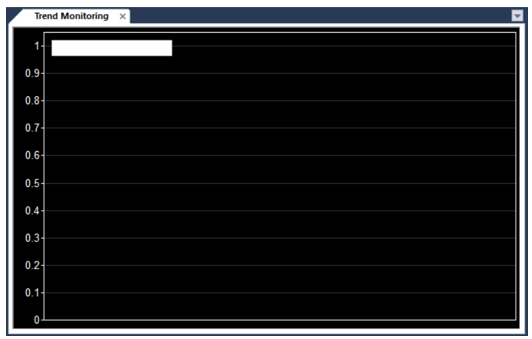
Only the Trend Graph is displayed.
|
| 3 |
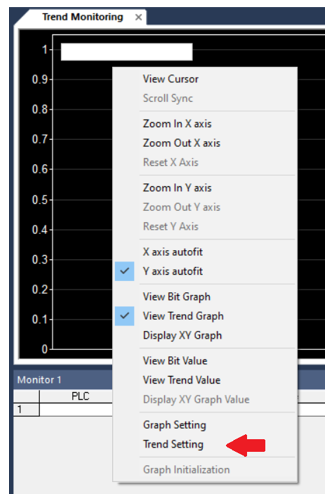
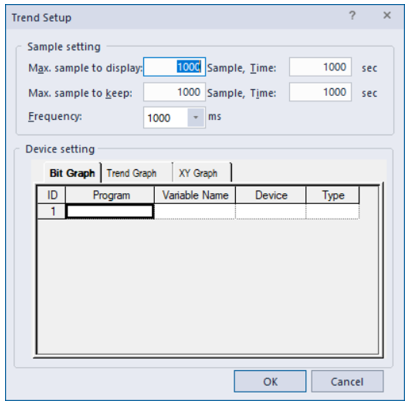
Click the right mouse button in the Trend Monitoring window again and select the Trend Setting.
The Trend Setup window pops up.
|
| 4 |
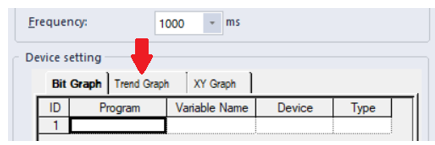
Click the Trend Graph tab.
|
| 5 |
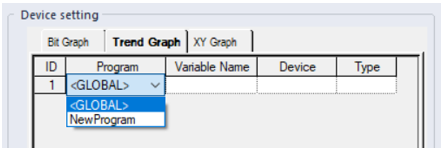
Select <GLOBAL> in the Program cell.
|
| 6 |
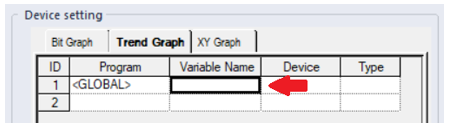
Double-click the Variable Name cell.
|
| 7 |
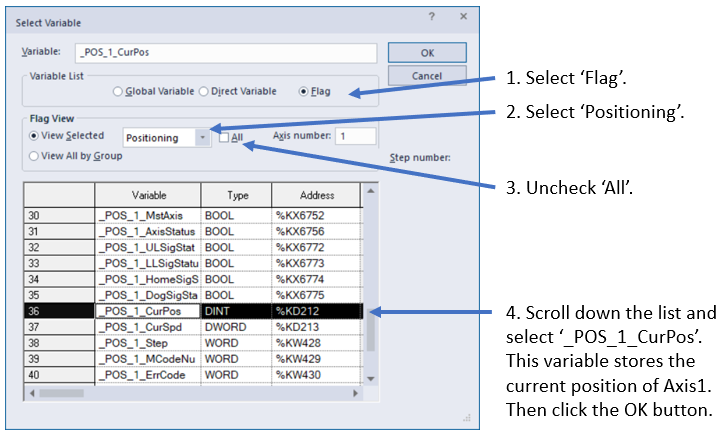
The Select Variable window pops up. Execute the following four operations.
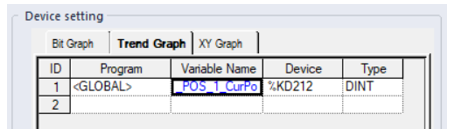
The correct Variable Name, Device and Type values are assigned.
|
| 8 |
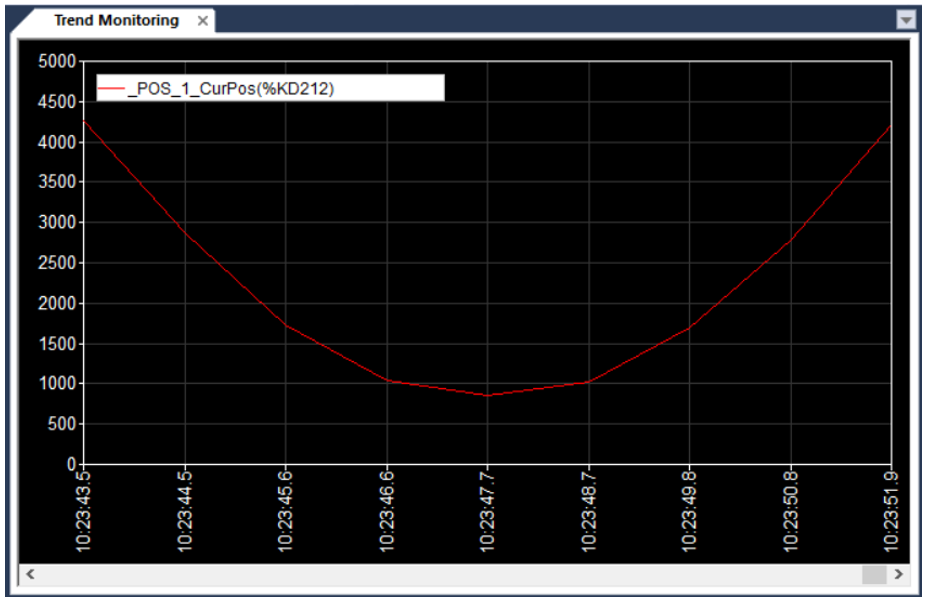
The current position of Axis 1 is displayed in the Trend Graph.
|
 Example2: Monitor the current positions of 2 axes with the XY Graph.
| Step | Action |
|---|---|
| 1 |
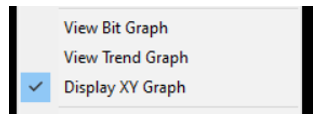
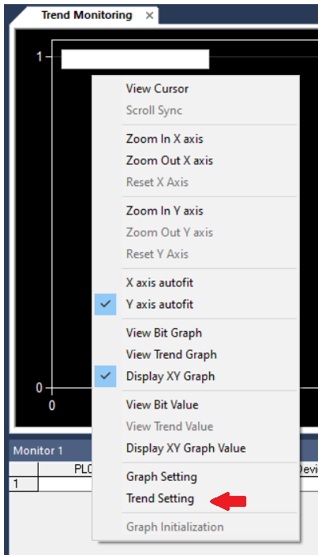
Click the right mouse button in the Trend Monitoring window, the following menu pops up.
|
| 2 |
Uncheck View Bit Graph and View Trend Graph.
Only the XY Graph is displayed.
|
| 3 |
Click the right mouse button in the Trend Monitoring window again and select the Trend Setting.
The Trend Setup window pops up.
|
| 4 |
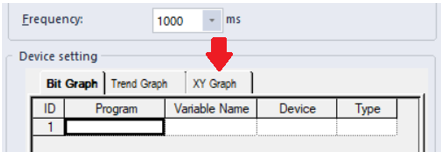
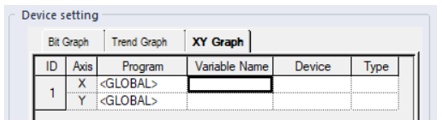
Click the XY Graph tab.
|
| 5 |
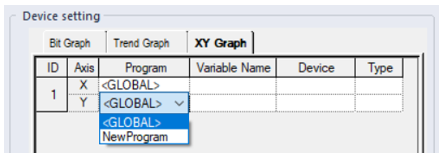
Select <GLOBAL> in the Program cell for both Axis X and Y.
|
| 6 |
Double-click the Variable Name cell for Axis X.
|
| 7 |
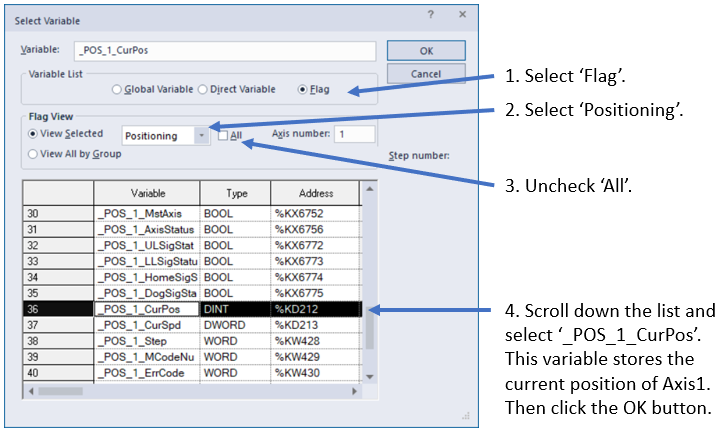
The Select Variable window pops up. Execute the following four operations.
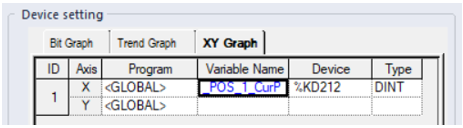
The correct Variable Name, Device and Type values are assigned to Axis X.
|
| 8 |
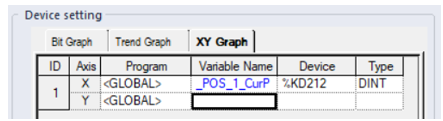
Double-click the Variable Name cell for Axis Y.
|
| 9 |
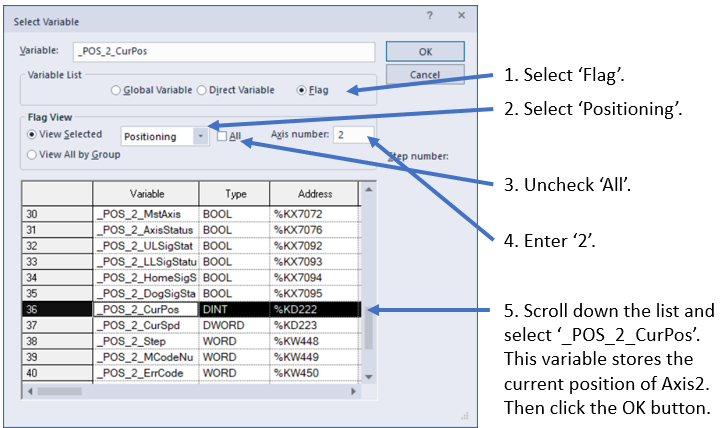
The Select Variable window pops up. Execute the following five operations.
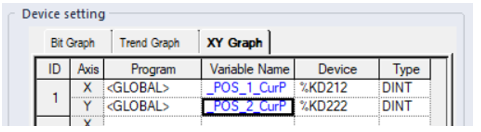
The correct Variable Name, Device and Type values are assigned to Axis Y.
|
| 10 |
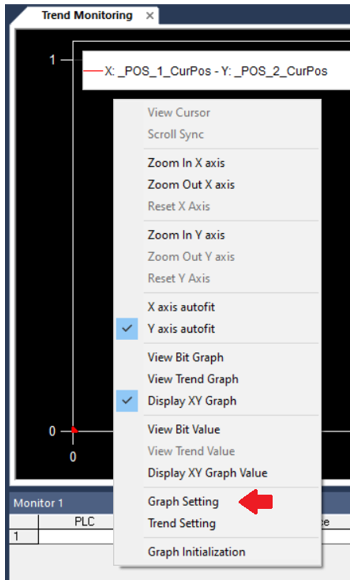
Click the right mouse button in the Trend Monitoring window again and select the Graph Setting.
|
| 11 |
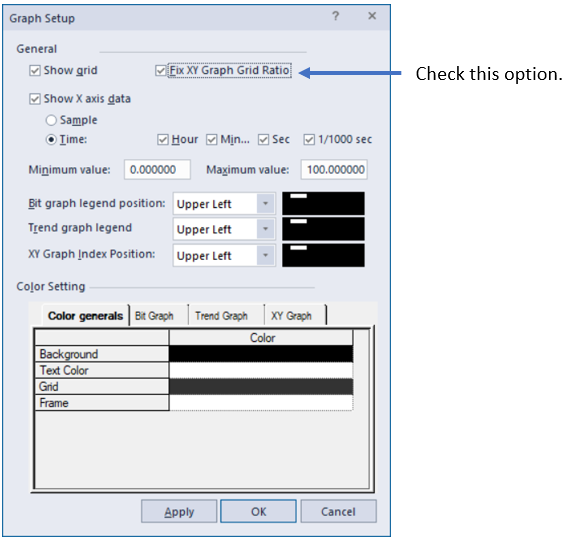
The Graph Setup window pops up. Check the Fix XY Graph Ratio option.
|
| 12 |
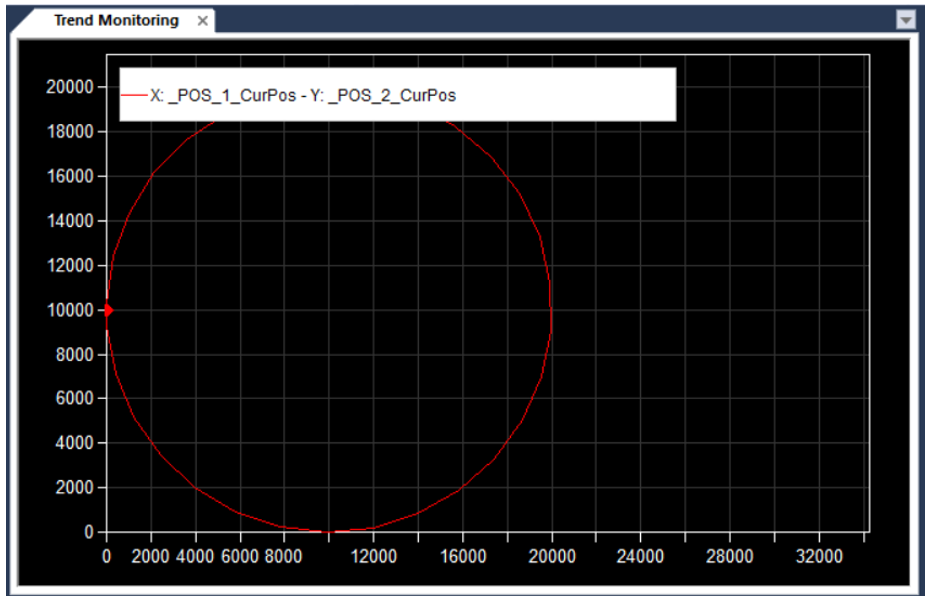
The current positions of Axis 1 and Axis 2 are displayed in the XY Graph.
|
LP515