Replace Device
| Step | Action |
|---|---|
| 1 |
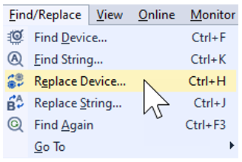
In XG5000, open the Find/Replace menu and select Replace Device (or type Ctrl + H).
You can also select the Replace Device button on the action bar.
|
| 2 |
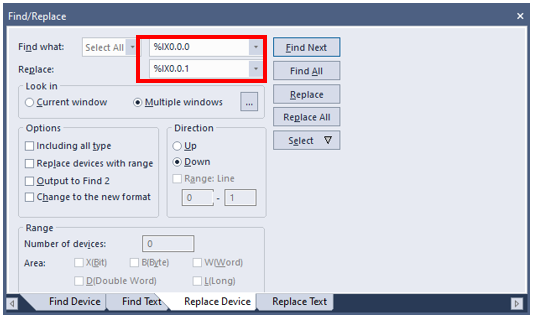
Type the device that you want to replace in the second entry field in the Find what: row. Put the device that will replace it in the Replace: row.
|
| 3 |
Select where to search for the device to replace by clicking on the down arrow of the left most field in the Find what: row. This example shows a search of all available locations.
|
| 4 |
Choose to Look in the Current window or Multiple windows by selecting the corresponding radio button. Current window will be the window that is currently opened and selected. Multiple Windows will be all windows that are selected. This example will use Multiple windows.
|
| 5 |
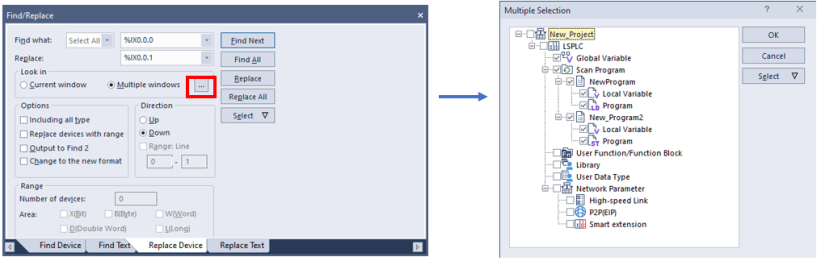
Press the button … next to Multiple windows to select the windows to search in. The default is to search in all scan programs and global variables. If a User function/function block is being used, it can also be selected. Press OK when done.
|
| 6 |
Choose the options for the search:
In our example we will leave these unchecked. |
| 7 |
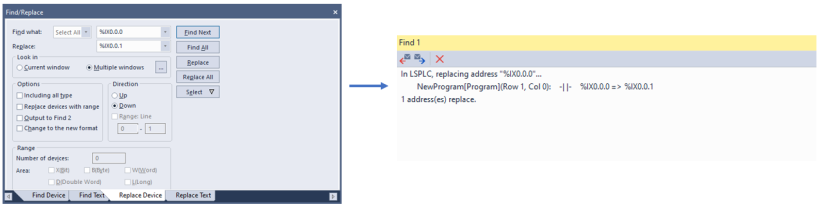
Press the Replace button to replace the first instance of the device found. Press Replace All to replace all of them. The Find 1 window will show the results of the replace device execution.
|



LP117-3