Using Bit Graph Example
The steps below provide an example of how to use the Bit Graph.
| Step | Action |
|---|---|
| 1 | Open XG5000 project and connect to the PLC. |
| 2 |
Add the below ladder code to a scan program. This example shows a scan program called NewProgram.
|
| 3 |
Save the project and write it to the XEM CPU. |
| 4 |
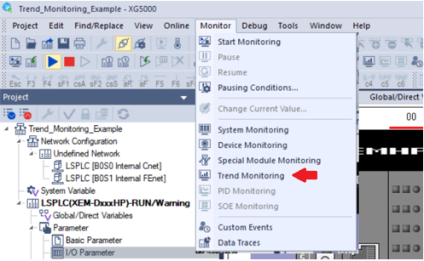
Select Trend Monitoring in the Monitor pull-down menu .
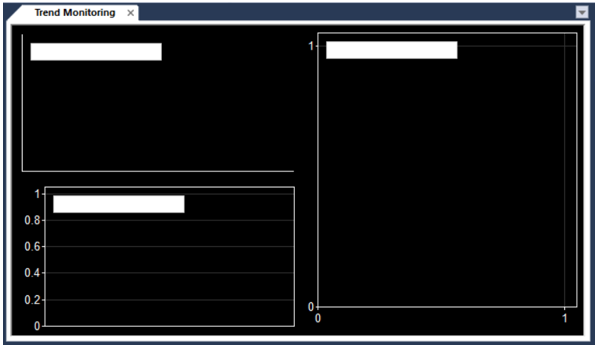
The Trend Monitoring window appears.
|
| 5 |
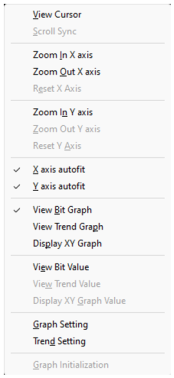
Right-click on the trend and make sure only View Bit Graph is selected.
|
| 6 |
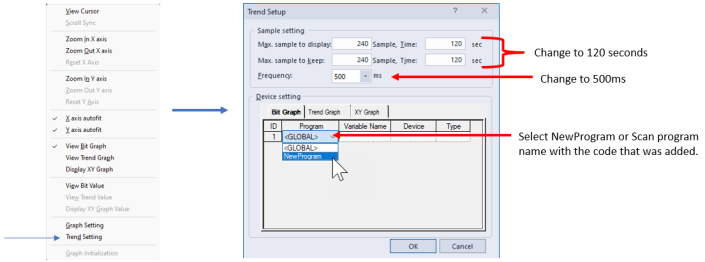
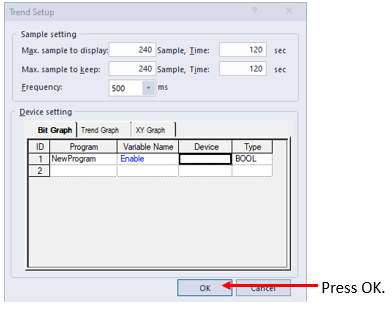
Open the Trend Setting windows in the right-click menu. Set the Frequency to 500ms and both Sample, Time values to 120 seconds. Then in the Bit Graph tab select NewProgram in the Program column.
|
| 7 |
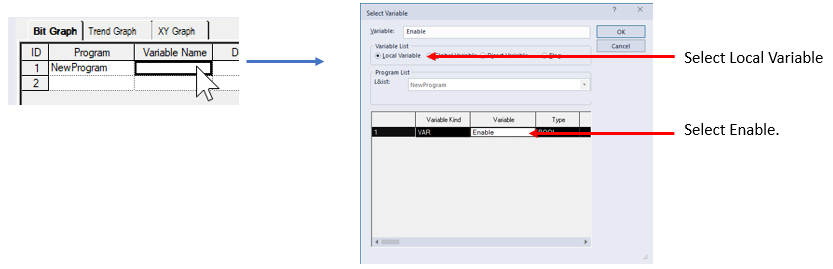
Double-click in the Variable Name column to select the Enable variable.
Press OK when done.
|
| 8 |
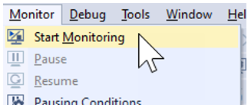
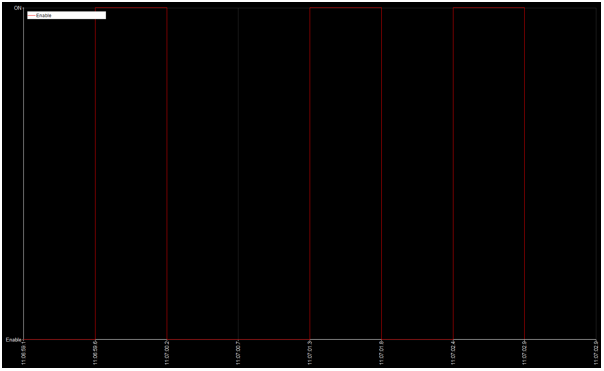
Select Start Monitoring mode to record Bit Graph Data.
Data will start recording.
|

LP116-3