QR Code |
Topic: CM637 |
Use the QR Object to add a QR Code representing a text string to the screen. Scan the QR Code with a bar code reader to enter Data in another system, or scan with a smartphone to open a web page, video link, send an email, place a phone call, or even open the C-more Remote HMI App and connect to the panel.
The Text String can contain embedded Time, Date, and Tag Name values.
Add a QR Code Object to Your Project
To add a QR Object to your project, do the following:
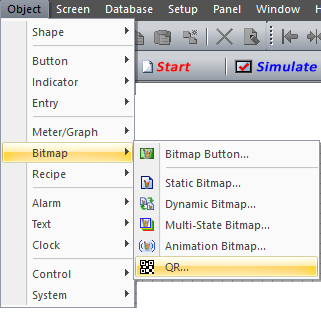
- From the Object menu, select Bitmap Indicator, click on QR, and then click on the work area
— or —
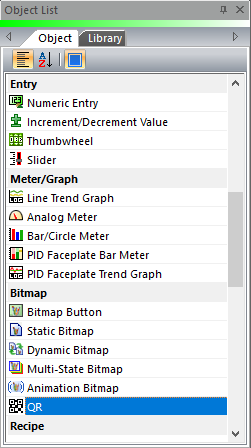
- from the Object List, click and drag QR to the work area.
- The QR setup window opens displaying the General tab.
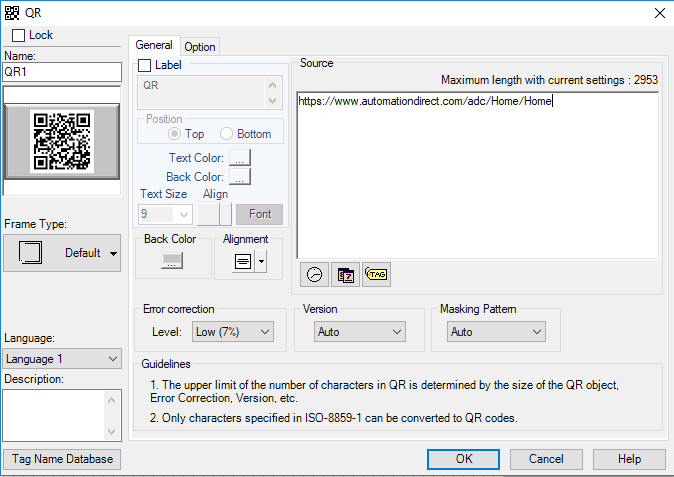
To configure a QR object, complete the fields on the screen that are common to all objects using the information in the Working with Objects Help topic.
| QR Object | |
|---|---|
| Field | Description |
| Maximum Length | This is the maximum length string that can be represented by the QR object. This value changes with the size of the object and the other configuration settings. The absolute maximum is 2953 characters. |
| Source | This is the string that will be represented by the QR Code. Only characters specified in ISO-8859-1 can be converted to QR Codes. |
| Clock | Select this icon to format and embed the present time into the Source string at the cursor location. |
| Date | Select this icon to format and embed the present date into the Source string at the cursor location. |
| Tag | String Tag Much like the Dynamic Text object, embedding a Sting tag into the QR Code allows you to change the QR Code dynamically by writing Data to the string using the PLC, Recipe Object or Event Manager Tag Action. |
| Numeric or Discrete Embedding Numeric or Discrete tags also allows you to dynamically change part of the QR Code with different values from the PLC or if using a discrete tag, embedding ON and OFF or High and Low or Cold and Hot. |
|
| Error Correction | The error correction feature will automatically restore the Data if some of the QR Code is damaged or unreadable. This error correction consists of 4 correction levels: Low (L) Medium (M) Quartile (Q) High (H) Each of the levels has its own capability of how much of the Data can be restored. The QR Code will be larger for each higher error correction. The maximum length of the source is reduced with higher error correction. Error Correction should not be required on the C-more HMI because the QR is displayed on a screen and not printed where it can be damaged. But the capability exists if it becomes necessary. |
| Version | The Version determines the module configuration. QR Code Version has 41 settings, Auto and 1 to 40. Auto will select the minimum version necessary to create the QR code representing the string, and is best in most cases. Each version has a different module configuration or number of modules. Module refers to the black and white dots that make up QR Code. Module configuration refers to the number of modules contained in a symbol, commencing with Version 1 (21 × 21 modules) up to Version 40 (177 × 177 modules). Each higher version number comprises 4 additional modules per side. 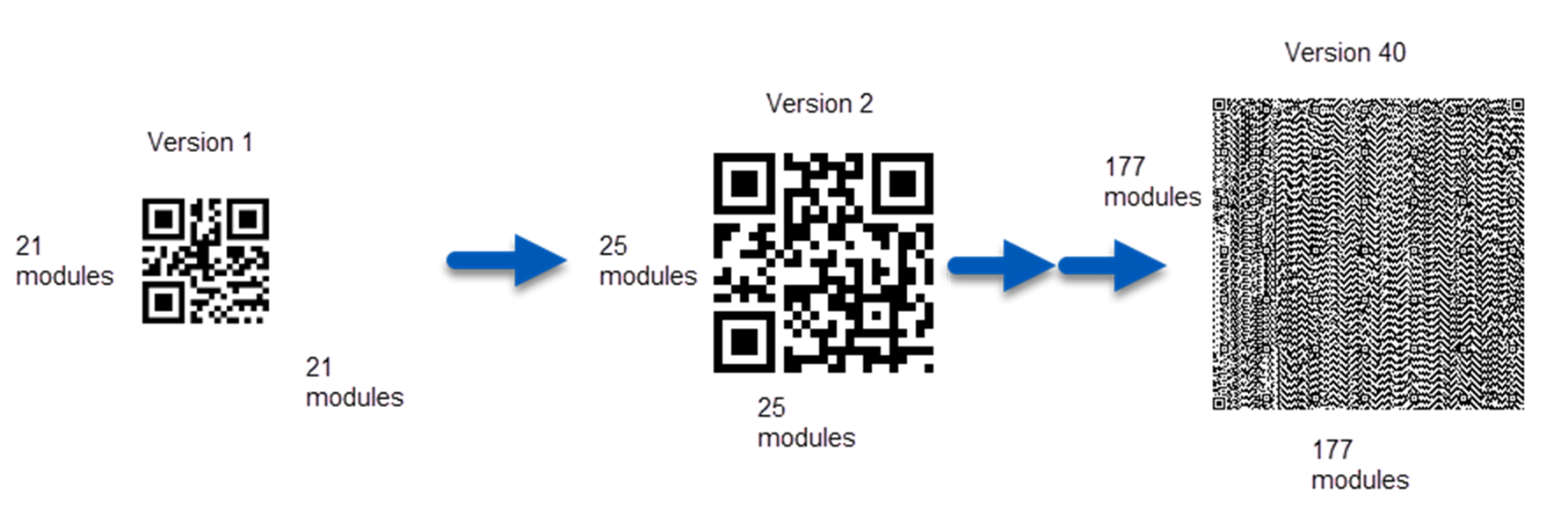 |
| Masking Pattern | A mask pattern changes which modules are dark and which are light according to a particular rule. There are 9 settings for Masking Pattern: Auto, and 0 to 7. Auto is best most for cases. The purpose of this setting is to modify the QR code to make it as easy for a QR code reader to scan as possible. |
 Example 1 — Website QR Codes
AutomationDirect
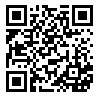
Home page: https://www.automationdirect.com/adc/Home/Home
Use Case:
Display a QR code that, when scanned, opens a web page with sales information or technical information about the application. Or open a web page with contact information for the Equipment Manufacturer.
YouTube™
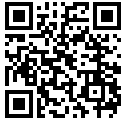
https://www.youtube.com/watch?v=HbA0Evz8XHc
Use Case:
Display a QR code that, when scanned, links to a YouTube™ video containing detailed information the operator or maintenance personnel can use to operate or troubleshoot the application.
Example 2 — Apple Deep Links QR Codes
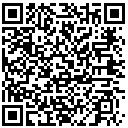
Deep links are a type of link that send users directly to an app instead of a website or a store. They are used to send users straight to specific in-app locations,(ie..start a phone call, generate and email, open the C-more Remote HMI app and connect to a specific HMI panel) saving users the time and energy locating a particular page themselves. You can get specifics on how to use Deep Links at the link below.
Apple URL Schemes
Email:
To: Johndoe@yourmail.com
CC: test@example.com
Subject: [Machine01] Error002_Occured
Body: Check Boiler Temp
mailto: Johndoe@yourmail.com?cc=test@example.com&subject=[Machine01]%20Error002_Occured&body=Check%20Boiler%20Temp
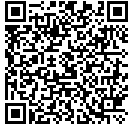
Phone Call:
tel:800-633-0405
Facetime (iOS only):
Video:
facetime:14085551234
facetime:user@example.com
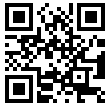
Audio:
facetime-audio:14085551234
facetime-audio:user@example.com
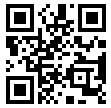
C-more Remote HMI App (iOS)
C-more Remote on HMI Apple Store:
https://itunes.apple.com/us/app/remote-hmi/id441915586?mt=8
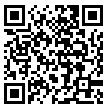
Open Remote HMI App:
C-more-remotehmi://

Open Remote HMI App and connect to panel by IP Address:
C-more-remotehmi://?ip=96.87.227.178
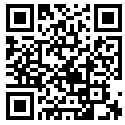
Open App and connect to panel by IP Address & Port:
C-more-remotehmi://?ip=96.87.227.178=11102
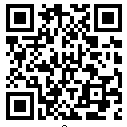
Open App and connect to panel by URL & Port:
C-more-remotehmi://?ip=remotehmi.com&port=11102